Generate AI images for your posts with Replicate
Finding or making a picture for every post takes time you don't have. Connect a Replicate token and Threadgehog turns the image idea it already wrote for a post into a picture, one click per post.
How to set up Replicate
Create a Replicate account
Go to replicate.com and sign in. As of October 2026, the only option on Replicate's sign-in page is the "Sign in with GitHub" button, so you need a GitHub account first.
Create an API token
Open replicate.com/account/api-tokens and create a token, or copy one you already have. Replicate tokens are 40 characters long and start with r8_. The "Where do I get a token?" link under Threadgehog's token field opens the same page. Add billing at replicate.com/account/billing before you generate in volume. Flux Dev and Flux 1.1 Pro, plus Flux Kontext Pro (used for tweaks), are in Replicate's "Try for Free" collection, which gives a limited number of free runs. Flux Schnell, Threadgehog's default model, and Imagen 4 Fast aren't in that collection, so expect to add billing and buy credit before they run.
Open Settings > Images and save your token
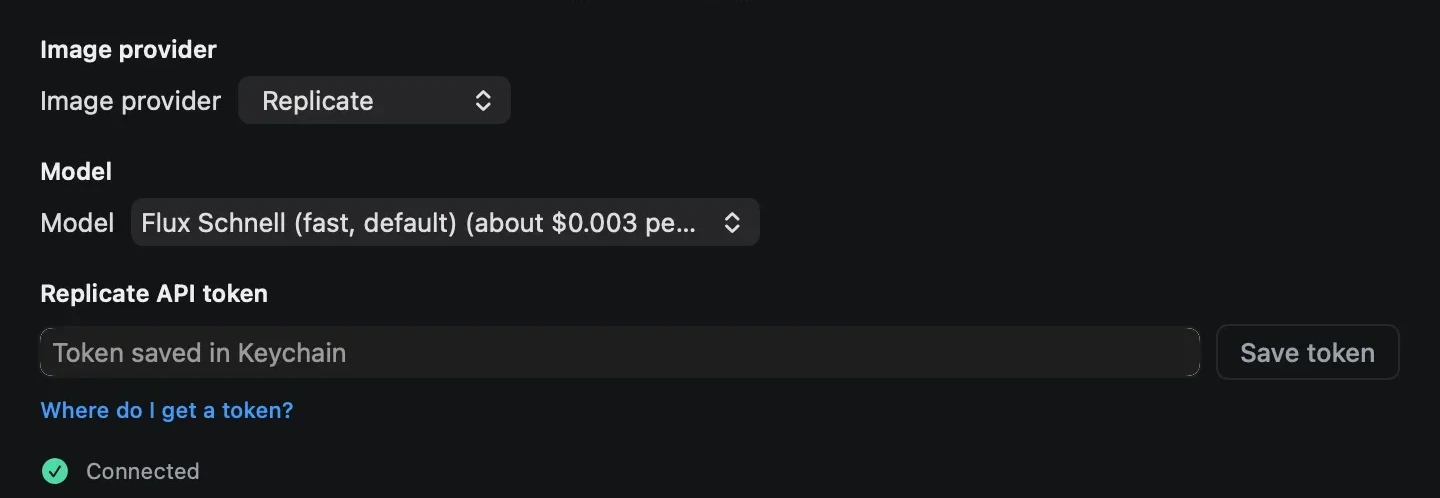
In Threadgehog, open Settings (⌘,), click the "Images" tab, and choose the "Use an API key" card. Setup's "Add images to your posts?" step shows the same cards. If no image key is saved yet, you can also click "Connect images" in the header above your posts to open the same tab. Under "Image provider", pick "Replicate". It's the default, but if you write with OpenAI, Google Gemini, xAI Grok or OpenRouter, Threadgehog may have switched this picker to that provider, so check it. Paste your token into the "Replicate API token" field and click the "Save token" button. Below the token field, a status line reads "Connected" once Threadgehog can read a saved token, or "No key yet" until then. Saving doesn't check the token with Replicate. The first image you generate does.
Pick a model and turn on image generation for your project
Under "Model" on the same Images tab, choose "Flux Schnell (fast, default)", "Flux Dev (balanced)", "Flux 1.1 Pro (best Flux)" or "Imagen 4 Fast (Google)". Each option ends with Threadgehog's own price estimate, such as "(about $0.003 per image)". Open Project settings > Advanced and make sure "Image suggestions" and "AI image generation" are both on. Both are on by default. Then, in Project settings under "Images", set "Posts that get a picture": Threadgehog adds a picture to that share of the posts you approve. The badge reads "Recommended: 20% or less to start", and setup starts a new project at 20%.
Generate an image for a post
Go to the Pending tab and find a post with an image idea: a short line with a photo icon under the post text. Click the "Generate image" button below it; this button is hidden until an image provider key is saved in Settings > Images. If the post has no image prompt yet, your AI writing provider writes one from the idea first, then Threadgehog sends it to Replicate. When it works, the image appears on the post and a short "Image generated" notice shows. To change the image, type an instruction in the field that starts "Tweak it" and click the "Regenerate" button. For a fresh picture, click the "New image" button instead.
What you get
- A picture for any pending post in one click, made from the image idea Threadgehog already wrote for it. Images are square PNGs saved on your Mac.
- Four models to choose from: Flux Schnell (fast, the default), Flux Dev, Flux 1.1 Pro and Imagen 4 Fast.
- Edits in plain words: type an instruction like "brighter" and Threadgehog edits the current image with Flux Kontext Pro instead of generating a new one.
- A spend chip in the header above your posts that estimates what you've spent on images. It reads "Connect images" until a token is saved. Replicate has no balance API, so click the chip to open "Replicate balance", type in your balance from Replicate's billing page and click "Set", and the chip counts down from there. "Open Replicate billing" in the same popover opens your Replicate billing page.
- A token that stays in your Mac's Keychain and goes from your Mac straight to Replicate, never through Threadgehog's server.
What it costs
Threadgehog adds no per-image charge. You pay Replicate directly, at Replicate's prices, through the billing you set up on replicate.com. Generating images does need an active Threadgehog license or trial, the same as writing. Replicate's published prices (replicate.com/pricing, checked October 1, 2026): Flux Schnell is $3.00 per thousand output images, about $0.003 each; Flux Dev is $0.025 per output image; Flux 1.1 Pro is $0.04 per output image. Flux Kontext Pro (used for tweaks) and Imagen 4 Fast aren't listed on that page, so check their model pages on replicate.com before you rely on them. Threadgehog's Model picker shows its own rounded estimates: about $0.003 for Flux Schnell, $0.03 for Flux Dev, $0.04 for Flux 1.1 Pro and $0.02 for Imagen 4 Fast. The spend chip counts the same estimates before rounding (so $0.025 for each Flux Dev image), plus $0.04 for each tweak. They're a guide, not Replicate's bill. Flux Dev, Flux 1.1 Pro and Flux Kontext Pro are in Replicate's "Try for Free" collection, which allows a limited number of free runs; after that, Replicate asks you to add billing and buy credit. When a post has no image prompt yet, Threadgehog writes one: with your own AI key that provider bills you for it, and with Threadgehog AI it costs no drafts. Prices can change: check replicate.com/pricing before generating in volume.
Your key and your data
Your Replicate token is saved in your Mac's Keychain under the name "Threadgehog Public" with the account "replicate". Threadgehog doesn't write it to any of its own files. When you generate an image, the request goes from your Mac straight to api.replicate.com with your token. The token never goes to Threadgehog's server (api.threadgehog.com). One step does use that server: when a post has no image prompt yet, the image idea and the post text go through api.threadgehog.com to your AI writing provider, with that provider's key, the same way drafting works. Save a new token any time to replace it. To remove it, open Keychain Access, search for Threadgehog Public, and delete only the item whose account is "replicate" (your writing provider key and license are stored under the same name). To stop the token working anywhere, disable it at replicate.com/account/api-tokens.
Limits to know
- Threadgehog adds a picture on its own to the share of approved posts you set under Posts that get a picture in Project settings > Images, and Generate image or New image makes one for any single post.
- Image generation needs an active Threadgehog license or trial. If a post has no image prompt yet, it also needs your AI writing provider connected, because that provider writes the prompt before Threadgehog calls Replicate.
- Replicate has no balance API, so the spend chip is an estimate: either total estimated spend, or the balance you typed in minus estimated spend since then. It won't match Replicate's bill exactly.
- Replicate limits accounts that have free credit but no payment method to 6 requests per minute (1 per second). When Replicate throttles a request, Threadgehog waits 12 seconds and tries again, up to 3 more times, so an image can take longer than usual.
- An AI image goes out with its post through Typefully, Publer or Postiz with no extra setup. Buffer and Metricool need a Cloudinary account connected first, in Settings > Publishing: without one, a queued post with an image or video is held back (see Troubleshooting).
- Save a new token in Settings > Images any time to replace it; Keychain Access removes it from your Mac.
- The "Generate image" button is hidden on a post until an image provider key is saved in Settings > Images.
Troubleshooting
"Add an image provider in Settings > Images first."
Why: No image provider key is saved yet (or you switched providers and the new one has no key), so there's nothing to generate with. The "Generate image" button is hidden in this case; this message appears if you click "Regenerate" or "New image" on a post that already has an image, after switching to a provider with no key.
Fix: Open Settings > Images, pick an image provider (or leave it on Replicate), paste your key or token in the field below the Model picker, and click "Save token" or "Save key".
"Couldn't save the key: <error from macOS>"
Why: macOS Keychain refused to store the token.
Fix: Click "Save token" again and allow Keychain access if macOS asks. If it keeps failing, email support@threadgehog.com with the full error text.
"You're out of Replicate credit, so AI images can't be generated. Add credits to start again."
Why: Replicate refused the request because your account has no credit left: a 402 response, a 403 that mentions billing, credit, quota or spend, or any reply whose body mentions insufficient credit, a spending limit or payment required (including a 429 reply that turns out to be a credit problem rather than a rate limit).
Fix: Click "Add credits" in the banner, which opens replicate.com/account/billing, and add credit or a payment method. The banner clears after your next image generates.
"Your Replicate credit is running low (under $5). Top up soon so AI image generation doesn't stop."
Why: Replicate throttled a request and its reply said your credit is low. The banner can show for up to 3 days after that.
Fix: Add credit at replicate.com/account/billing before it reaches zero. Dismissing the banner hides it for 3 days.
"Image provider rejected the key. Check Settings > Images."
Why: Replicate returned a 401 or 403, which Threadgehog treats as a bad or disabled token.
Fix: Create a new token at replicate.com/account/api-tokens, paste it in Settings > Images, and click "Save token" again.
"Replicate is rate limiting image requests. Try again in a minute."
Why: Replicate throttled 4 tries in a row, even with Threadgehog waiting 12 seconds between them. Accounts with free credit and no payment method get 6 requests per minute; other accounts get 600.
Fix: Wait a minute and try again. If it happens often, add a payment method at replicate.com/account/billing.
"Replicate <status>: <message from Replicate>" (for example, a 500, or a model id Replicate doesn't recognize)
Why: Replicate returned an error that isn't a credit or key problem. The text after the colon is Replicate's own reply, cut to the first 200 characters.
Fix: Try again, or pick a different model in Settings > Images.
"Replicate: image generation failed (<status>)", sometimes followed by ": <message from Replicate>"
Why: Replicate didn't return an image. A status of starting or processing means it wasn't finished after about 2 minutes of waiting. A status of failed means the model failed on Replicate's side.
Fix: Try again, or pick a different model in Settings > Images.
"Replicate: could not download the generated image (<status>)"
Why: Replicate made the image, but Threadgehog couldn't download the file.
Fix: Check your internet connection and generate again.
"Current image not found to edit"
Why: You typed a tweak and clicked "Regenerate", but the image file is no longer on your Mac.
Fix: Click "New image" to make a fresh one.
"No prompt to generate from"
Why: The post's image prompt came back empty.
Fix: Open "Prompt" under the image idea, describe the picture you want, and click "Generate image" again.
"Connect an AI in Settings." or "Save your API key in Settings, then try again." after clicking "Generate image"
Why: The post has no image prompt yet, so Threadgehog needs your AI writing provider to write one, and no provider or key is set up in Settings > AI.
Fix: Connect a writing provider in Settings > AI. Or open "Prompt" under the image idea, describe the picture yourself, and click "Generate image": a prompt you type goes straight to Replicate.
"Enter a license key to write or publish. Your queue stays visible."
Why: There's no active license or trial on this Mac. Image generation needs one, the same as writing.
Fix: Enter your license key in Settings > License.
A post with an image or video goes back to Pending with a "Needs Cloudinary" badge when you send through Buffer or Metricool
Why: Buffer and Metricool need a public host for images and video, and Threadgehog routes that through a Cloudinary account you connect in Settings > Publishing. Without one connected, a queued post with media is parked back in Pending instead of sent.
Fix: Click the badge, or open Settings > Publishing and expand "Images and video (optional)", which appears only when Buffer or Metricool is connected: create a free Cloudinary account, add an unsigned upload preset, paste the cloud name and preset into "Cloud name" and "Unsigned upload preset", and click "Save" (see "How to create an upload preset"). Or connect Typefully, Publer or Postiz instead, which upload images themselves with no extra setup.
"Replicate: no response"
Why: Threadgehog couldn't get any reply from api.replicate.com, for example because your Mac is offline.
Fix: Check your internet connection and generate again.
Settings > Images has no "Image provider" picker or "Replicate API token" field
Why: You're on an older version of Threadgehog, which kept the Replicate token on the AI tab.
Fix: Choose Threadgehog > Check for Updates… in the menu bar, install the update, then follow step 3.
Questions
Do I need Replicate to use Threadgehog?
No. Replicate is one of five API key image providers (the others are OpenAI, Google Gemini, xAI Grok and OpenRouter), and Settings > Images also offers Threadgehog images or Use my ChatGPT subscription, with no key; your plan includes images every month, and packs add more. Providers are picked under "Image provider" in Settings > Images). Writing, the queue and sending to your scheduler all work without any of them, and you can attach your own image or video to a post instead.
How do I get a Replicate API token?
Sign in at replicate.com (GitHub sign-in only, as of October 2026), then open replicate.com/account/api-tokens and create or copy a token. It's 40 characters long and starts with r8_.
Do I need a GitHub account?
Yes, as of October 2026. The only option on Replicate's sign-in page is the "Sign in with GitHub" button, so you need a GitHub account before you can create a Replicate token.
Is my Replicate token safe?
It's stored in your Mac's Keychain and sent from your Mac straight to api.replicate.com when you generate an image. It never goes to Threadgehog's server. To revoke it, disable it at replicate.com/account/api-tokens.
Does Threadgehog charge me for images?
Threadgehog adds no per-image charge. You pay Replicate directly, at Replicate's prices. Generating images does need an active Threadgehog license or trial.
Can I switch image models later?
Yes. Open Settings > Images and change the model under "Model" at any time, or switch "Image provider" to use a different provider entirely. The next image you generate uses it, and the same Replicate token works with all four Replicate models.
What happens if I don't have a Replicate token yet?
Posts still get written and sent to your scheduler as usual. The "Generate image" button stays hidden until a key is saved, and the header above your posts shows a "Connect images" chip that opens Settings > Images. If a post already has an image and you click "Regenerate" or "New image" after switching "Image provider" to one with no key, you'll see "Add an image provider in Settings > Images first."
My token is saved, but the spend chip still says "Connect images" in the header. Is something wrong?
Saving a key or token in Settings > Images updates the chip right away: once Threadgehog can read the saved key, the "Connect images" chip in the header above your posts turns into your estimated image spend. If it still says "Connect images", open Settings > Images and check that "Image provider" is set to "Replicate" and the status line under the token field reads "Connected". If it reads "No key yet", paste the token and click "Save token" again.