Connect OpenRouter to Threadgehog
Threadgehog writes your posts, and every plan includes Threadgehog AI drafts, so you can start with no key at all. To write with your own models instead (recommended for unlimited drafts), most providers mean finding a developer console, creating a key, and pasting it into the app. OpenRouter cuts that to one account and one approval in your browser, with nothing to copy or paste. That account covers the five models Threadgehog offers through OpenRouter (Claude Sonnet 5, GPT-5.5, Gemini 3.8 Flash, Grok 4.7, and Kimi K3), and you pay OpenRouter for what you use; Threadgehog charges nothing per post. To connect one provider directly with your own key instead, see the Claude, OpenAI, Gemini, Grok, or Kimi guide.
How to set up OpenRouter
Create an OpenRouter account
Go to openrouter.ai and sign up, or sign in if you already have an account. Do this before you start in Threadgehog: once you click Connect, Threadgehog waits 10 minutes for your approval.
Buy credits
OpenRouter's terms require buying credits to make API calls, with a $5 minimum per purchase. Threadgehog uses the paid version of each model, not the ':free' variants. Buy credits at openrouter.ai/settings/credits before you connect.
Open Settings, then AI, and choose OpenRouter
In Threadgehog, press Command-comma or click "Settings" in the sidebar, then open the "AI" tab. Click "Use my own AI key", then under "Writing provider", click "OpenRouter". The "Model" menu starts on Claude Sonnet 5; you can pick GPT-5.5, Gemini 3.8 Flash, Grok 4.7, or Kimi K3 instead. If you are still in first-run setup, the same cards are on the "Connect your AI." step.
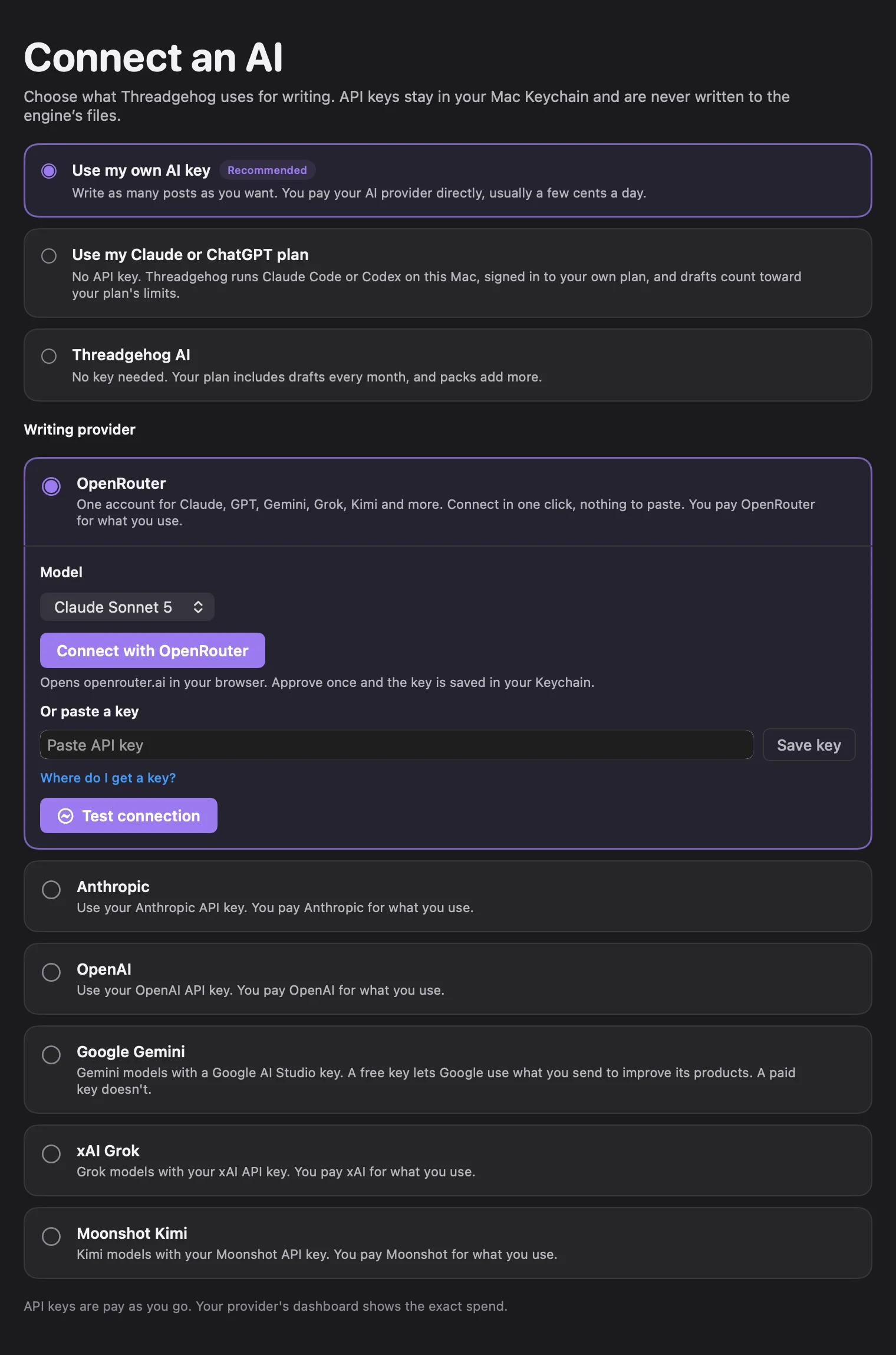
Click "Connect with OpenRouter" and approve in your browser
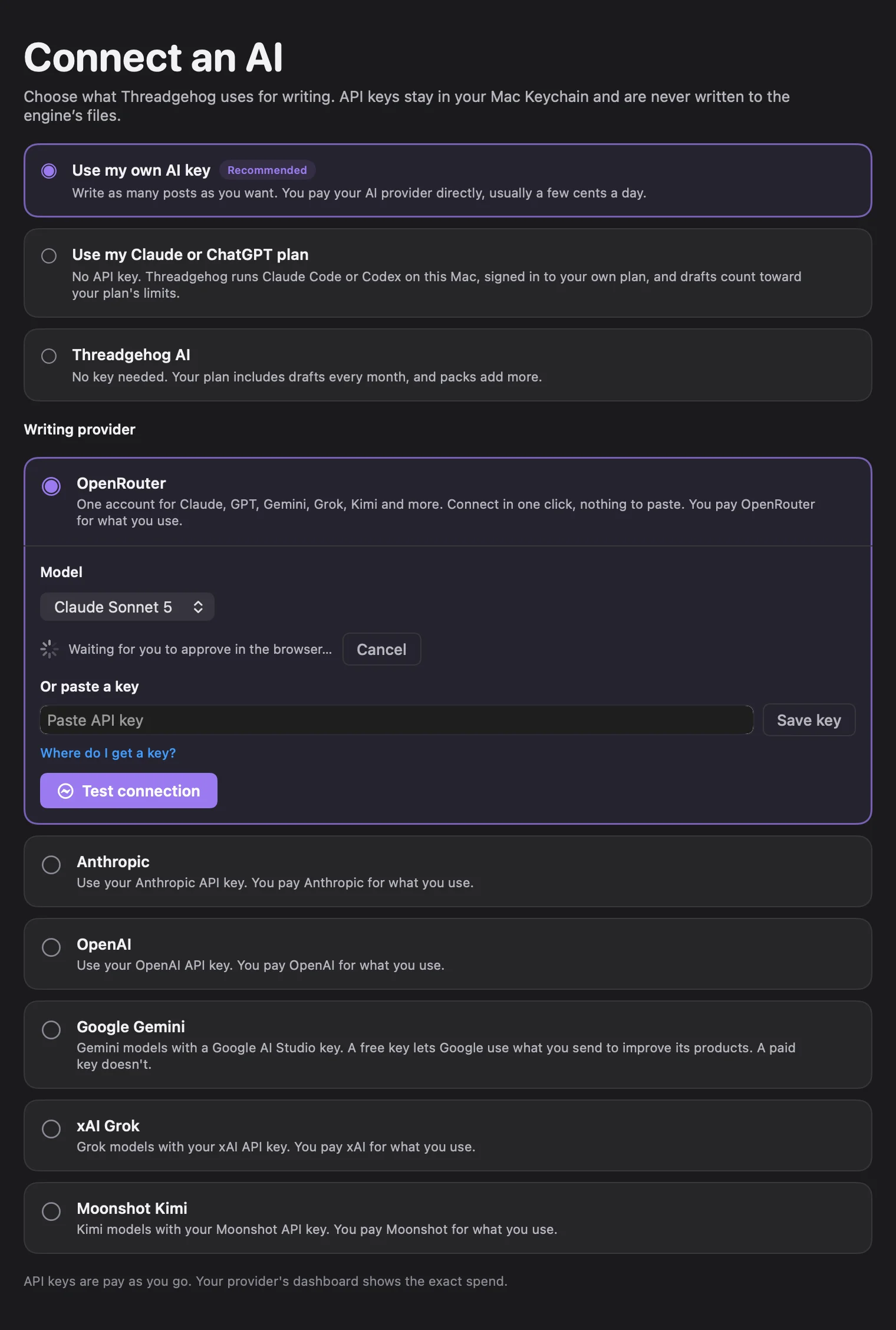
Click "Connect with OpenRouter". Your browser opens openrouter.ai; sign in if it asks, then approve the connection. While it waits, Threadgehog shows "Waiting for you to approve in the browser…" and a "Cancel" button. After you approve, the browser tab tells you to switch back to Threadgehog, Threadgehog comes to the front, and the key is saved to your Mac's Keychain. To skip the browser step, create a key yourself at openrouter.ai/settings/keys, paste it into "Or paste a key", and click "Save key".
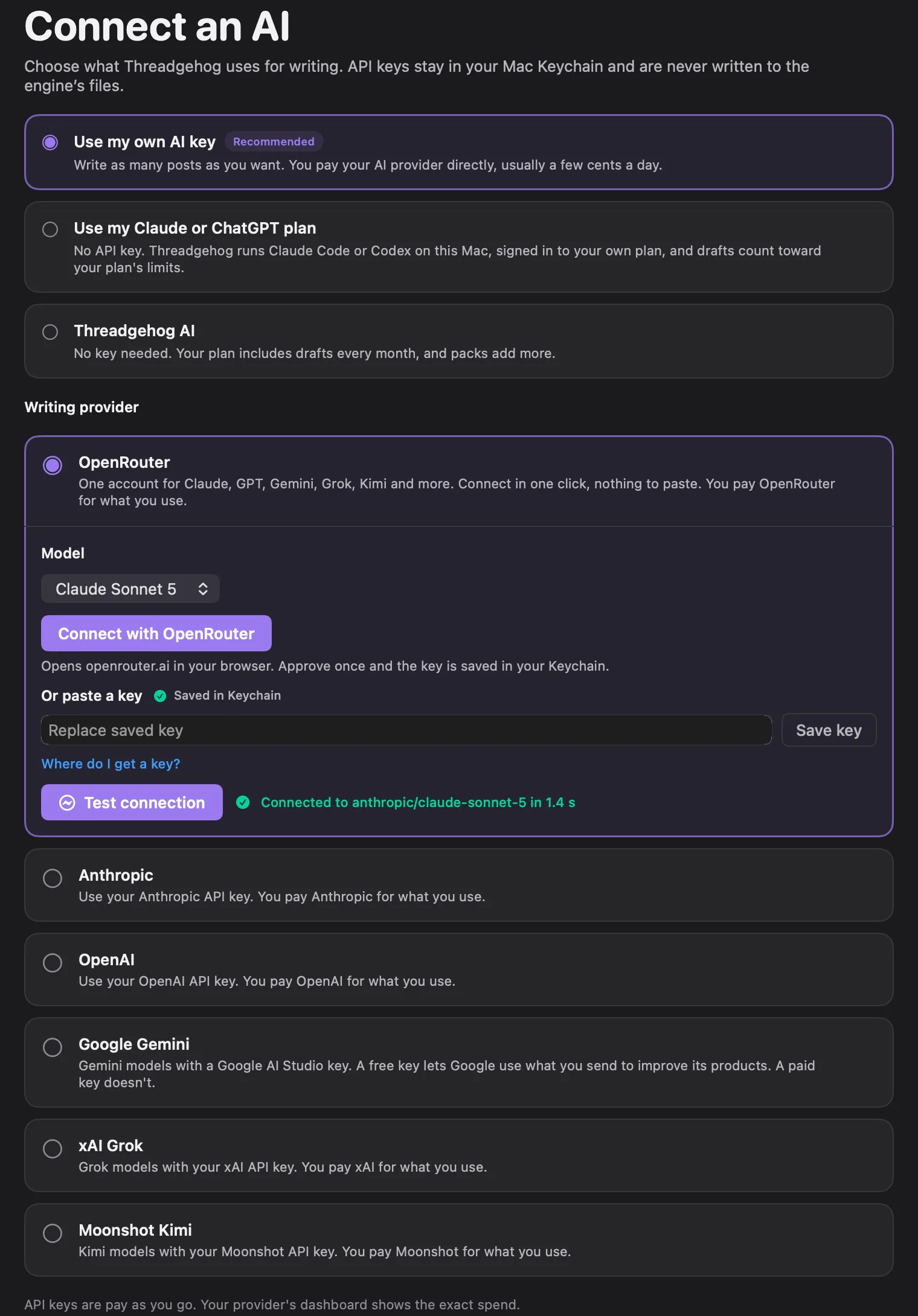
Check the connection test
After a one-click connect or "Save key", Threadgehog runs the connection test on its own. To run it again, click "Test connection" (it stays off until a key is saved). A working setup shows "Connected to" followed by the model id and the seconds the test took, for example "Connected to anthropic/claude-sonnet-5 in" and a time in seconds. Any other message is covered in Troubleshooting below.
Make your images with the same key (optional)
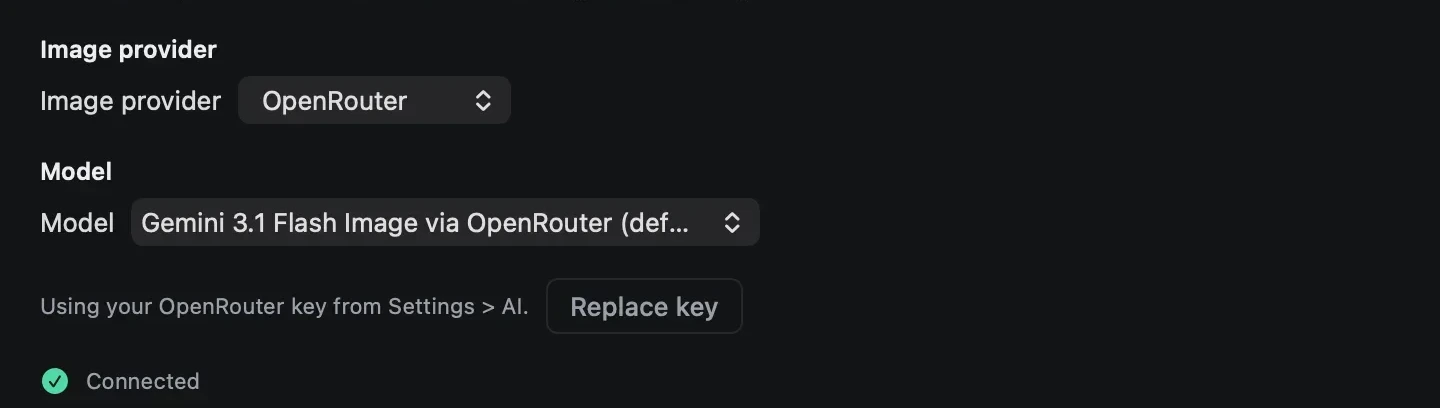
Open Settings, then the "Images" tab, choose the "Use an API key" card, and pick "OpenRouter" in the "Image provider" menu. Setup's "Add images to your posts?" step shows the same cards. Until an image key is in place, the Queue header shows a "Connect images" chip that opens this tab. If OpenRouter already writes your posts and you haven't picked an image provider or saved a Replicate token, Threadgehog makes this switch for you once, when it next loads your image settings: at launch, right after the setup connection test passes, or when you open this tab. The key section then reads "Using your OpenRouter key from Settings > AI." and there is nothing to paste. Pick a model under "Model" (Gemini 3.1 Flash Image via OpenRouter is preselected and marked "(default)"); the status line below the key section reads "Connected" once a key is in place.
What you get
- One OpenRouter account and one key cover the five models Threadgehog offers through OpenRouter: Claude Sonnet 5, GPT-5.5, Gemini 3.8 Flash, Grok 4.7, and Kimi K3.
- One-click connect: approve once in your browser, and Threadgehog saves the key to your Mac's Keychain and tests it. Nothing to copy or paste.
- Switch between the five models from the card's "Model" menu without reconnecting. Your saved key stays in place.
- You pay OpenRouter directly for what you use. Threadgehog charges nothing per post.
- The same OpenRouter key can also make your post images: pick "OpenRouter" under "Image provider" in Settings, Images tab (a fresh install already defaults to it there once OpenRouter writes your posts and no image provider is chosen yet). OpenRouter's four image models are separate from its five text models and priced per image, not per token.
What it costs
OpenRouter bills you, not Threadgehog. You buy credits on openrouter.ai (minimum $5 per purchase, per OpenRouter's terms), and each request deducts its cost from your balance. On the Standard plan, OpenRouter adds a 5.5 percent fee when you buy credits ($0.80 minimum on card purchases), not on each request. Models are priced per million tokens of input and output text. OpenRouter's listed rates on October 1, 2026: Claude Sonnet 5, $2 input and $10 output; GPT-5.5, $5 and $30; Gemini 3.8 Flash, $0.75 and $3.75; Grok 4.7, $2 and $6; Kimi K3, about $0.68 to $4.50 input and $10 to $22.50 output, depending on which provider serves it. OpenRouter can serve the same model from different providers at different rates, and prices can change, so check the model's page at openrouter.ai/models for current pricing. OpenRouter's terms also let it expire unused credits 365 days after purchase. Threadgehog charges nothing per post. If you also pick OpenRouter as your image provider (Settings, Images tab), the "Model" menu shows Threadgehog's ballpark price next to each image model: about $0.07 per image for Gemini 3.1 Flash Image via OpenRouter (the default), about $0.05 for GPT Image 2 via OpenRouter, about $0.03 for Flux 2 Pro via OpenRouter, and about $0.04 for Seedream 5 Lite via OpenRouter. That figure is Threadgehog's own estimate, not OpenRouter's invoice; OpenRouter still bills the call at that model's own rate, so check the model's page at openrouter.ai/models for the current price. Once images are connected, the Queue header shows your estimated image spend. Click it to enter your real OpenRouter balance, which then counts down by that estimate, or click "Open OpenRouter billing" to top up.
Your key and your data
With one-click connect, your Mac collects the key straight from openrouter.ai; Threadgehog's server is not part of that step. OpenRouter fills in Threadgehog as the new key's name. The key is saved in your Mac's Keychain (service 'Threadgehog Public', account 'openrouter') and is not written to Threadgehog's files. Each time Threadgehog writes or runs a connection test, it sends the key with the request to Threadgehog's generation server at api.threadgehog.com, which uses it for that one call to OpenRouter. The server does not store or log the key. To cut off access, delete the key in your OpenRouter account at openrouter.ai/settings/keys. To change the saved key, connect again or paste a new key. The same Keychain entry (account "openrouter") backs both writing and images, so one connection covers both; Threadgehog only reads it for images once you pick OpenRouter as the Image provider in Settings, Images tab. Image requests skip Threadgehog's server: the app on your Mac sends the key straight to openrouter.ai with each image request.
Limits to know
- OpenRouter's terms require buying credits to make API calls, with a $5 minimum per purchase. Threadgehog uses the paid version of each model, not the ':free' variants.
- Threadgehog offers five OpenRouter models for writing: Claude Sonnet 5, GPT-5.5, Gemini 3.8 Flash, Grok 4.7, and Kimi K3. For images, the Images tab offers its own fixed list of four OpenRouter image models.
- Only one writing provider is active at a time. Choosing OpenRouter replaces the provider you used before; that provider's saved key stays in your Keychain. The image provider is picked separately in Settings, Images tab.
- Threadgehog waits 10 minutes for you to approve in the browser. After that it stops waiting, and you click "Connect with OpenRouter" again.
- To change the saved key, connect again or paste a new key; Keychain Access removes it from your Mac.
- Picking OpenRouter for writing doesn't turn on images by itself. Pick "OpenRouter" under "Image provider" in Settings, Images tab too, unless the one-time first-run default already did it for you.
- Editing a generated image with feedback (the "Regenerate" box) makes a new image from your prompt plus the note. It doesn't edit the existing picture pixel by pixel the way Replicate's image-editing model does.
Troubleshooting
"OpenRouter connection failed: Timed out waiting for OpenRouter."
Why: Threadgehog waited 10 minutes and the approval never came back from the browser.
Fix: Make sure you are signed in at openrouter.ai, click "Connect with OpenRouter" again, and approve right away.
"OpenRouter connection failed: OpenRouter did not return a key (HTTP [status])."
Why: The approval came back, but OpenRouter did not hand over a key when Threadgehog asked for it.
Fix: Click "Connect with OpenRouter" again. If it keeps failing, create a key at openrouter.ai/settings/keys, paste it into "Or paste a key", and click "Save key".
"OpenRouter connection failed:" followed by a different message
Why: The connection could not finish, for example because the Mac lost its internet connection or the Keychain refused to save the key.
Fix: Check your internet connection and try again, or paste a key from openrouter.ai/settings/keys instead.
"Your AI provider refused this: [OpenRouter's message] Check your plan and billing on their site, then try again." where OpenRouter's message mentions credits
Why: Your OpenRouter balance is too low. Connecting a key does not add credits.
Fix: Click "Open OpenRouter billing" next to the message, or go to openrouter.ai/settings/credits, buy credits, then click "Test connection" again.
"Your AI provider refused this: [OpenRouter's message] Check your plan and billing on their site, then try again." where OpenRouter's message mentions an invalid or disabled key
Why: The saved key was deleted or disabled in your OpenRouter account.
Fix: Click "Connect with OpenRouter" again, or paste a new key and click "Save key".
"Your AI provider refused this: [OpenRouter's message] Check your plan and billing on their site, then try again." where OpenRouter's message mentions a rate limit or the model being down
Why: OpenRouter is rate limiting your account, or no provider can serve the chosen model right now.
Fix: Wait a few minutes and try again, or pick a different model in the card's "Model" menu.
"Save your API key in Settings, then try again."
Why: No key is saved for the selected provider card.
Fix: Click "Connect with OpenRouter", or paste a key and click "Save key".
"Connect an AI in Settings."
Why: No writing provider is selected.
Fix: Open Settings, then AI, and click "OpenRouter" under "Writing provider".
"Threadgehog could not send that. Update to the latest version, then try again."
Why: Threadgehog's server rejected the request before it reached OpenRouter. With a pasted key, this also happens when the key is shorter than 8 or longer than 500 characters.
Fix: Update Threadgehog. If you pasted a key, check it for a partial copy or extra characters, or use "Connect with OpenRouter" instead.
"You have hit the limit for now. Try again in about [n] minutes."
Why: This is Threadgehog's own server limit, not OpenRouter's.
Fix: Wait the stated time, then try again.
"Threadgehog could not reach the writing service. Check your internet and try again. Your posts and queue still work offline; writing and publishing need the service."
Why: Your Mac could not reach Threadgehog's generation server, which every writing request and connection test goes through.
Fix: Check your internet connection, then click "Test connection" again.
"Something went wrong on our side. Try again in a minute."
Why: Threadgehog's generation server had an error.
Fix: Wait a minute and try again. If it keeps happening, contact support at threadgehog.com/support.
"Enter a license key to write or publish. Your queue stays visible."
Why: The connection test also checks your Threadgehog license, and none is active on this Mac.
Fix: Enter your license key in Settings, then License, then run the test again.
"Couldn’t save the key: [reason]" or "Couldn’t save the provider: [reason]"
Why: macOS would not let Threadgehog save the key to the Keychain, or save your provider choice.
Fix: Try again. If it keeps failing, contact support at threadgehog.com/support with the exact message.
You want to remove a saved OpenRouter key, not replace it
Why: The AI tab only offers "Replace saved key", with no delete option.
Fix: Delete the key in your OpenRouter account at openrouter.ai/settings/keys so it stops working. To remove the copy on your Mac, delete the Keychain Access item for service 'Threadgehog Public', account 'openrouter'.
"Image provider rejected the key. Check Settings > Images."
Why: OpenRouter turned down the key saved for images: it was mistyped, deleted, disabled, or doesn't have image access.
Fix: Open Settings, Images tab, click "Replace key", then click "Connect with OpenRouter" or paste a working key and click "Save key". The new key also becomes the one Threadgehog writes with, since both share one Keychain entry.
"Add an image provider in Settings > Images first."
Why: No image provider key is saved. This can show up on "Regenerate" or "New image" for a post that already has a generated image, even though "Generate image" itself stays hidden until a key exists.
Fix: Open Settings, Images tab, pick a provider, and save or connect its key.
Orange banner: "You're out of OpenRouter credit, so AI images can't be generated. Add credits to start again."
Why: OpenRouter's image API reports your account has no credit left.
Fix: Click "Add credits" in the banner, or go to openrouter.ai/settings/credits, then generate again.
"OpenRouter is rate limiting image requests. Try again in a minute."
Why: OpenRouter is throttling image requests. Threadgehog already retries a rate limit automatically, up to 3 times, 12 seconds apart, before showing this.
Fix: Wait a minute and try again.
"OpenRouter [status]: [the first 200 characters of its reply]"
Why: OpenRouter's image API returned an error Threadgehog doesn't otherwise recognize.
Fix: Read the message for the reason. If it keeps happening, email support@threadgehog.com with the full text.
"OpenRouter: no response"
Why: Threadgehog couldn't reach OpenRouter's image service, usually because your Mac is offline.
Fix: Check your internet connection, then click "Generate image", "Regenerate" or "New image" again.
Settings, Images tab has no "Image provider" menu
Why: This copy of Threadgehog predates image providers. It can only make images with a Replicate token.
Fix: Choose Threadgehog > Check for Updates…, install the update, then open Settings, Images tab again.
"OpenRouter returned no image data"
Why: OpenRouter answered the image request, but its reply held no image.
Fix: Click "Generate image" or "New image" again. If it keeps happening, pick a different model under "Model" in Settings, Images tab, or email support@threadgehog.com with the full text.
Questions
Can I use my ChatGPT, Claude, or Gemini subscription instead?
Not through OpenRouter: a subscription doesn't include API access, and OpenRouter works on credits you buy at openrouter.ai, separate from any subscription. From Threadgehog 1.1 you can write with a Claude Pro or Max plan or a ChatGPT Plus or Pro plan instead, through Claude Code or Codex on your Mac; see the Claude plan and ChatGPT plan guides. For Gemini models, connect OpenRouter or a Gemini API key, or write with Threadgehog AI, which every plan includes.
Why do I need to buy OpenRouter credits?
OpenRouter's terms require buying credits to make API calls, with a $5 minimum per purchase. Threadgehog uses the paid version of each model, not the ':free' variants.
Does Threadgehog see or keep my OpenRouter key?
Your Mac collects the key from openrouter.ai and saves it in the Keychain, not in Threadgehog's files. Threadgehog's generation server receives the key with each writing request, uses it for that one call to OpenRouter, and does not store or log it. You can delete the key anytime at openrouter.ai/settings/keys.
Can I switch from OpenRouter to a different provider later?
Yes. Open Settings, then AI, and click a different card under "Writing provider". Your OpenRouter key stays in the Keychain, so switching back doesn't need a new connection.
How much does OpenRouter cost?
OpenRouter charges per model, per million tokens of text, and rates change over time. See each model's page at openrouter.ai/models for current pricing. On the Standard plan OpenRouter adds a 5.5 percent fee when you buy credits, and each purchase is at least $5. Threadgehog charges nothing per post.
Do I need a separate key for each model?
No. One OpenRouter account and one key cover all five models Threadgehog offers through OpenRouter. You'd only need separate keys to connect Anthropic, OpenAI, Google, xAI, or Moonshot directly instead.
I don't have an OpenRouter account yet. Can I click Connect anyway?
OpenRouter asks you to sign in before it shows the approval screen. Threadgehog stops waiting after 10 minutes, so create the account and buy credits first (steps 1 and 2). If the wait runs out, click "Connect with OpenRouter" again.
The test said connected, but writing a post failed. Why?
The test makes one call. Later calls can still fail if your OpenRouter balance runs out, OpenRouter rate limits your account, or the model is temporarily unavailable. The message Threadgehog shows includes OpenRouter's reason; Troubleshooting above lists the fix for each.
Where do I get help if setup still fails?
Go to threadgehog.com/support or email support@threadgehog.com, and include the exact message Threadgehog showed.
Does my OpenRouter key make the images too?
Yes, if you pick it. Open Settings, Images tab, and choose "OpenRouter" under "Image provider"; a fresh install already defaults to it there once OpenRouter writes your posts and no image provider is chosen. OpenRouter's image models, Gemini 3.1 Flash Image, GPT Image 2, Flux 2 Pro and Seedream 5 Lite, are separate from the five text models and priced per image, billed to the same OpenRouter balance.