Use Claude to write your Threadgehog posts
Posting on Threads and X takes time you would rather spend on your product. Threadgehog drafts those posts in your brand voice. It works with your own API key (recommended for unlimited drafts); without one, every plan includes Threadgehog AI drafts. Claude, from Anthropic, is one of six providers it supports. The others are OpenRouter (one account for several model makers), OpenAI, Google Gemini, xAI Grok, and Moonshot Kimi. This page covers connecting Claude with your own Anthropic API key. Already pay for Claude Pro or Max? From Threadgehog 1.1 you can write with that plan through Claude Code instead; see the Claude plan guide. Last updated October 2, 2026.
How to set up Anthropic (Claude)
Create an Anthropic account and add API credits
Go to platform.claude.com and sign in, or create an account. The old console.anthropic.com address redirects there. API usage is prepaid with credits and billed separately from any Claude.ai plan. Open Settings, then Billing, click Buy credits, and enter an amount. You need a payment method; Anthropic accepts major credit cards. Anthropic's pricing page says new users get a small amount of free credit for testing, so buy credits before you count on Threadgehog for regular posts.
Create an API key
In the Console, open Settings, then API keys, and click Create key. Give the key a name and set Linked account to yourself. Scope the key to a single workspace, such as the Default Workspace: Anthropic requires a workspace ID with any key that isn't scoped to one workspace, and Threadgehog doesn't send one. For expiration, choose Never if it's offered, or the longest duration you are comfortable with. An expired key stops working, and the expiration can't be changed after the key is created. The Console shows the full key, which starts with sk-ant-, only once. Copy it now. If you lose it, you can't view it again and will need to create a new key.
Paste the key into Threadgehog's AI settings
In Threadgehog, open Settings (⌘,) and click the "AI" tab. During first-time setup, the same controls appear on the step headed "Connect your AI." Click "Use my own AI key", then under "Writing provider" click the "Anthropic" card. The "Model" menu starts on Claude Sonnet 5, and you can switch it to Claude Opus 5.5. Paste your key into the "API key" field and click the "Save key" button. The key goes into your Mac's Keychain, and "Saved in Keychain" appears next to the field label. Saving starts the connection test automatically.
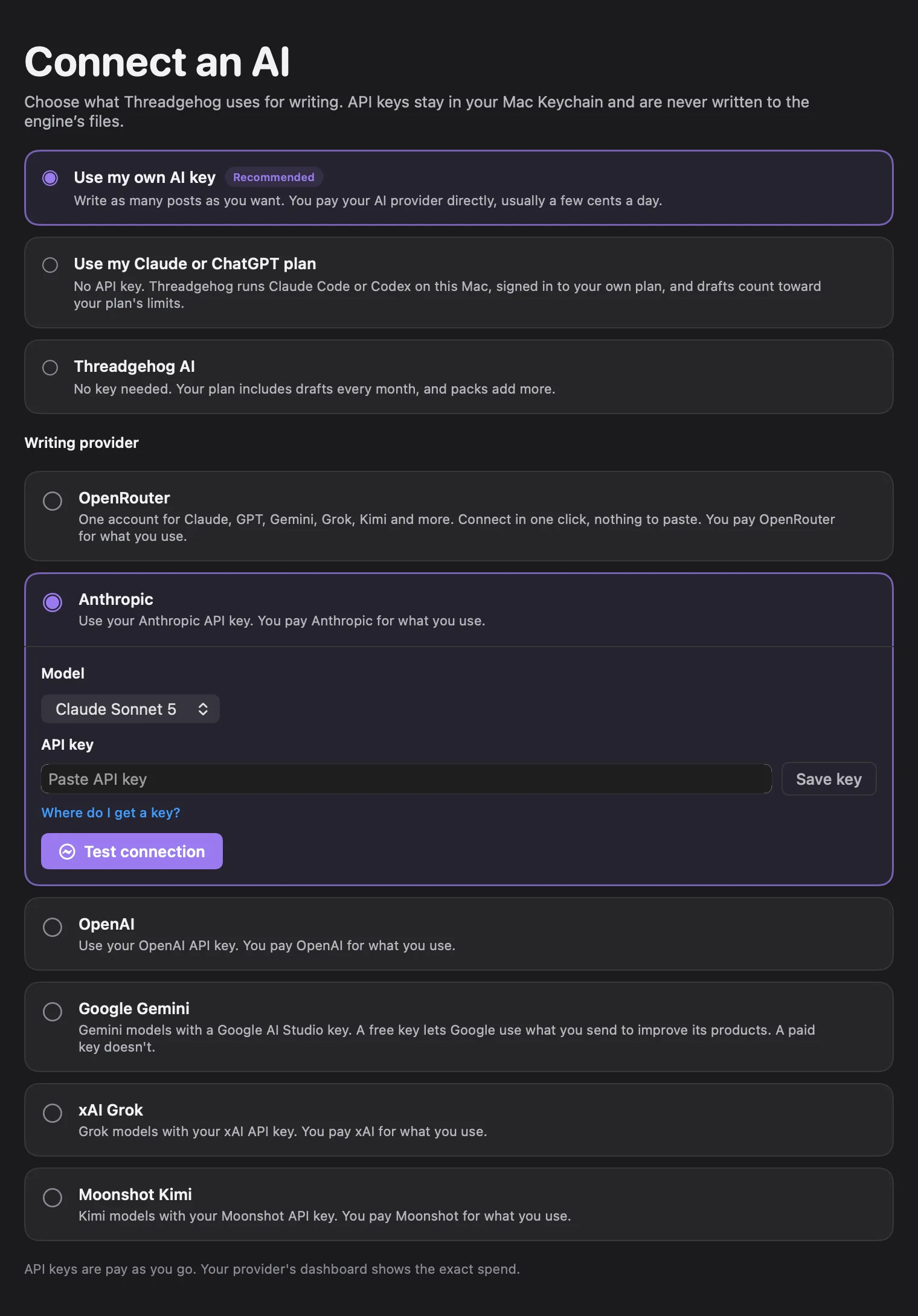
Check the connection test
Saving the key starts the connection test automatically. To run it again, click "Test connection". Threadgehog sends one short request through its server to Claude, and the button reads "Testing…" while it waits. A working key shows a line such as "Connected to claude-sonnet-5 in 1.4 s" with a check mark. During setup, the "Continue" button stays disabled until this test passes. If the test fails, find the message under Troubleshooting below.
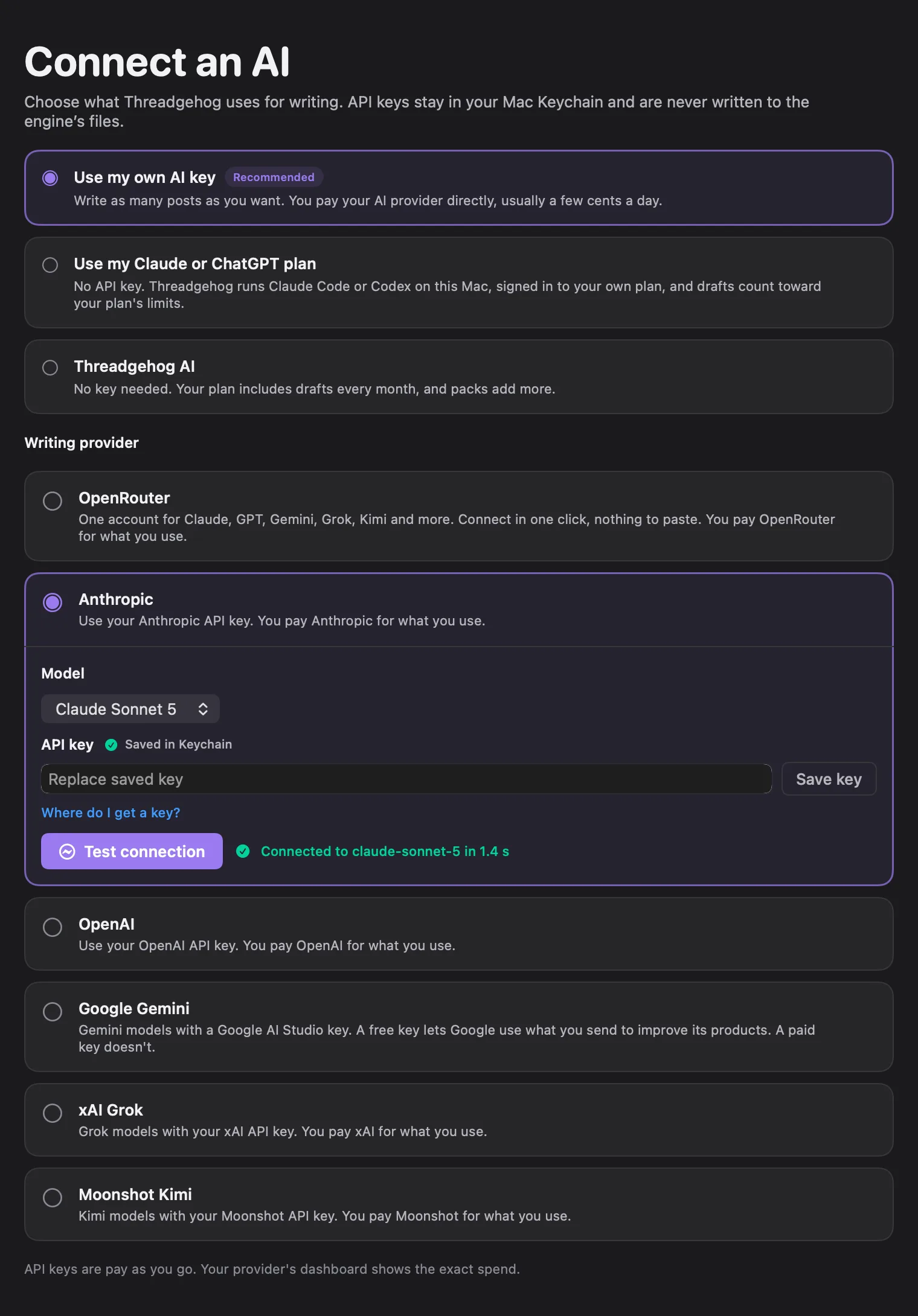
What you get
- Draft posts in your brand voice from Claude Sonnet 5, or from Claude Opus 5.5 if you pick it in the Model menu under Settings > AI.
- Each post Claude writes carries a "Claude" label, so you can see which provider wrote it.
- Revise with AI: give feedback on a draft and Claude rewrites it, so you don't start over.
- When image suggestions are on for a project, Claude also writes each post's image idea, and the detailed image prompt when you open it. To turn the prompt into a picture, pick an image route in Settings > Images: Threadgehog images, Use my ChatGPT subscription, or an API key from Replicate, OpenAI, Google Gemini, xAI Grok or OpenRouter. Your plan includes images every month, and packs add more.
- If you switch to another provider, your Anthropic key stays saved in Keychain, so switching back doesn't mean pasting it again.
What it costs
Anthropic bills Claude usage to your own Anthropic account, from prepaid API credits you buy in the Anthropic Console at platform.claude.com. A Claude.ai plan doesn't cover it. Anthropic charges per million tokens, and its pricing page puts one token at roughly 4 characters of English text. As of October 2, 2026, Anthropic's pricing page lists Claude Sonnet 5, Threadgehog's default, at $2 per million input tokens and $10 per million output tokens, and Claude Opus 5.5 at $4 per million input tokens and $20 per million output tokens. Prices can change, so check Anthropic's pricing page (linked below) for current rates. Your spending shows on the Usage and Billing pages of the Anthropic Console.
Your key and your data
Your Anthropic API key is stored in your Mac's Keychain, under the service name "Threadgehog Public" with the account name "anthropic". Threadgehog's settings file records which provider and model you picked, never the key. When Threadgehog asks Claude for something (a draft, a rewrite, an image idea, a connection test), it sends your API key and the material for that request to Threadgehog's server at api.threadgehog.com, which passes them to Anthropic's API to complete that request. The server does not save the key, and its logs strip key and content fields. To cut off access, disable or delete the key on the API keys page of the Anthropic Console (platform.claude.com/settings/keys). Disable can be undone; Delete can't. To clear it from your Mac, save a different key over it, or open the Keychain Access app and delete the "Threadgehog Public" item whose account is "anthropic".
Limits to know
- A Claude Pro or Max plan isn't an API key and can't be pasted here. To write with your plan instead, pick Use my Claude or ChatGPT subscription in Settings > AI (Threadgehog 1.1 and later); the Claude plan guide has the steps.
- Anthropic's API only works from the countries and territories on its supported regions list (linked below). Check yours before you buy credits.
- New Anthropic organizations may start in an Evaluation tier with lower rate limits, which rise automatically as usage history builds.
- Threadgehog writes with one provider at a time, and switching in Settings > AI takes one click.
- Anthropic API credits expire one year after purchase.
- If your key has an expiration date, Threadgehog stops writing when it expires (Anthropic answers with a 401 error), and you need to save a new key.
- Threadgehog offers two Claude models, Claude Sonnet 5 and Claude Opus 5.5.
Troubleshooting
"Your AI provider refused this: <message> Check your plan and billing on their site, then try again."
Why: Anthropic turned the request down. The text after the colon is Anthropic's own response, shortened if it is long. Threadgehog shows this same sentence for every Anthropic refusal, including a wrong, disabled, or expired key (401 authentication_error), a billing problem (402 billing_error), a spend limit you set yourself (400 invalid_request_error), Anthropic's rate limit or monthly spend cap (429 rate_limit_error), and an Anthropic outage (500 api_error or 529 overloaded_error). It also appears if Threadgehog's server could not reach Anthropic at all.
Fix: Read the text after the colon. If it mentions the key or authentication, create a new key in the Anthropic Console and save it in Settings > AI. If it mentions billing, credit, or a usage limit, click the "Open Anthropic billing" link next to the message, or go to platform.claude.com/settings/billing, then add credits or raise your limit. If it mentions overload or an internal error, wait a few minutes and click "Test connection" again.
"Your AI provider refused this: <message> Check your plan and billing on their site, then try again." with "anthropic-workspace-id is required" in the message
Why: The key works across more than one Anthropic workspace. Anthropic requires a workspace ID with that kind of key, and Threadgehog doesn't send one.
Fix: In the Anthropic Console, create a new key scoped to a single workspace, such as the Default Workspace, then save it in Settings > AI and test again.
"You have hit the limit for now. Try again in about <N> minutes."
Why: Threadgehog's own server limits how many writing requests one license can send per hour and per day, and how many different internet addresses can use one license in a day. Anthropic's own rate limits show up as the "Your AI provider refused this" message instead.
Fix: Wait the stated number of minutes, then try again. If you see this on a Mac that should be the only one using your license, email support@threadgehog.com.
"Threadgehog could not reach the writing service. Check your internet and try again. Your posts and queue still work offline; writing and publishing need the service."
Why: Your Mac could not reach Threadgehog's server at api.threadgehog.com, or got no answer within 200 seconds.
Fix: Check your internet connection, then try again. Your queue and existing posts keep working offline.
"Something went wrong on our side. Try again in a minute."
Why: Threadgehog's server had an error of its own while handling the request.
Fix: Wait a minute and try again. If it keeps happening, email support@threadgehog.com.
"Connect an AI in Settings."
Why: No writing provider is selected.
Fix: Open Settings > AI and click the "Anthropic" card under "Writing provider" (or finish first-time setup).
"Save your API key in Settings, then try again."
Why: Anthropic is selected as the provider, but no Anthropic key is saved in Keychain.
Fix: Open Settings > AI, paste the key into the "API key" field, and click "Save key" before you try again.
"Threadgehog could not send that. Update to the latest version, then try again."
Why: Threadgehog's server rejected the request as malformed. A saved key shorter than 8 characters or longer than 500 characters also causes this, so a cut-off paste can trigger it.
Fix: Copy the full key again (or create a new one in the Anthropic Console), save it in Settings > AI, and update Threadgehog if a newer version is available.
"empty-response"
Why: Claude sent back no text for the connection test. Threadgehog shows this code as is, without a full sentence.
Fix: Click "Test connection" again. If it repeats, email support@threadgehog.com.
"Enter a license key to write or publish. Your queue stays visible."
Why: Test connection, like writing, needs an active Threadgehog trial or license.
Fix: Enter your Threadgehog license key in Settings > License, then test the connection again.
"Couldn’t save the key: <reason>"
Why: macOS Keychain refused to store the key. The reason after the colon comes from macOS.
Fix: Click "Save key" again. If it repeats, email support@threadgehog.com with the text after the colon.
"Couldn’t save the provider: <reason>" or "Couldn’t disconnect the previous provider: <reason>"
Why: Threadgehog could not write or remove the small settings file that records your chosen provider and model. The reason after the colon comes from macOS.
Fix: Pick a different model in the "Model" menu, or click "Test connection". Both save your choice again. If it repeats, email support@threadgehog.com with the text after the colon.
A key doesn't work and you can't find it in the Console to check it
Why: Anthropic shows the full key only once, when it is created. It can't be viewed again later.
Fix: Create a new key in the Console (Settings, then API keys, then Create key), scope it to a single workspace, and save it in Settings > AI.
Settings shows "Saved in Keychain" but "Test connection" fails right after
Why: "Saved in Keychain" confirms storage, and saving starts a connection test automatically. A typo, an account with no credit, or a key scoped to several workspaces can still make that test fail.
Fix: Read the message next to the button and match it to the entries above. To check your balance, go to platform.claude.com/settings/billing.
The "Where do I get a key?" or "Open Anthropic billing" link opens console.anthropic.com
Why: Anthropic moved its Console to platform.claude.com. The old console.anthropic.com addresses redirect to the matching platform.claude.com pages.
Fix: No action needed. Follow the redirect.
Posts show no "Generate image" button, and the header above your posts shows "Connect images"
Why: Claude writes each post's image idea and prompt, and the picture itself comes from the image route you pick in Settings > Images. The "Generate image" button stays hidden until a key for an image provider is saved in Settings > Images.
Fix: Click "Connect images", or open Settings > Images, pick an image route: Threadgehog images, Use my ChatGPT subscription, or Use an API key (Replicate, OpenAI, Google Gemini, xAI Grok or OpenRouter) and save its key or token. Your plan includes images every month, and packs add more. If a key is already saved, open Project settings > Advanced and turn on "Image suggestions" and "AI image generation" for the project.
Questions
Can I use my Claude Pro or Max plan instead of an API key?
Yes, from Threadgehog 1.1, through Claude Code. In Settings > AI, pick Use my Claude or ChatGPT subscription, then Claude subscription (Pro or Max). Threadgehog runs Claude Code on your Mac, signed in to your plan, and drafts count toward your plan's usage limits. The plan itself still has no API access, so the key steps on this page don't apply to it. The Claude plan guide has the setup.
How do I get an Anthropic API key?
Go to platform.claude.com, sign in or create an account, and buy API credits under Settings, then Billing. Then open Settings, then API keys, click Create key, set Linked account to yourself, and scope the key to a single workspace. Copy the key right away, because Anthropic shows it only once. Paste it into the "API key" field in Threadgehog's Settings > AI and click "Save key".
Is my API key safe?
It's stored in your Mac's Keychain, never in a Threadgehog settings file. It leaves your Mac only when Threadgehog asks Claude for something, such as a draft or a connection test. It goes to Threadgehog's server, which passes it to Anthropic for that request and does not save it. You can disable or delete the key at any time in the Anthropic Console.
Which Claude model does Threadgehog use?
Claude Sonnet 5 by default. You can switch to Claude Opus 5.5 in the Model menu under Settings > AI. If you were using Claude Opus 5 before, Threadgehog switches you to Claude Opus 5.5 automatically the next time it reads your settings.
Does Claude make the pictures for my posts?
Claude writes the post text, the image idea and the detailed image prompt, and an image route in Settings > Images makes the picture: Threadgehog images, Use my ChatGPT subscription, or an API key from Replicate, OpenAI, Google Gemini, xAI Grok or OpenRouter. Your plan includes images every month, and packs add more.
Can I switch from Claude to a different AI provider later?
Yes. Open Settings > AI and click a different provider card. Threadgehog switches right away. Your Anthropic key stays in Keychain, so switching back later doesn't mean pasting it again.
What does using Claude cost?
You pay Anthropic directly, per token, at the rates on Anthropic's pricing page, which can change. The Usage and Billing pages in the Anthropic Console show what you have spent.
Does Threadgehog post to Threads or X for me using Claude?
No. Claude writes the post text. Publishing goes through a scheduler you connect separately: Buffer, Typefully, Publer, Metricool, or Postiz. Claude plays no part in posting.
I don't have an Anthropic account yet. Can I still try Threadgehog?
Yes. Setup's AI step lets you pick Threadgehog AI, which every plan includes and needs no key, so you can finish setup today and add an Anthropic key later in Settings > AI. To see how Threadgehog works first, try the demo on the threadgehog.com home page. It uses fixed sample posts and makes no AI calls.
Links
- Get your Claude API key (Anthropic docs)
- API keys, workspaces, and key expiration (Anthropic docs)
- Anthropic Console: API keys
- Anthropic Console: billing
- Claude API pricing
- How do I pay for my Claude API usage?
- Why do I pay separately for API usage if I subscribe to Claude Pro?
- Claude API error codes
- Claude API supported regions