Write your Threadgehog posts with your Claude plan
Already pay for Claude Pro or Max? Threadgehog can write with that plan instead of an API key. It runs Claude Code on your Mac, signed in to your own Claude account, and each draft counts toward your plan's usage limits. Setup takes about 2 minutes: install Claude Code, sign in once, then press Test. Available from Threadgehog 1.1. Last updated October 5, 2026.
How to set up Claude subscription (Pro or Max)
Choose Claude in Settings > AI
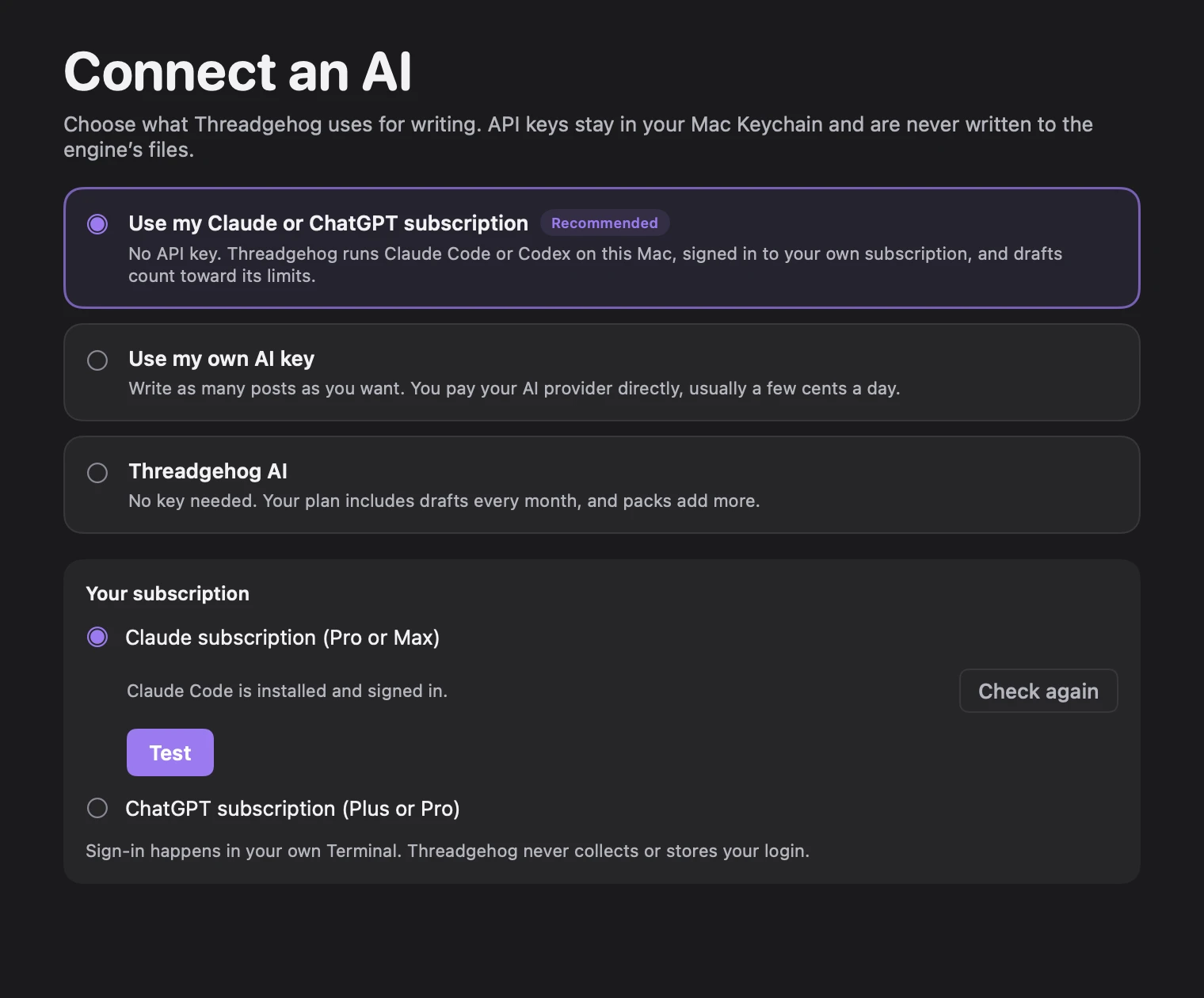
In Threadgehog, open Settings (⌘,) and click the AI tab. The same cards appear in step 2 of first-time setup. Click "Use my Claude or ChatGPT subscription", then "Claude subscription (Pro or Max)". Threadgehog checks whether Claude Code is on this Mac and shows the next step.
Install Claude Code
If Threadgehog says "Claude Code isn't installed on this Mac.", click Copy next to the install command, paste it into Terminal and press Return. When it finishes, go back to Threadgehog and press Check again.
curl -fsSL https://claude.ai/install.sh | bash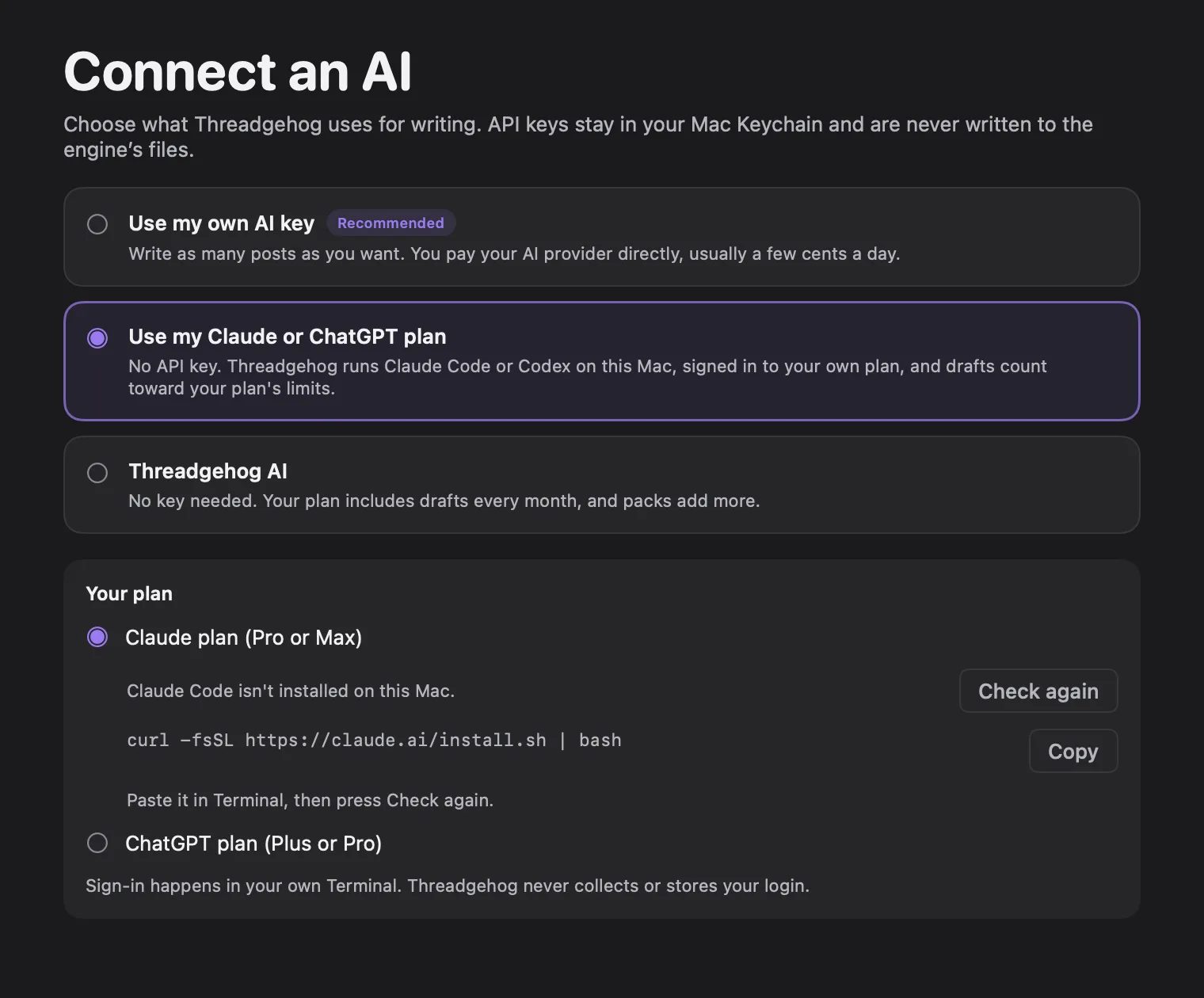
Sign in to your Claude account
If Threadgehog shows "Sign in once in Terminal:", paste this command into Terminal. It opens Anthropic's own sign-in page in your browser. Sign in with the account that has your Pro or Max plan, then press Check again in Threadgehog.
claude auth login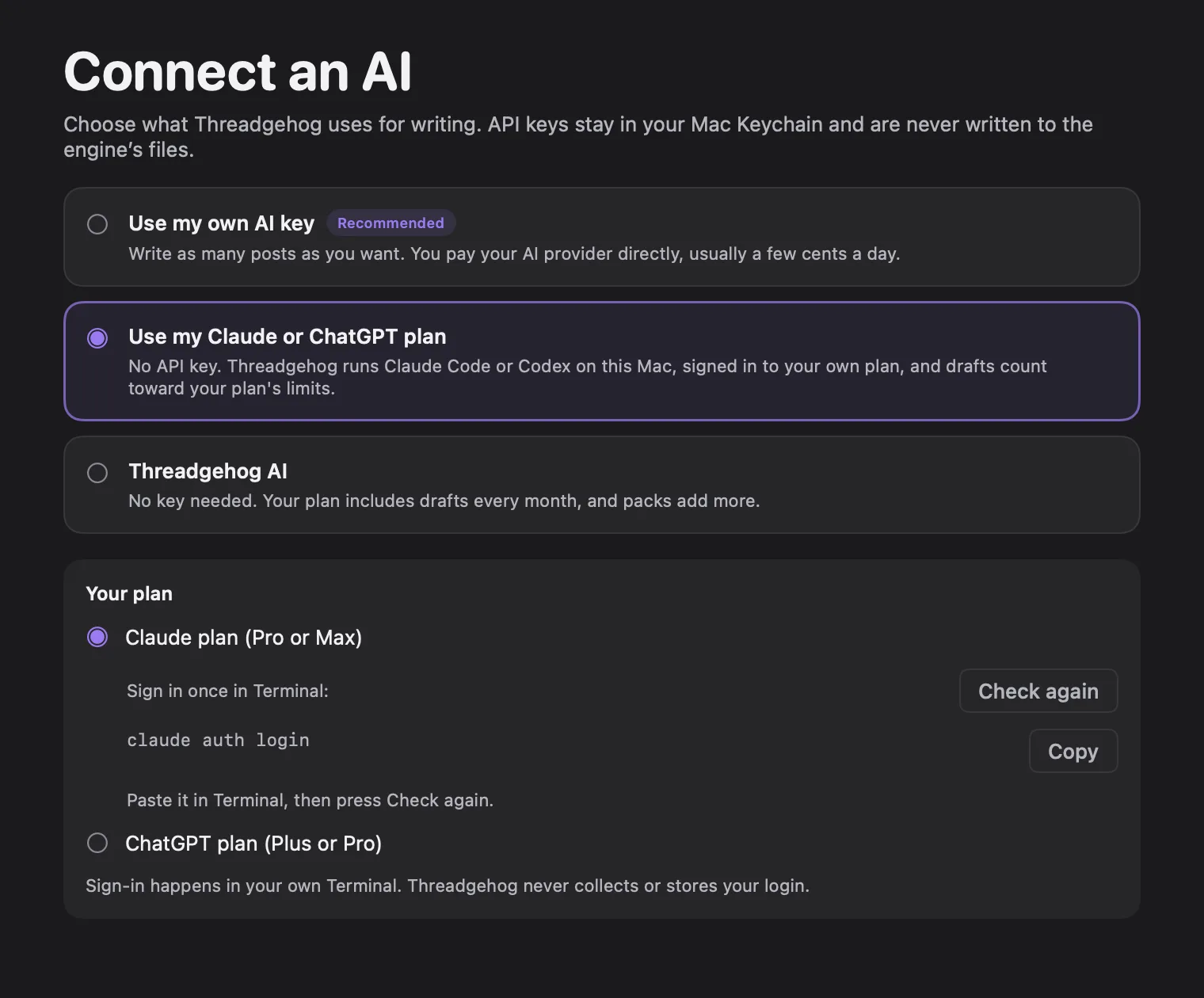
Press Test
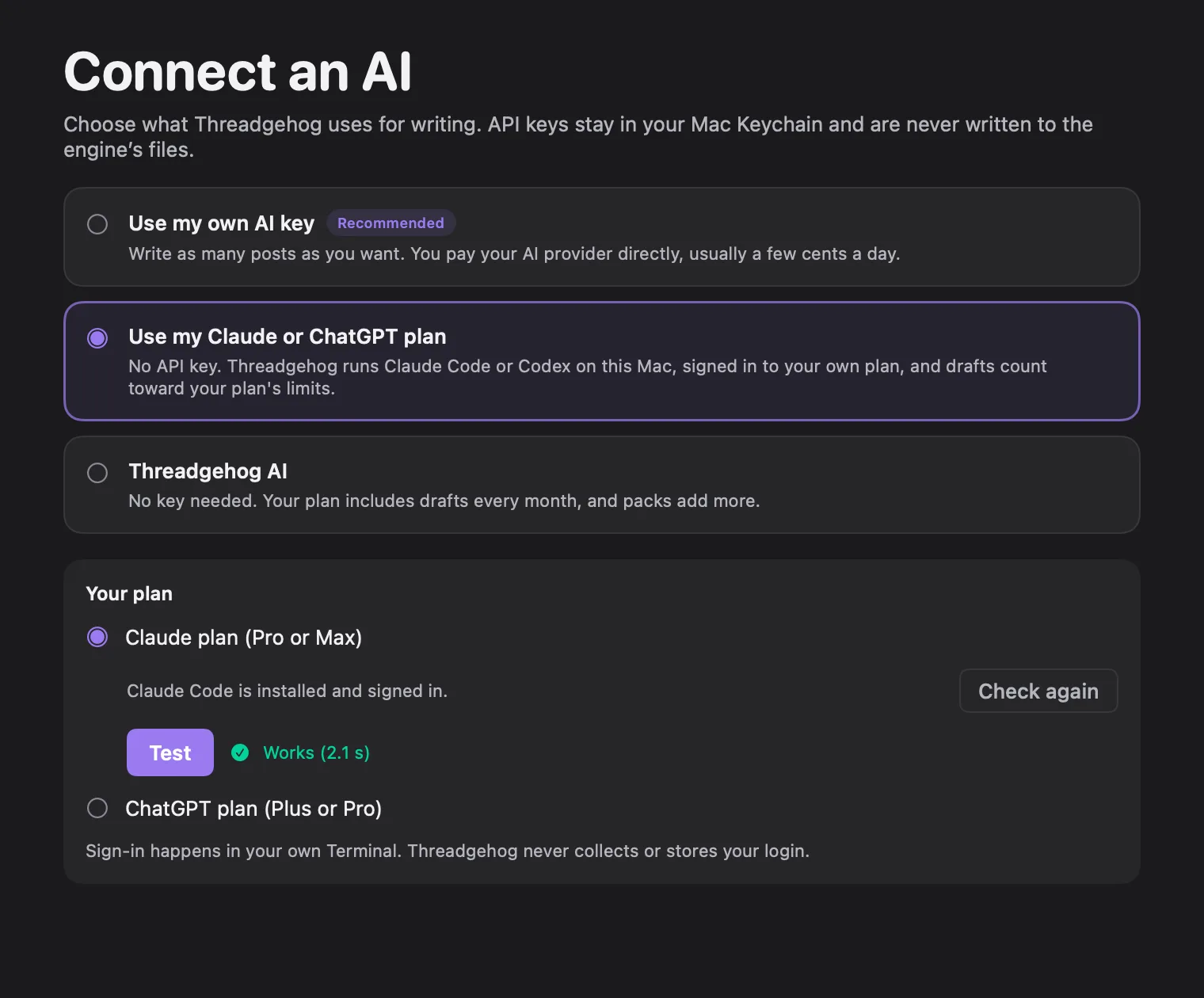
When Threadgehog shows "Claude Code is installed and signed in.", press Test. It asks Claude Code for one short reply and shows how long it took, for example "Works (2.1 s)". From then on, Threadgehog writes with your plan.
What you get
- Your plan writes everything: the daily drafts, the first batch at setup, and Write drafts.
- No API key, and no extra charge from Threadgehog. Drafts count toward your Claude plan's usage limits.
- Threadgehog asks Claude Code for the Sonnet model.
- Switch to your own API key or Threadgehog AI any time in Settings > AI.
What it costs
Threadgehog charges nothing extra to write with your plan. You keep paying for Claude Pro or Max as usual, and each draft uses part of that plan's usage limits, so a day of 100 or more drafts can reach a limit sooner. Your Threadgehog plan still includes its monthly Threadgehog AI drafts, and you can switch to them in Settings > AI if your Claude limit runs out.
Your key and your data
Threadgehog never sees or stores your Claude login. You sign in through Claude Code in Terminal, on Anthropic's own sign-in page, and Claude Code keeps that sign-in on your Mac. Threadgehog runs Claude Code with all of its tools turned off, so it can only return text: it can't read, change or run anything on your Mac. Each writing step still goes through Threadgehog's server at api.threadgehog.com, which prepares the request from your brand voice, brief and rules and stores nothing you write. To stop, pick another option in Settings > AI. Your saved API keys stay in Keychain.
Limits to know
- Needs a paid Claude plan: Pro or Max.
- Needs Claude Code installed on this Mac. Threadgehog connects to your plan through Claude Code, signed in once in Terminal.
- Threadgehog writes while it is open, the same as with any other option; turn on Open Threadgehog when you log in to keep it running after a restart.
- When your plan's usage limit is reached, Threadgehog says so and tries again later. You can switch to Threadgehog AI in Settings > AI instead of waiting.
Troubleshooting
"Claude Code isn't installed on this Mac."
Why: Threadgehog couldn't find Claude Code.
Fix: Copy the install command from Settings > AI into Terminal and run it, then press Check again.
"Claude Code isn't signed in. Open Terminal, run claude auth login, then try again."
Why: Claude Code is installed but signed out, or its sign-in expired.
Fix: Run claude auth login in Terminal, sign in with your Pro or Max account, then press Check again.
"Your plan's usage limit is reached. Threadgehog tries again later, or switch to Threadgehog AI in Settings > AI."
Why: Your Claude plan hit its usage limit.
Fix: Wait for the limit to reset and Threadgehog picks up again, or switch to Threadgehog AI in Settings > AI.
"Claude Code took too long to respond. Try again."
Why: Claude Code didn't answer in time.
Fix: Try again. If it keeps happening, press Test in Settings > AI to check the connection.
"The connection test failed. Check your sign-in in Terminal, then try again."
Why: Claude Code couldn't complete the test request.
Fix: Run claude auth login in Terminal to refresh your sign-in, then press Test again.
Questions
Do I need an API key?
No. Your Claude plan takes its place. Threadgehog runs Claude Code on your Mac, signed in to your plan.
Which Claude plans work?
Pro or Max, the plans Claude Code signs in with. Without one, use Threadgehog AI, which every Threadgehog plan includes, or your own API key.
What happens when I reach my plan's limit?
Threadgehog says your plan's usage limit is reached and tries again later. To keep writing right away, switch to Threadgehog AI in Settings > AI.
Is this the same as connecting Claude Code in Settings > Agents?
They do different jobs. Here, Threadgehog uses Claude Code to write its own drafts. In Settings > Agents, you use Claude Code to run Threadgehog from your terminal: list projects, write and approve posts, send the queue. You can use both at once.
Can I switch back?
Yes, any time in Settings > AI. Pick Use my own AI key or Threadgehog AI. Keys you saved before stay in your Mac's Keychain.