Connect Claude Code to Threadgehog
Claude Code can read your Threadgehog projects, draft and edit posts, approve them and send the queue, right from your terminal. Connect it once in Settings, Agents, and Threadgehog opens a private server on this Mac that only an agent with your token can reach. Claude Code is a separate tool with its own Claude plan; when it asks Threadgehog to write or generate something, that still runs through the AI and image provider you set up in Threadgehog's own Settings. Want Threadgehog to write its drafts with your Claude Pro or Max plan through Claude Code? That's a separate setting in Settings > AI; see the Claude plan guide.
How to set up Claude Code
Open Settings, Agents
In Threadgehog, press Cmd+, (or Threadgehog menu, Settings), then click the Agents tab. It sits right after Publishing.
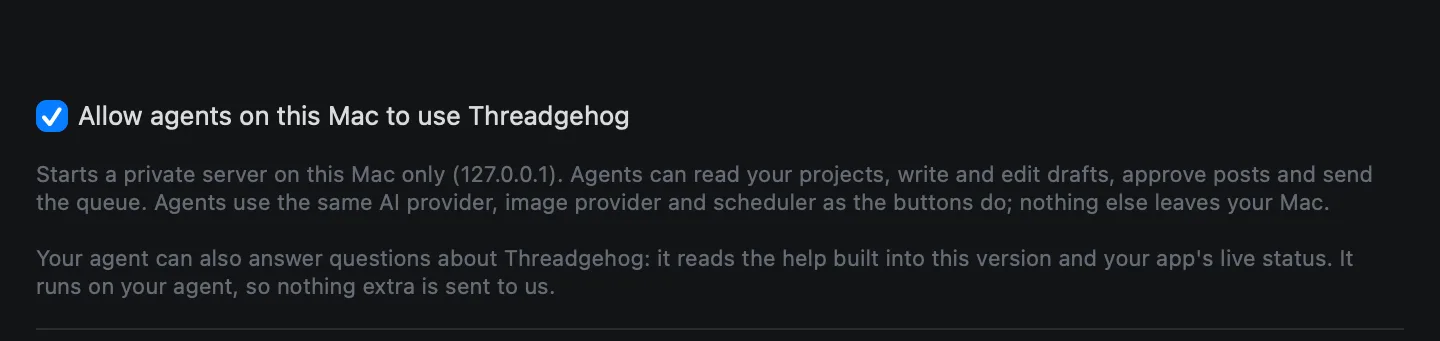
Turn on agents
Switch on "Allow agents on this Mac to use Threadgehog". This starts a private server on this Mac only, at 127.0.0.1. Agents can read your projects, write and edit drafts, approve posts and send the queue. They use the same AI provider, image provider and scheduler as the buttons in the app; nothing else leaves your Mac. The line under it adds that your agent can also answer questions about Threadgehog, using the help built into this version and your app's live status.
Copy the address and token
With agents on, the tab shows Address (http://127.0.0.1:47331/mcp, or another port if 47331 is taken) and a masked Token. You need these only for the optional Direct (HTTP) setup; the snippet in the next step reads them itself. Regenerate issues a new token if you ever need one; a Direct (HTTP) connection will need the new value.

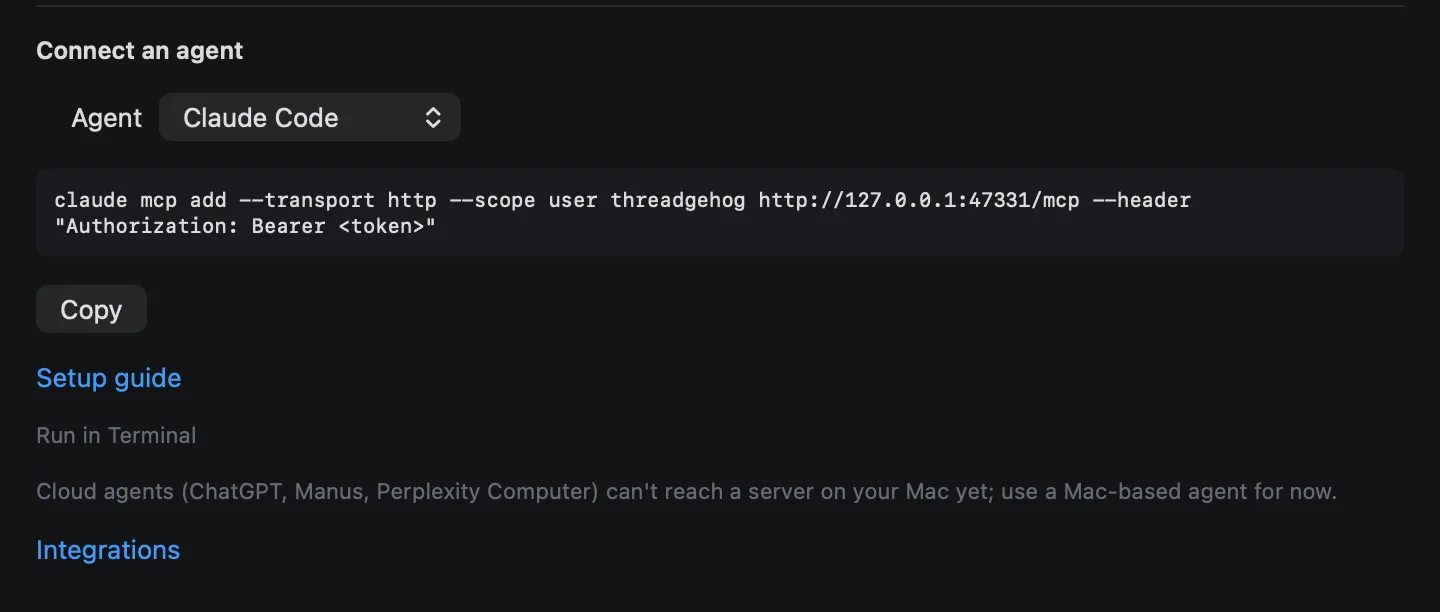
Connect an agent
Under "Connect an agent", pick Claude Code from the list. Threadgehog fills in a ready-made snippet that starts the threadgehog command (no token goes in your config), plus a Copy button and a Setup guide link to this page. Threadgehog must stay open while Claude Code uses it.
Add Threadgehog in Claude Code
Run this in Terminal. --scope user makes the connection available in every project on this Mac, not just the one you're in.
claude mcp add --scope user threadgehog -- /usr/local/bin/threadgehog mcp-stdioConfirm it's connected
Run claude mcp list and look for threadgehog with a ✔ Connected status, or type /mcp inside a Claude Code session.
claude mcp listOptional: install the threadgehog command
Still in Settings, Agents, click "Install the threadgehog command". It asks for your Mac password once and creates /usr/local/bin/threadgehog. If you'd rather run it yourself, click Copy fallback for the exact command for your Mac. Once installed, threadgehog status checks the connection, threadgehog mcp prints the address, header and the Claude Code, Codex and Cursor snippets, and threadgehog help answers a question from the help built into the app.
sudo mkdir -p /usr/local/bin && sudo ln -sf "<helper path>" /usr/local/bin/threadgehog
threadgehog status
threadgehog mcp
threadgehog help how do I connect Buffer
What you get
- List your projects and their publishing settings
- Check your writing plan and how much capacity is left
- List posts waiting for approval in a project
- List posts waiting in the publishing queue, for one project or all of them
- Get one post by ID to see its full text and status
- Generate new draft post ideas for a project
- Write post text from a prompt without saving it, so you can review it first
- Save text you already wrote as a new draft
- Replace a post's text
- Revise a post's wording from feedback, keeping its idea
- Approve a pending draft into the publishing queue
- Reject a pending or queued post
- Attach a local image or video file to a post (png, jpg, gif, webp, mp4 or mov)
- Generate an image for a post
- Set the order of posts waiting in the queue
- Send eligible queued posts right now, once Let agents send posts is on in Settings, Agents
- Check the app's live status: version, plan, AI and image providers, connected schedulers, queue counts and anything that needs attention
- Answer how-to, setup and troubleshooting questions about Threadgehog from the help built into your version
What it costs
Threadgehog doesn't charge anything extra to connect Claude Code. Claude Code runs on your own Claude plan or API billing, separate from Threadgehog; see claude.com for current Claude Code pricing. Drafts, ideas and images Claude Code asks Threadgehog for still use the AI provider and image provider you've set up in Threadgehog's own Settings, and are billed the same way a click in the app would be.
Your key and your data
Threadgehog's agent server only listens on 127.0.0.1, this Mac, on the port shown in Settings, Agents (47331 by default, or another free port if that one is taken). Every request needs the bearer token from that tab, and a request with the wrong Origin header is refused too. Claude Code launches the threadgehog command on this Mac, which connects to that address with the current token. Threadgehog stores the token in the macOS Keychain, and also writes it with the port to ~/Library/Application Support/Threadgehog Public/agent.json (readable only by your Mac user account) so the threadgehog command can find the server. That file stays on disk, even after you quit Threadgehog, until you turn Allow agents off. The default snippet keeps the token out of Claude Code's config; if you use the optional Direct (HTTP) setup, treat the token you paste there like a password. Click Regenerate in Settings, Agents any time to issue a new token, which immediately invalidates the old one everywhere it was used. Agent calls run entirely between Claude Code and Threadgehog on your Mac, through the same AI provider, image provider and scheduler you already configured; Threadgehog's own servers never see this traffic, and no keys or tokens are ever returned to an agent.
Limits to know
- Works only on this Mac: the server listens on 127.0.0.1, so no other device can reach it.
- Threadgehog must be open with Agents turned on in Settings, Agents, or every call fails.
- Works with agents that run on your Mac: Claude Code, Codex, Cursor, Claude Desktop and Gemini CLI.
- approve_post only works on posts still pending, and reject_post only on posts pending or queued; neither can touch a post that already published.
- Media attachments must already exist under your home folder, as png, jpg, gif, webp, mp4 or mov files.
Troubleshooting
"Threadgehog isn't running with agents enabled. Open Threadgehog, then Settings > Agents, and turn on Allow agents."
Why: The threadgehog command found no running server: either Threadgehog is closed, or the Allow agents toggle in Settings, Agents is off. Only the threadgehog command prints this message; Claude Code shows its own connection error for the same problem.
Fix: Open Threadgehog, go to Settings, Agents, and turn on Allow agents. Keep the app open while you use the agent.
Right after someone clicks Regenerate in Settings, Agents, every Threadgehog call from Claude Code fails as unauthorized (Threadgehog answers HTTP 401).
Why: Claude Code is connected through the optional Direct (HTTP) setup and is still sending the old token. The default snippet is not affected. The threadgehog command is not affected, because it reads the current token from the app each time it runs.
Fix: In Settings, Agents, click Copy next to Token, then update your config or snippet with the new value and reconnect.
No Agents tab in Settings.
Why: This Threadgehog version doesn't have agent support yet.
Fix: Open the Threadgehog menu and choose Check for Updates…, install the update, then reopen Settings.
"Only pending posts can be approved; <id> is published."
Why: approve_post only moves a draft still waiting for approval into the queue. This post already moved past pending, so a repeat approval is refused instead of resending it.
Fix: Check the post's current status with get_post or list_pending before approving it again.
"Unknown tool: <name>"
Why: The agent called a tool name that isn't one of Threadgehog's supported tools, for example a misspelled or made-up name.
Fix: Reconnect the agent, or restart the session, so it reloads the current tool list.
claude mcp list shows threadgehog as "✘ Failed to connect."
Why: Threadgehog is closed or Agents is off, or the address changed because port 47331 was taken when the app last started.
Fix: Open Threadgehog, Settings, Agents, confirm Allow agents is on, and check the Address field still matches what you added. If it changed, run claude mcp remove threadgehog and add it again with the current address and token.
Questions
Do I need to turn on Agents to use Threadgehog normally?
No. Agents are optional. Everything in Threadgehog still works from its own buttons with Agents off; turning it on adds a way for Claude Code, or another MCP client you connect, to drive the same actions.
Can Threadgehog write its drafts with my Claude plan through Claude Code?
Yes, from Threadgehog 1.1. That's set in Settings > AI, not here: pick Use my Claude or ChatGPT subscription, then Claude subscription (Pro or Max). You don't need Agents turned on for it. The Claude plan guide has the steps.
Can Claude Code answer questions about how Threadgehog works?
Yes, in Threadgehog 1.0.4 or later. Ask Claude Code something like "how do I connect Buffer" and it looks the answer up in the help built into your copy of Threadgehog. When something isn't working, it also checks your app's live status, such as a scheduler or AI key that stopped working or posts waiting on a setting. That help ships inside the app and is updated with every release. It runs on Claude Code, so nothing extra is sent to Threadgehog.
Does connecting Claude Code cost anything extra in Threadgehog?
No, Threadgehog doesn't charge anything extra to connect an agent. Claude Code is a separate tool with its own plan, though. When it asks Threadgehog to draft text, generate ideas or make an image, that still runs through the AI provider and image provider set up in Threadgehog's own Settings, billed the same way a click in the app would be.
Can Claude Code publish to Threads or X directly?
No. Claude Code can approve a post into Threadgehog's queue and tell Threadgehog to send the queue now, but Threadgehog only publishes through the scheduler you've connected under Settings, Publishing, or not at all if you use Export only. Claude Code never talks to Threads or X directly.
Can Claude Code send posts without me clicking anything in Threadgehog?
Yes. approve_post moves a pending draft into the queue without a click, and those posts go out on your send schedule. For an agent to send right away with send_queue_now, turn on Let agents send posts in Settings, Agents (it starts off). Click Regenerate there any time to cut a connected agent off.
Will this work with ChatGPT, Manus or Perplexity's Computer agent?
Threadgehog connects to agents that run on your Mac: Claude Code, Codex, Cursor, Claude Desktop or Gemini CLI.
What happens if I close Threadgehog while Claude Code is connected?
Every call fails until you reopen Threadgehog with Agents still turned on. The threadgehog command line shows "Threadgehog isn't running with agents enabled..." in that case, and Claude Code will see a similar connection error.
What does --scope user do?
It saves the connection in your user-level Claude Code config, so threadgehog is available in every project on this Mac, not only the one you were in when you ran the command. Leave it off to scope the connection to a single project instead.