Write your posts with Google Gemini
Writing posts for Threads and X takes time you would rather spend on your product. Threadgehog drafts those posts in your brand voice. It works with your own API key (recommended for unlimited drafts); without one, every plan includes Threadgehog AI drafts. Google Gemini is one of the six providers it supports. You create a key in Google AI Studio, paste it into Threadgehog, and either use Google's free tier or pay Google directly for what you use. Gemini writes the text, and the same key can make your post images too. Your posts go out through the scheduler you connect: Buffer, Typefully, Publer, Metricool or Postiz.
How to set up Google Gemini
Create a Gemini API key
Go to aistudio.google.com/apikey and sign in with your Google account. If you're new to AI Studio, Google creates a default project and an API key for you after you accept its terms. If you already use it, click "Create API key" to make a new one. Copy the key and treat it like a password: anyone who has it can use your quota and run up charges on your project.
Set up billing for a paid key (optional)
A free key works with no card on file. Outside the EEA, Switzerland and the UK, Google can use what you send on the free tier to improve its products, and human reviewers may read it. On a paid key, Google doesn't use your prompts or responses to improve its products, and Gemini 3.1 Pro only runs on a paid key. To upgrade, open the API keys page in AI Studio, find your project, and click "Set up billing" in the Billing Tier column. Choose your country and accept the terms, or pick a billing account you already have, then add a payment method. New accounts default to Google's Prepay plan, which needs a prepayment of at least $5.
Paste the key into Threadgehog
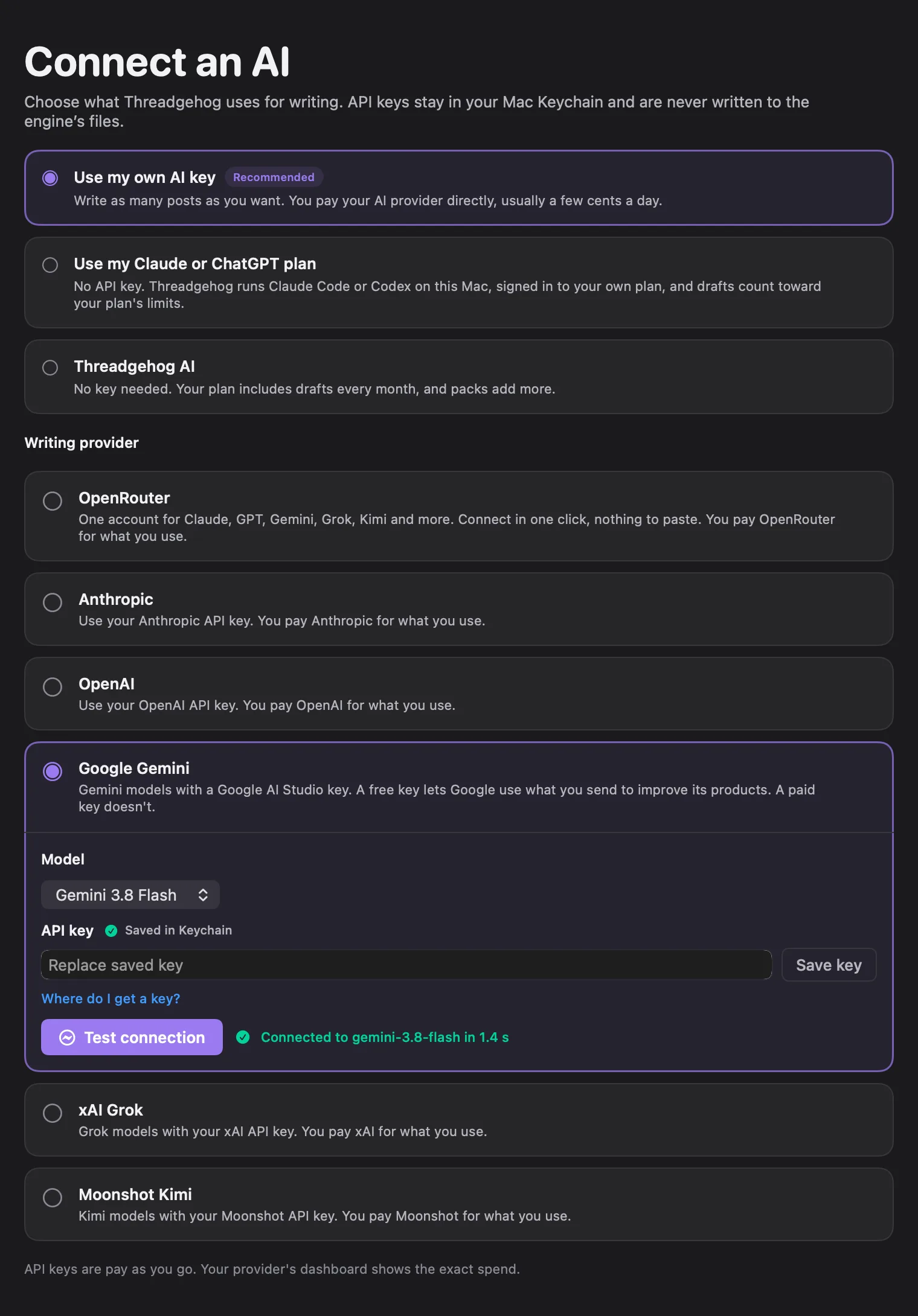
In Threadgehog, open Settings (⌘,) and click the "AI" tab. Click "Use my own AI key", then select the "Google Gemini" card under "Writing provider". Gemini 3.8 Flash is already chosen in the "Model" menu. Paste your key into the "API key" field and click "Save key" to store it. Threadgehog keeps the key in your Mac's Keychain and shows "Saved in Keychain" next to the field label.
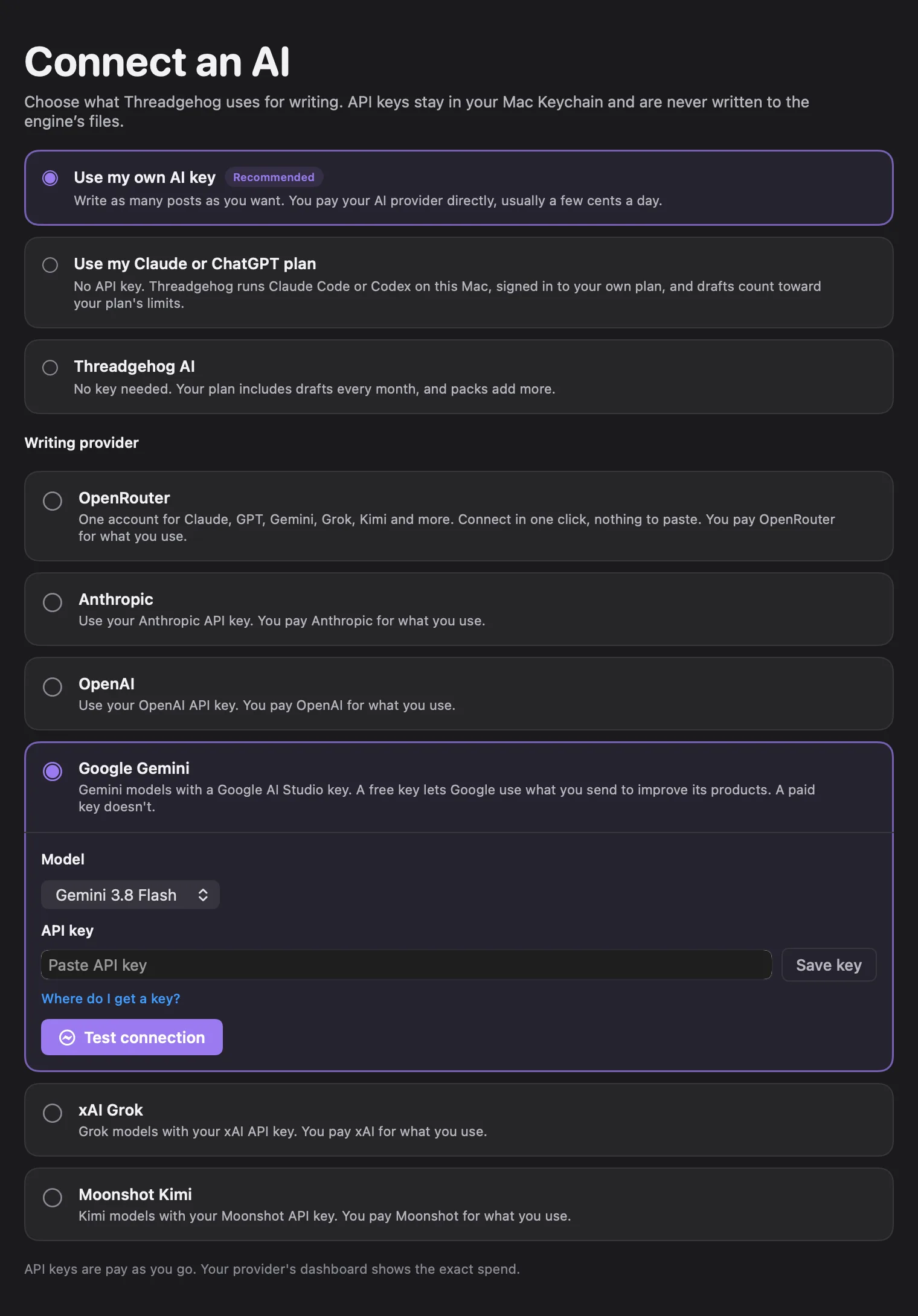
Check the connection test
Saving the key starts the connection test automatically. To run it again, click "Test connection". A working key shows a line like "Connected to gemini-3.8-flash in 1.4 s" with your own time in it. During first-time setup, the Continue button stays disabled until this test passes. If the test fails, the message next to the button says why; the troubleshooting section below covers each one.
Make your images with the same key (optional)
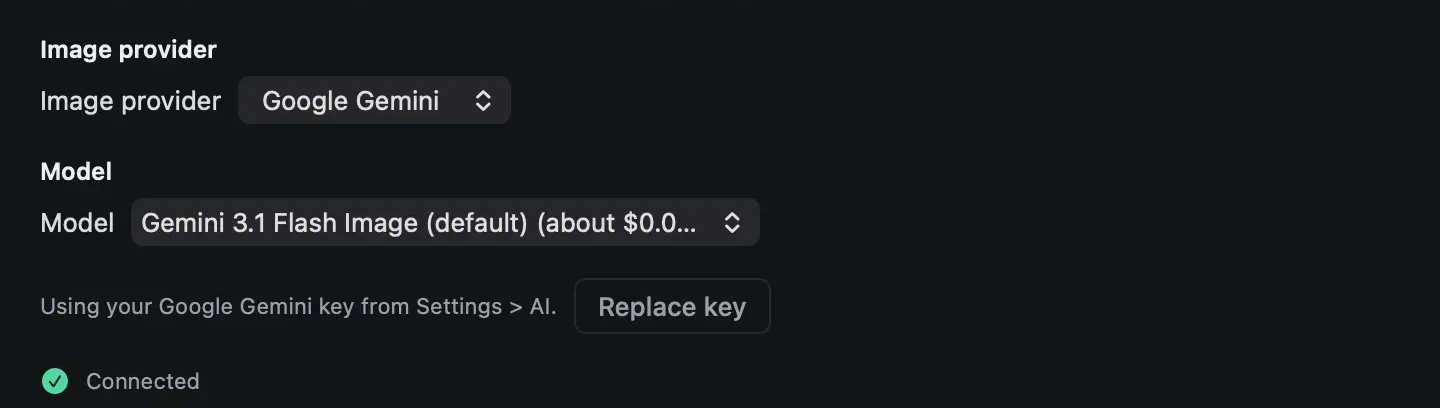
Open Settings, then the "Images" tab, choose the "Use an API key" card, and pick "Google Gemini" in the "Image provider" menu. Setup's "Add images to your posts?" step shows the same cards. Until an image key is in place, the Queue header shows a "Connect images" chip that opens this tab. If Gemini already writes your posts and you haven't picked an image provider or saved a Replicate token, Threadgehog makes this switch for you once, when it next loads your image settings: at launch, right after the setup connection test passes, or when you open this tab. The key section then reads "Using your Google Gemini key from Settings > AI." and there is nothing to paste. Pick a model under "Model" (Gemini 3.1 Flash Image is preselected and marked "(default)"); the status line below the key section reads "Connected" once a key is in place.
What you get
- Drafts for Threads and X written in your brand voice by Gemini 3.8 Flash (the default) or Gemini 3.1 Pro, picked from the Model menu in Settings → AI.
- Google's free tier with no card on file, or a paid key once you set up billing in AI Studio.
- One writing provider at a time. Switching to Gemini leaves the keys you saved for other providers in your Keychain, so switching back needs no new key.
- Images too, if you want them: pick "Google Gemini" under "Image provider" in Settings, Images tab (a fresh install already defaults to it there once Gemini is your writing provider and no image provider is chosen yet). Gemini's image models, Gemini 3.1 Flash Image, Gemini 3.1 Flash Lite Image and Gemini 3 Pro Image, are separate from Gemini 3.8 Flash and Gemini 3.1 Pro and priced per image, not per token.
- Publishing through your scheduler. Threadgehog sends approved posts from your Mac to Buffer, Typefully, Publer, Metricool or Postiz.
What it costs
Google bills you directly for Gemini API use. Threadgehog charges one price for the app, with no per-post fees, and never sees your Google bill. Google's pricing page lists these standard paid-tier rates per million tokens (checked October 1, 2026). Gemini 3.8 Flash: $0.75 input and $3.75 output through December 31, 2026, then $1.50 input and $7.50 output starting January 1, 2027. Gemini 3.1 Pro, which Google lists as Gemini 3.1 Pro Preview: $2.00 input and $12.00 output for prompts up to 200,000 tokens, and $4.00 input and $18.00 output for longer prompts. Google counts the model's thinking tokens as output. Prices can change, so check Google's pricing page at ai.google.dev/gemini-api/docs/pricing before you connect. The free tier costs nothing. The trade: outside the EEA, Switzerland and the UK, Google can use what you send to improve its products. A paid key keeps your prompts and responses out of that. If you also pick Google Gemini as your image provider (Settings, Images tab), the "Model" menu shows Threadgehog's ballpark price next to each image model: about $0.07 per image for Gemini 3.1 Flash Image (the default), about $0.03 for Gemini 3.1 Flash Lite Image, and about $0.13 for Gemini 3 Pro Image. Those figures are Threadgehog's own estimate; Google bills the call at its own current rate, so check Google's pricing page for the number that applies. Once images are connected, the Queue header shows your estimated image spend. Click it to enter your real balance under "Google Gemini balance", which then counts down by that estimate, or click "Open Google Gemini billing", which opens your AI Studio API keys page.
Your key and your data
Threadgehog saves your Gemini key in your Mac's Keychain, not in a plain file. In Keychain Access it appears as "Threadgehog Public" with the account "gemini" (the service and account names Threadgehog uses). Each time Threadgehog writes, it sends your key and the text for that call to its server at api.threadgehog.com, which passes the request to Google. Threadgehog's privacy page says the server uses your key for that one call and then forgets it, and its logs never hold your text or your key. When Google sends back an error, the server removes your key from the text and cuts it to 300 characters before the app shows it. To cut off a key, create a replacement in AI Studio, save it in Threadgehog, then disable or delete the old key in the Google Cloud Console. To remove the key from your Mac, open Keychain Access (search for it with Spotlight), find "Threadgehog Public" with the account "gemini", and delete it. On a free key, Google's terms let it use your prompts and responses to improve its products and let human reviewers read them, unless you're in the EEA, Switzerland or the UK. On a paid key, Google doesn't use them to improve its products. The same Keychain entry (account "gemini") backs both writing and images, so one saved key covers both; Threadgehog only reads it for images once you pick Google Gemini as the Image provider in Settings, Images tab. Image requests skip Threadgehog's server: the app on your Mac sends the key straight to Google's Gemini API (generativelanguage.googleapis.com) with each image request.
Limits to know
- Gemini writing uses an API key from AI Studio, separate from a Google AI Pro or Ultra subscription. Google says those plans' developer benefits apply only inside the Google AI Studio website, and use through API keys or outside apps is billed separately.
- One writing provider at a time. Selecting Gemini replaces the active provider; the other provider's key stays in your Keychain.
- Gemini 3.1 Pro needs a paid key. Google doesn't offer it on the free tier.
- Google shows your account's rate limits in AI Studio at aistudio.google.com/rate-limit (sign-in required). Going over one returns a 429 RESOURCE_EXHAUSTED error, which Threadgehog shows inside its provider error message.
- The Gemini API works only in the countries and territories on Google's available regions list. Where the free tier isn't offered, Google asks you to set up billing first.
- Picking Gemini for writing doesn't turn on images by itself. Pick "Google Gemini" under "Image provider" in Settings, Images tab too, unless the one-time first-run default already did it for you. Gemini's image models are separate from Gemini 3.8 Flash and Gemini 3.1 Pro and billed per image.
- Editing a generated image with feedback (the "Regenerate" box) makes a new image from your prompt plus the note. It doesn't edit the existing picture pixel by pixel the way Replicate's image-editing model does.
Troubleshooting
"Your AI provider refused this: [Google's error text] Check your plan and billing on their site, then try again."
Why: Google turned down the request. The bracketed part is Google's own error text, with your key removed and cut to 300 characters.
Fix: Look for these words in Google's text. "API key not valid": the key is mistyped or deleted, so copy it again or create a new one at aistudio.google.com/apikey and save it. "PERMISSION_DENIED": the key doesn't have access, so check the key and its project in AI Studio. "RESOURCE_EXHAUSTED" with code 429: you passed a rate or spend limit, so wait and test again. Code 402: your Prepay balance is $0, so add credit or turn on auto-reload in AI Studio billing. "reported as leaked": Google blocked the key, so create a new one. "free tier is not available in your country": set up billing on your project. A note that the model spent its whole token budget reasoning: test again. The "Open Google Gemini billing" link next to the error opens your AI Studio API keys page.
"Test connection" is grayed out
Why: The button stays disabled until a provider is selected, a model is chosen, and a key is saved. It's also disabled while a test is running.
Fix: Select the "Google Gemini" card, check the Model menu, paste your key, and click "Save key" before testing. The "Saved in Keychain" label confirms the key is stored.
"Enter a license key to write or publish. Your queue stays visible."
Why: The connection test runs through Threadgehog's server, so it also needs an active Threadgehog license or trial.
Fix: Open Settings, click the License tab, enter your license key, then test again. Other license messages, such as an ended trial or a key active on another Mac, say what to do in the message itself. If one doesn't clear, email support@threadgehog.com.
"Save your API key in Settings, then try again."
Why: Gemini is the selected provider, but no Gemini key is saved in your Keychain.
Fix: Open Settings, click the AI tab, paste your key into the Google Gemini card's API key field, and click "Save key" to store it.
"Connect an AI in Settings."
Why: No writing provider is selected.
Fix: Open Settings, click the AI tab, select the "Google Gemini" card, and save your key.
"Threadgehog could not send that. Update to the latest version, then try again."
Why: Threadgehog's server turned the request down before it reached Google. A key shorter than 8 or longer than 500 characters causes this, and so can an outdated copy of the app.
Fix: Copy the whole key again from AI Studio with no extra spaces or text, save it, and test again. If the message stays, update Threadgehog and try again.
"Threadgehog could not reach the writing service. Check your internet and try again. Your posts and queue still work offline; writing and publishing need the service."
Why: Threadgehog couldn't reach its server at api.threadgehog.com, or got no answer within 200 seconds.
Fix: Check your internet connection and test again. Your queue still works offline; only writing and publishing need the connection.
"Something went wrong on our side. Try again in a minute."
Why: Threadgehog's server had an error or sent back no result.
Fix: Wait a minute and test again. If it keeps happening, open Settings, click the About tab, click "Send a report" and email the report to support@threadgehog.com.
"You have hit the limit for now. Try again in about [X] minutes."
Why: Threadgehog's own server limit: too many requests on your license in a short time, or one license key used from too many network addresses. Google's own limits show up in the provider error above instead.
Fix: Wait the number of minutes shown, then try again.
"empty-response"
Why: Google answered the connection test with no text.
Fix: Test again. If it keeps happening, switch the Model menu to Gemini 3.8 Flash, and check that your key and project work in AI Studio.
"Couldn’t save the key: [reason]" or "Couldn’t save the provider: [reason]"
Why: macOS refused to store the key in your Keychain, or Threadgehog couldn't write its provider settings file.
Fix: Quit and reopen Threadgehog, then try again. If the message stays, email support@threadgehog.com with the full message text.
"Image provider rejected the key. Check Settings > Images."
Why: Google Gemini turned down the key saved for images: it was mistyped, deleted, disabled, or doesn't have image access.
Fix: Open Settings, Images tab, click "Replace key", and save a working key.
"Add an image provider in Settings > Images first."
Why: No image provider key is saved. This can show up on "Regenerate" or "New image" for a post that already has a generated image, even though "Generate image" itself stays hidden until a key exists.
Fix: Open Settings, Images tab, pick a provider, and save or connect its key.
Orange banner: "You're out of Google Gemini credit, so AI images can't be generated. Add credits to start again."
Why: Google Gemini's image API reports your account has no credit left.
Fix: Click "Add credits" in the banner, or go to aistudio.google.com/apikey, then generate again.
"Google Gemini is rate limiting image requests. Try again in a minute."
Why: Google Gemini is throttling image requests. Threadgehog already retries a rate limit automatically, up to 3 times, 12 seconds apart, before showing this.
Fix: Wait a minute and try again.
"Google Gemini [status]: [the first 200 characters of its reply]"
Why: Google Gemini's image API returned an error Threadgehog doesn't otherwise recognize.
Fix: Read the message for the reason. If it keeps happening, email support@threadgehog.com with the full text.
"Google Gemini: no response"
Why: Threadgehog couldn't reach Google Gemini's image service, usually because your Mac is offline.
Fix: Check your internet connection, then click "Generate image", "Regenerate" or "New image" again.
Settings, Images tab has no "Image provider" menu
Why: This copy of Threadgehog predates image providers. It can only make images with a Replicate token.
Fix: Choose Threadgehog > Check for Updates…, install the update, then open Settings, Images tab again.
"Google Gemini: no image in response:" followed by part of Google's reply
Why: Google answered the image request, but its reply held no image, for example because the model answered with text instead.
Fix: Open "Prompt" under the post's image idea, reword it, and click "Generate image" or "New image" again. If it keeps happening, pick a different model under "Model" in Settings, Images tab.
Questions
Can I use my Google AI Pro or Google AI Ultra subscription instead of an API key?
No. Google says those plans' developer benefits apply only inside the Google AI Studio website, and API use through keys or outside apps is billed separately. To write with Gemini, use a Gemini API key from aistudio.google.com/apikey or an OpenRouter account. With no key, Threadgehog AI drafts come with every plan, and a Claude or ChatGPT plan works too.
Do I have to pay Google before I can connect?
No. A free Gemini key works with no card on file. Outside the EEA, Switzerland and the UK, Google can use what you send on the free tier to improve its products. A paid key keeps your prompts and responses out of that, and Gemini 3.1 Pro needs one.
Which Gemini model should I use?
Start with Gemini 3.8 Flash. It's the default, it costs less per token than Gemini 3.1 Pro, and it works on a free key. Gemini 3.1 Pro needs a paid key.
Can I use Gemini through OpenRouter instead?
Yes. In Settings → AI, select the OpenRouter card, click "Connect with OpenRouter", approve in your browser, and pick Gemini 3.8 Flash in the Model menu. OpenRouter bills you instead of Google.
Is my API key safe with Threadgehog?
Threadgehog keeps it in your Mac's Keychain. Each writing call sends it to Threadgehog's server, which, according to Threadgehog's privacy page, uses it for that one call to Google and then forgets it. The server's logs never hold your key or your text.
Can I switch to a different AI provider later?
Yes, any time in Settings → AI. Your Gemini key stays in your Keychain, so selecting the Google Gemini card again shows it as saved.
What do I do if Threadgehog says my key was refused?
Open Settings → AI and click "Test connection" to see the full message, which includes Google's own error text. "API key not valid" means the key is mistyped or deleted, so copy it again or create one at aistudio.google.com/apikey. A permission or billing message means your project or Prepay balance needs attention in AI Studio. If it still fails, email support@threadgehog.com.
Does Threadgehog charge extra for using Gemini?
No. Threadgehog charges one price for the app, with no per-post fees. Google bills you directly for your Gemini use at its published rates.
Can Gemini post directly to Threads or X?
No. Gemini writes the text, and can make the post's image if you pick it under "Image provider" in Settings, Images tab, but it never posts. Threadgehog sends approved posts from your Mac to the scheduler you connect, such as Buffer, and the scheduler publishes them.
Does my Gemini key make the images too?
It can. Pick "Google Gemini" under "Image provider" in Settings, Images tab (a fresh install already defaults to it there once Gemini is your writing provider and no image provider is chosen yet). Gemini's image models, Gemini 3.1 Flash Image, Gemini 3.1 Flash Lite Image and Gemini 3 Pro Image, are priced per image: the Model menu shows about $0.07, $0.03 and $0.13. You can pick a different image provider any time.