Use Moonshot Kimi to write your Threadgehog posts
Posting every day takes time you may not have. Threadgehog drafts your Threads and X posts for you. Every plan includes Threadgehog AI drafts, and for unlimited drafts you can connect your own provider instead (recommended). Moonshot Kimi is one of six writing providers in Settings, AI tab. Moonshot bills you directly for what you use, and your API key is stored in your Mac's Keychain.
How to set up Moonshot (Kimi)
Create a Moonshot API key
Sign in or create an account at platform.kimi.ai, then open the API keys page at platform.kimi.ai/console/api-keys and create a key. Copy it, since you paste it into Threadgehog in step 3. In Threadgehog, the "Where do I get a key?" link on the Moonshot Kimi card opens the same page.
Top up at least $1 for Kimi K3
Kimi K3 is the model Threadgehog selects by default. Moonshot keeps it locked until your account has a successful top-up of at least $1, so add credit to your Moonshot account before you test. Until then, a test with Kimi K3 selected fails even with a valid key.
Paste the key into Threadgehog
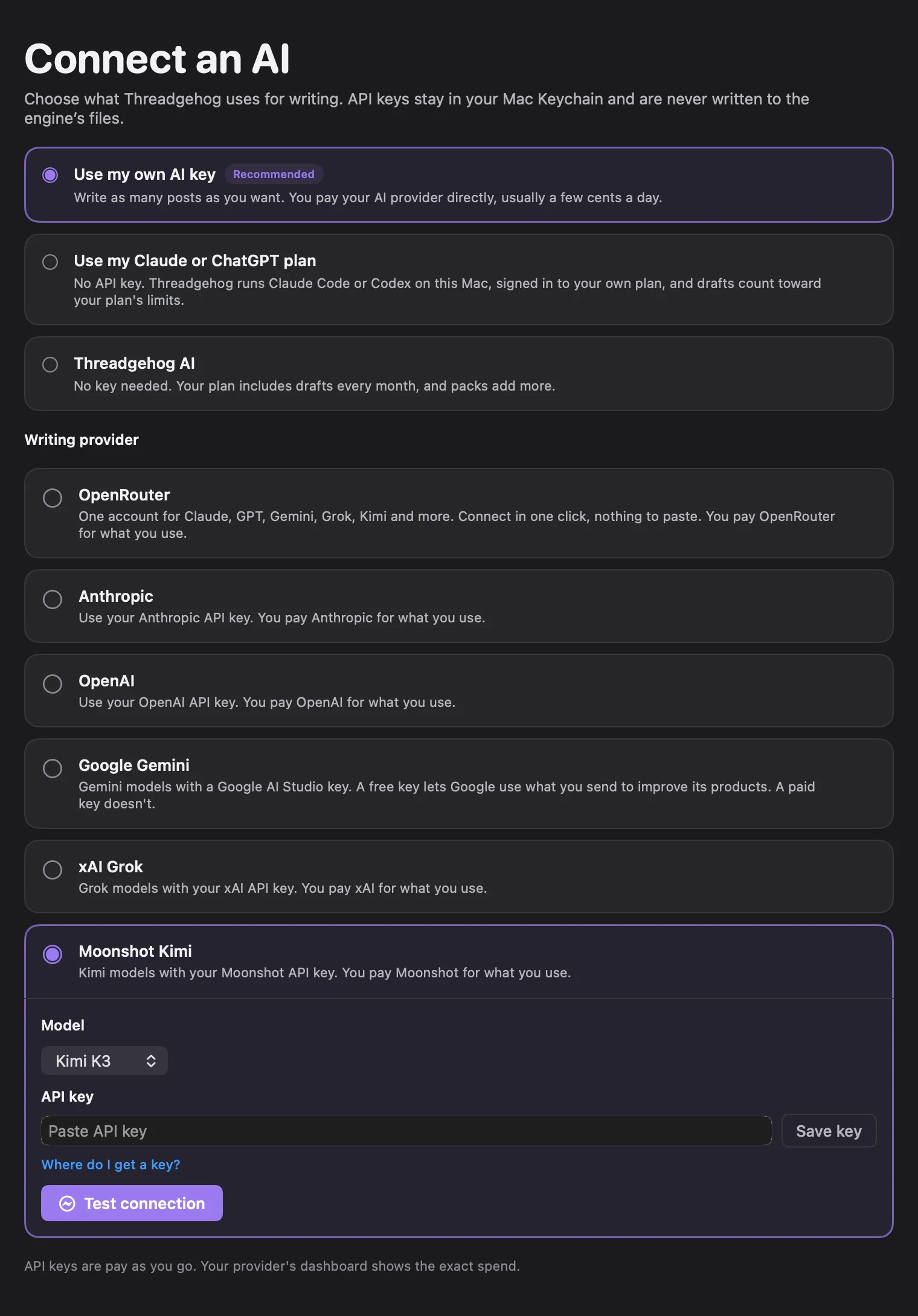
Open Settings (Cmd+,) and click the "AI" tab. During first-run setup, the "Connect your AI." screen shows the same choices. Click "Use my own AI key", then under "Writing provider" select the "Moonshot Kimi" card. Kimi K3 is set in the "Model" menu by default, and you can switch to Kimi K2.6 there. Paste your key into the "API key" field, then click "Save key" to store it. A "Saved in Keychain" badge appears next to the field label once the key is stored.
Check the connection test
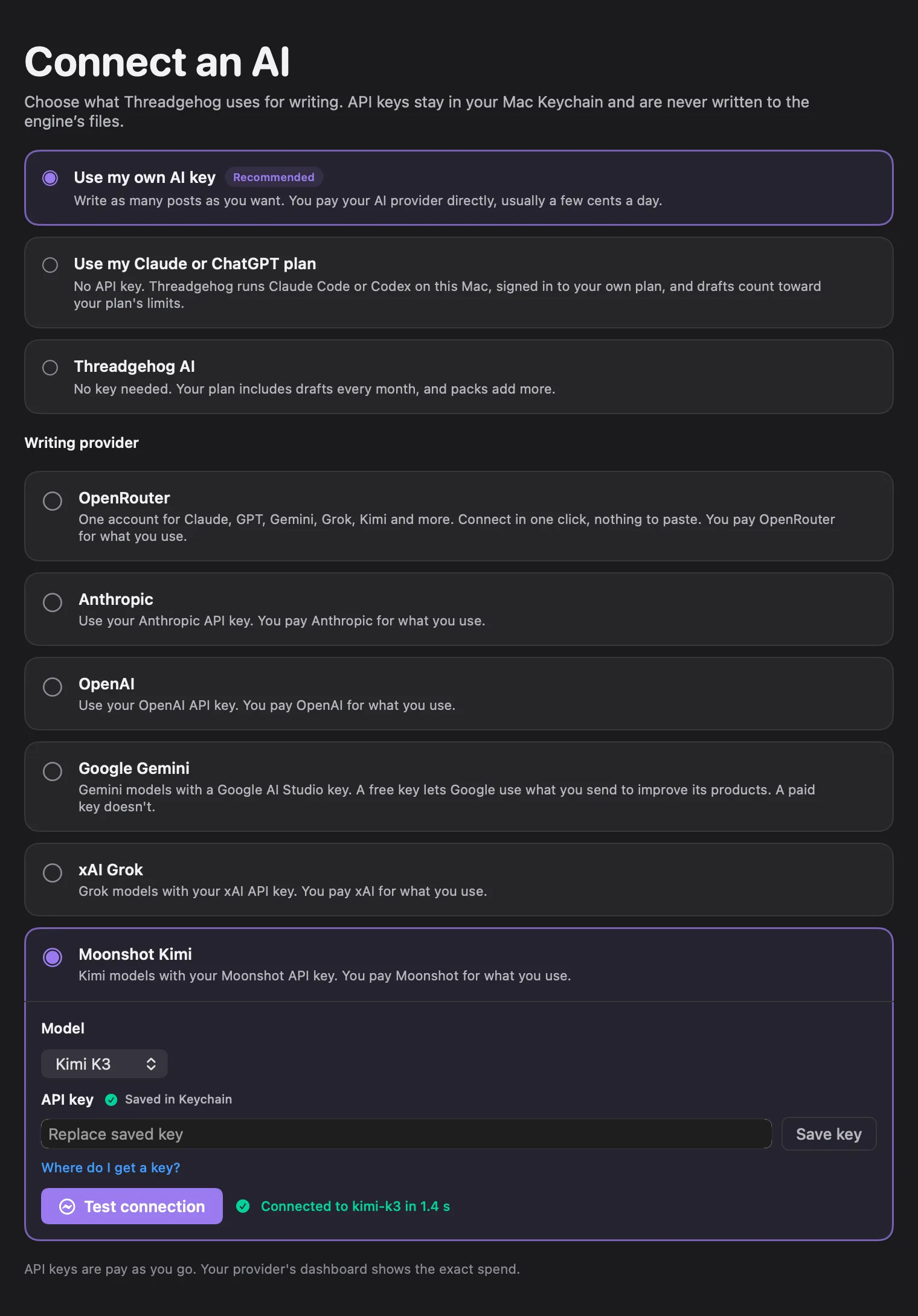
Saving the key starts the connection test automatically. To run it again, click "Test connection". The button stays grayed out until a key is saved. While the test runs, the button label changes to "Testing…" and a spinner appears. On success, the line next to the button reads "Connected to kimi-k3 in [n] s" with [n] as the time in seconds, to one decimal. If you picked Kimi K2.6, it names kimi-k2.6 instead. During setup, the "Continue" button stays off until this test passes.
What you get
- Threadgehog writes your Threads and X drafts with Moonshot's Kimi models.
- Two models to pick from on the Moonshot Kimi card: Kimi K3 (the default) or Kimi K2.6.
- Your API key is stored in the macOS Keychain, outside Threadgehog's app files. Only the selected provider's key is sent with each writing request.
- Moonshot bills you directly at its own rates. Threadgehog adds no markup and no AI charge of its own.
- If you switch to another provider later, your Moonshot key stays saved, so switching back needs no new paste.
- When image suggestions are on for a project, Kimi also writes each post's image idea and the detailed image prompt when you open it. To turn the prompt into a picture, pick an image route in Settings > Images: Threadgehog images, Use my ChatGPT subscription, or an API key from Replicate, OpenAI, Google Gemini, xAI Grok or OpenRouter. Your plan includes images every month, and packs add more.
What it costs
Moonshot bills you directly, pay as you go, with no subscription plan. Threadgehog adds no markup. On October 1, 2026, Moonshot's pricing page listed these rates per 1 million tokens: Kimi K3 at $3.00 input, $0.30 cached input and $15.00 output, with a 1,048,576 token context window; Kimi K2.6 at $0.95 input on a cache miss, $0.16 on a cache hit and $4.00 output, with a 262,144 token context window. Moonshot also keeps Kimi K3 locked until the account has a successful top-up of at least $1. Prices can change, so check Moonshot's pricing page at platform.kimi.ai/docs/pricing/chat before you connect.
Your key and your data
Your Moonshot API key is stored in the macOS Keychain on your Mac (service "Threadgehog Public", account "kimi"), outside Threadgehog's app files. Each time Threadgehog writes for you, the app sends the key, the text being written and your brand voice to Threadgehog's generation server. The server uses the key for that one call to Moonshot's API and sends the reply back to your Mac. It does not save the key, the text or the reply, and its logs hold request ids, timings, the name of the step that ran and status codes, never your text or your key. Save a new key in Settings any time to replace it. To revoke the key, delete it on Moonshot's API keys page at platform.kimi.ai/console/api-keys. To remove it from your Mac, open Keychain Access and delete the "Threadgehog Public" item whose account is "kimi". Other "Threadgehog Public" items hold your license and other connections, so leave those in place.
Limits to know
- Only one writing provider is active at a time. Selecting Moonshot Kimi replaces the provider you had before, and that provider's key stays saved in the Keychain for when you switch back.
- Saving the key runs the connection test right away, and Test connection runs it again any time.
- Pick Kimi K3 or Kimi K2.6 in the Model menu.
- The key has to come from the Kimi API Open Platform at platform.kimi.ai. A Kimi Code key or a key from another Moonshot regional platform won't authenticate, and a Kimi membership doesn't include API credit.
- Kimi K3 stays locked until your Moonshot account has a successful top-up of at least $1. You can save and test a key before that, but a test with Kimi K3 selected fails.
Troubleshooting
"Your AI provider refused this: [Moonshot's message] Check your plan and billing on their site, then try again."
Why: Moonshot's API turned the request down. The bracketed part is Moonshot's own reply, with anything shaped like a key removed and cut to 300 characters.
Fix: Match the bracketed text to the rows below. Next to a failed test, the "Open Moonshot Kimi billing" link opens your account at platform.kimi.ai/console.
The bracketed text mentions "Account balance is insufficient or the account has been disabled" or "Token quota is insufficient"
Why: Moonshot sees no usable balance on the account, or the account is disabled.
Fix: Add credit at platform.kimi.ai, then test again. If you still have balance, check the account's status in Moonshot's console.
The bracketed text mentions "Invalid Authentication" or "Incorrect API key provided"
Why: The key is wrong or incomplete, or it comes from Kimi Code or a different Moonshot regional platform.
Fix: Create a new key at platform.kimi.ai/console/api-keys, paste it on the Moonshot Kimi card, click "Save key" and test again.
The bracketed text mentions "Model not found, or this account does not have permission to access the model"
Why: Your Moonshot account can't use the selected model. Moonshot keeps Kimi K3 locked until the account has a successful top-up of at least $1.
Fix: Top up at least $1 at platform.kimi.ai, then test again.
The bracketed text mentions an "Organization-level" concurrency, RPM, TPM or TPD limit
Why: These are Moonshot's own rate limits for your account. Moonshot sets them by account tier, and the tier depends on how much you have topped up in total.
Fix: Wait a few minutes and try again, or top up more to move to a higher tier.
The bracketed text reads "the model spent its whole token budget reasoning and returned no text"
Why: The model used its whole output allowance thinking and sent back no post text.
Fix: Test or write again. If it keeps happening, email support@threadgehog.com with the exact text.
"You have hit the limit for now. Try again in about [n] minutes." (or "Try again in a few minutes.")
Why: This is Threadgehog's own limit on writing requests, separate from Moonshot's.
Fix: Wait the stated time, then try again.
"Threadgehog could not reach the writing service. Check your internet and try again. Your posts and queue still work offline; writing and publishing need the service."
Why: Your Mac couldn't reach Threadgehog's writing service, or the service didn't answer in time.
Fix: Check your internet connection, then try again.
"Something went wrong on our side. Try again in a minute."
Why: Threadgehog's writing service hit an error of its own.
Fix: Wait a minute and try again. If it repeats, email support@threadgehog.com with the time it happened.
"Connect an AI in Settings."
Why: No writing provider is saved yet.
Fix: Open Settings, AI tab, select the "Moonshot Kimi" card, paste a key and click "Save key" to store it.
"Save your API key in Settings, then try again."
Why: Moonshot Kimi is selected, but no key is saved for it.
Fix: Paste the key on the Moonshot Kimi card and click "Save key" again.
"Threadgehog could not send that. Update to the latest version, then try again."
Why: Threadgehog's server rejected the request as malformed. A saved key shorter than 8 or longer than 500 characters causes this, which points to a copy mistake. An outdated app version causes it too.
Fix: Copy the whole key again with nothing before or after it, save it, and make sure Threadgehog is up to date.
The error text reads only "empty-response"
Why: Moonshot sent back an empty reply to the connection test.
Fix: Click "Test connection" again.
"Enter a license key to write or publish. Your queue stays visible."
Why: Test connection runs only with an active Threadgehog license or trial.
Fix: Enter your license key in Settings, License tab, then test again.
A message about your license, such as "This license has expired. Renew it to keep writing and publishing."
Why: Test connection checks your Threadgehog license in the same call, so a license problem shows here even when the Moonshot key is fine.
Fix: Do what the message says, or see threadgehog.com/support.
"Couldn’t save the key: [reason from macOS]"
Why: The macOS Keychain refused to store the key.
Fix: Click "Save key" again. If it repeats, email support@threadgehog.com with the exact text.
"Daily writing paused: [message]. Threadgehog tries again in 30 minutes."
Why: Automatic writing hit one of the errors on this page, and [message] is that error's text.
Fix: Fix what the message names. Threadgehog retries every 30 minutes while it's open.
None of these match what you see
Why: The error isn't covered here, or the message alone doesn't say enough to diagnose it.
Fix: Email support@threadgehog.com with the exact error text. Settings, About tab shows your version, and its "Send a report" button packs up a report you can attach.
Posts show no "Generate image" button, and the header above your posts shows "Connect images"
Why: Kimi writes each post's image idea and prompt, and the picture itself comes from the image route you pick in Settings > Images. The "Generate image" button stays hidden until a key for an image provider is saved in Settings > Images.
Fix: Click "Connect images", or open Settings > Images, pick an image route: Threadgehog images, Use my ChatGPT subscription, or Use an API key (Replicate, OpenAI, Google Gemini, xAI Grok or OpenRouter) and save its key or token. Your plan includes images every month, and packs add more. If a key is already saved, open Project settings > Advanced and turn on "Image suggestions" and "AI image generation" for the project.
Questions
Can I use a Kimi membership or a Kimi Code key instead of an API key?
No. Moonshot runs the Kimi API Open Platform, Kimi Code and Kimi membership as separate products, and their billing, balances and keys don't carry over. Threadgehog needs a key from platform.kimi.ai/console/api-keys, with credit on that account.
How much does Moonshot Kimi cost?
Moonshot bills you directly. On October 1, 2026, its pricing page listed Kimi K3 at $3.00 per million input tokens and $15.00 per million output tokens, and Kimi K2.6 at $0.95 per million input tokens (cache miss) and $4.00 per million output tokens. Cached input costs less on both. Prices can change, so check platform.kimi.ai/docs/pricing/chat for current rates.
Is my Moonshot API key safe?
The key is stored in your Mac's Keychain, outside Threadgehog's app files. On each writing request it goes to Threadgehog's generation server, which uses it for that one call to Moonshot and doesn't save or log it. You can revoke it any time at platform.kimi.ai/console/api-keys.
Why do I have to add $1 before Kimi K3 works?
Moonshot keeps Kimi K3 locked until the account has a successful top-up of at least $1. Moonshot sets that rule; Threadgehog has no minimum of its own. Until you top up, Test connection with Kimi K3 selected fails.
Can I switch to a different AI provider later?
Yes. Open Settings, AI tab, and select a different provider's card. Your Moonshot key stays saved in the Keychain, so if you switch back to Moonshot Kimi later you won't need to paste it again.
Which model should I pick, Kimi K3 or Kimi K2.6?
Kimi K2.6 costs less per token on Moonshot's pricing page. Kimi K3 is the model Moonshot calls its flagship, has the larger context window (1,048,576 tokens against 262,144) and is Threadgehog's default. You can switch any time in the "Model" menu on the Moonshot Kimi card in Settings, AI tab.
What happens if I run out of Moonshot credit?
New writing stops. Threadgehog shows Moonshot's reply in the error text, next to Test connection or in a "Daily writing paused" banner when automatic writing fails, and Moonshot's error for this mentions an insufficient balance or quota. Drafts already in Threadgehog stay where they are. Add credit at platform.kimi.ai and writing works again.