Use Grok to write your Threadgehog posts
Posting every day takes time you may not have. Threadgehog writes the drafts for you, and it can use xAI's Grok models to do it. Connect your own xAI API key once. New drafts then land in Pending for you to approve or edit before they go to your scheduler.
How to set up xAI Grok
Create an xAI console account
Sign up at console.x.ai (direct link: console.x.ai/login?mode=sign-up). This is xAI's developer console, where API keys and API credits are managed. Threadgehog needs an API key from here. An X Premium or SuperGrok subscription is separate from the API, so create the console account even if you already pay for one.
Add credits and create a key
By default, xAI pays for API calls out of prepaid credits, and a new account needs credits before the API works. In the console, buy credits under Billing → API spend management. Your card is saved when you pay, and you can add one ahead of time under Billing → Billing details → Add Payment Information. Then open "API Keys" in the sidebar, click "Create API Key", and copy the key.
Paste the key into Threadgehog
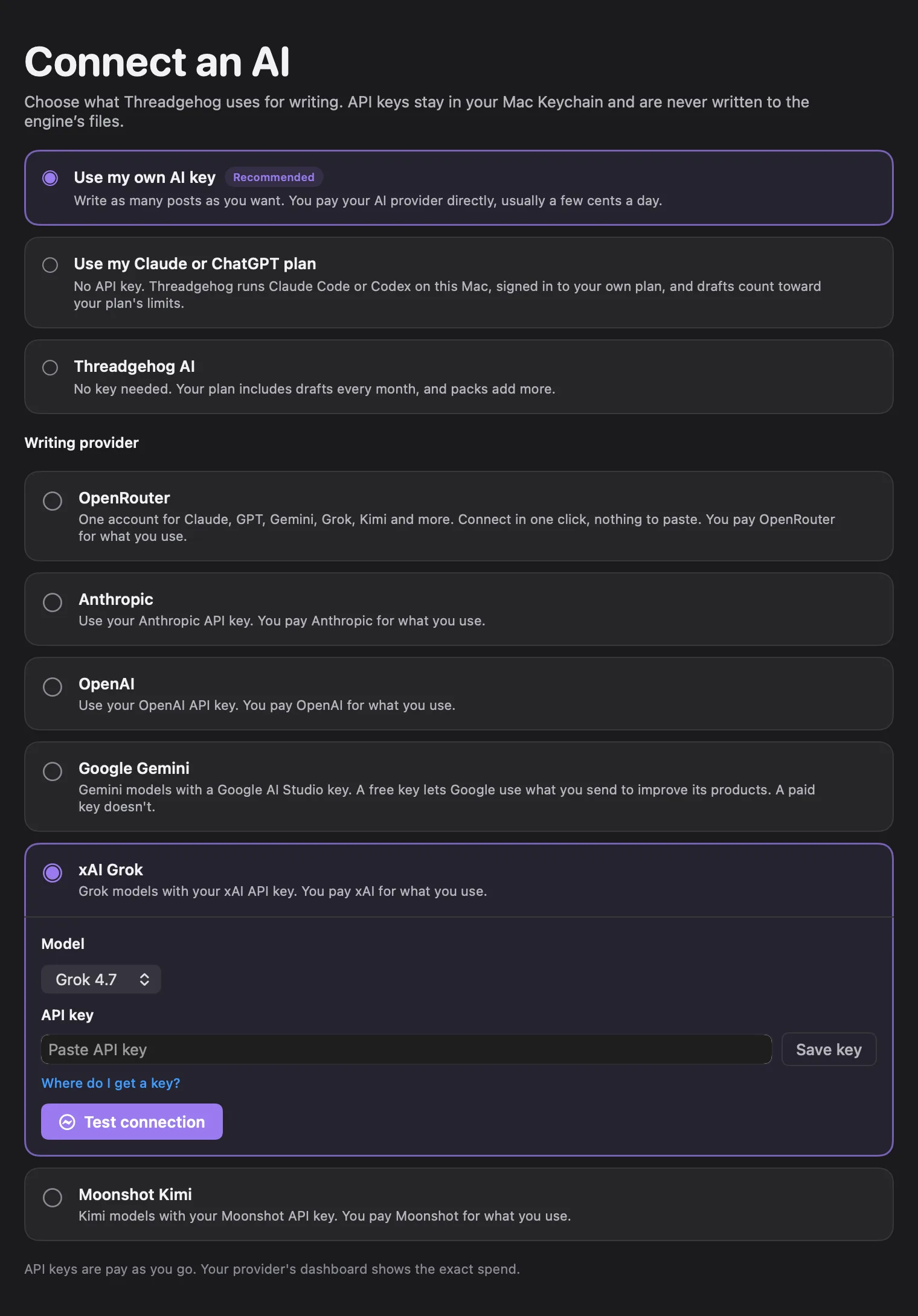
Open Settings (press ⌘, or click Settings at the bottom of the sidebar) and choose the AI tab. During first-run setup, the same panel is step 2, titled "Connect your AI." Click "Use my own AI key", then the "xAI Grok" card under "Writing provider". Under "Model", keep Grok 4.7 (the default) or pick Grok 4.6. Paste your key into the "API key" field and click "Save key" to store it. "Saved in Keychain" then appears next to the field label.
Check the connection test
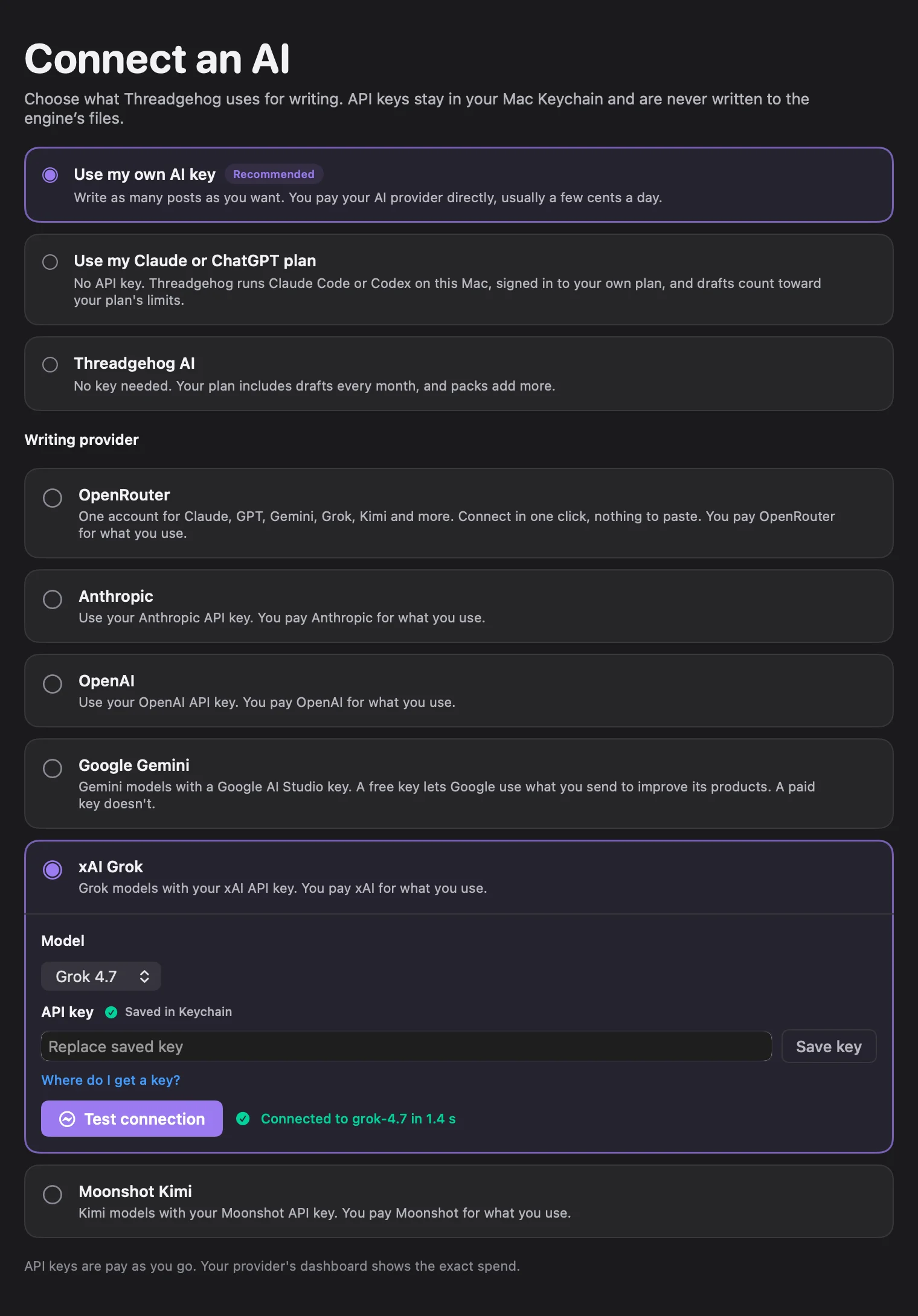
Saving the key starts the connection test automatically. To run it again, click "Test connection". It stays grayed out until a key is saved. Threadgehog sends one short request through its own server (api.threadgehog.com) to xAI, and the same call checks your Threadgehog license or trial. If it works, you see "Connected to grok-4.7 in" followed by the reply time in seconds (grok-4.6 if you picked that model). During setup, "Continue" stays disabled until this test passes.
Make your images with the same key (optional)
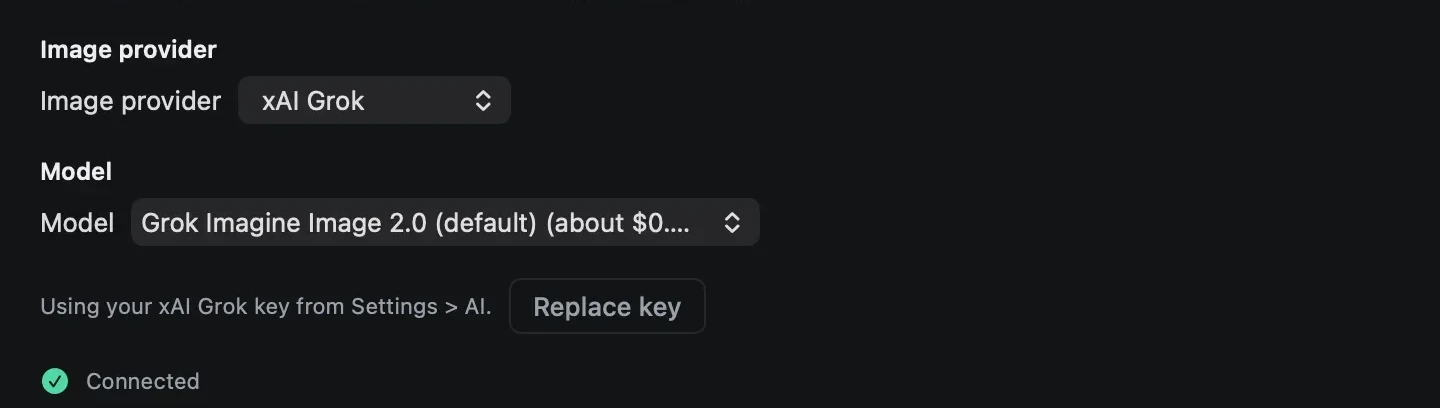
Open Settings, then the "Images" tab, choose the "Use an API key" card, and pick "xAI Grok" in the "Image provider" menu. Setup's "Add images to your posts?" step shows the same cards. Until an image key is in place, the Queue header shows a "Connect images" chip that opens this tab. If Grok already writes your posts and you haven't picked an image provider or saved a Replicate token, Threadgehog makes this switch for you once, when it next loads your image settings: at launch, right after the setup connection test passes, or when you open this tab. The key section then reads "Using your xAI Grok key from Settings > AI." and there is nothing to paste. Pick a model under "Model" (Grok Imagine Image 2.0 is preselected and marked "(default)"); the status line below the key section reads "Connected" once a key is in place.
What you get
- Post drafts written by Grok 4.7 (the default) or Grok 4.6, picked from the "Model" menu on the xAI Grok card.
- A "Grok" badge on each post Grok wrote, shown in Pending and Published.
- New drafts wait in Pending for you to approve or edit, until Threadgehog knows your taste well enough to unlock Approve drafts automatically in Project settings > Drafts.
- Approved posts go to the scheduler you connect, and the scheduler publishes them.
- Switch providers any time in Settings → AI. Your xAI key stays in Keychain, so switching back doesn't mean pasting it again.
- The same xAI key can also make your post images: pick "xAI Grok" under "Image provider" in Settings, Images tab (a fresh install already defaults to it there once Grok writes your posts and no image provider is chosen yet). Grok's image models, Grok Imagine Image 2.0, Grok Imagine Image and Grok Imagine Image Quality, are separate from Grok 4.7 and Grok 4.6 and priced per image, not per token.
What it costs
With your own Grok key you pay xAI directly and Threadgehog charges nothing per post; without a key, every plan includes Threadgehog AI drafts. xAI bills you directly for the tokens your requests use, out of the credits on your xAI account, and your Threadgehog plan is billed separately. On xAI's pricing page (https://docs.x.ai/developers/pricing, checked October 1, 2026), grok-4.7 and grok-4.6 both cost $2.00 per million input tokens and $6.00 per million output tokens for prompts under 200,000 tokens, and $4.00 and $12.00 for prompts of 200,000 tokens or more. Prices can change, so check xAI's pricing page for current rates. If you also pick xAI Grok as your image provider (Settings, Images tab), Threadgehog shows a ballpark per-image price next to each model: Grok Imagine Image 2.0 (the default) about $0.04, Grok Imagine Image about $0.02, Grok Imagine Image Quality about $0.05. Those figures are Threadgehog's own estimate; xAI bills the call at its own current rate, so check xAI's pricing page for the number that applies. Once images are connected, the Queue header shows your estimated image spend. Click it to enter your real xAI balance under "xAI Grok balance", which then counts down by that estimate, or click "Open xAI Grok billing", which opens console.x.ai.
Your key and your data
Your xAI API key is saved in your Mac's Keychain (item "Threadgehog Public", account "grok"), never in Threadgehog's own files. Each time Threadgehog asks Grok for text, such as a draft, a revision or a connection test, it hands the key to Threadgehog's generation server (api.threadgehog.com) for that one call. The server passes it to xAI's API (api.x.ai) with the request and returns the reply. It does not save the key or write it to its logs. To revoke the key at xAI, open "API Keys" in the xAI console, click the three dots next to the key, and choose "Delete key" (or "Disable key" to turn it off for now). To remove it from your Mac, open Keychain Access, find the "Threadgehog Public" item whose account is "grok", and delete it. The same Keychain entry (account "grok") backs both writing and images, so one saved key covers both; Threadgehog only reads it for images once you pick xAI Grok as the Image provider in Settings, Images tab. Image requests skip Threadgehog's server: the app on your Mac sends the key straight to api.x.ai with each image request.
Limits to know
- One writing provider is active at a time. Selecting the xAI Grok card replaces whichever provider you had before.
- Two Grok writing models only: Grok 4.7 and Grok 4.6, from a fixed list. You can't enter a different model id.
- Picking Grok for writing doesn't turn on images by itself. Pick "xAI Grok" under "Image provider" in Settings, Images tab too, unless the one-time first-run default already did it for you. Grok's image models are separate from Grok 4.7 and Grok 4.6 and billed per image.
- Threadgehog writes while the app is open (turn on Open Threadgehog when you log in to keep it running after a restart), and each writing request goes through api.threadgehog.com.
- Save a new key any time to replace it. To remove it from your Mac, delete the "Threadgehog Public" item with account "grok" in Keychain Access.
- Editing a generated image with feedback (the "Regenerate" box) makes a new image from your prompt plus the note. It doesn't edit the existing picture pixel by pixel the way Replicate's image-editing model does.
Troubleshooting
"Connect an AI in Settings."
Why: No writing provider is selected, so Threadgehog has nothing to write with.
Fix: Open Settings → AI, click the "xAI Grok" card, save your key, then run "Test connection" again.
"Save your API key in Settings, then try again."
Why: xAI Grok is selected, but no key is saved for it in Keychain.
Fix: In Settings → AI, paste your key into "API key", click "Save key" and wait for "Saved in Keychain" to appear.
"Your AI provider refused this:" followed by xAI's reason, then "Check your plan and billing on their site, then try again."
Why: xAI turned the request down, and Threadgehog shows xAI's own reason after the colon. This one message covers a wrong or inactive key, an account with no credits, xAI being down or unreachable, and a Grok reply that used up its token budget before writing any text.
Fix: Read xAI's reason first. After a failed test, the "Open xAI Grok billing" link next to the message opens console.x.ai, where you can check the key and your credit balance.
"Your AI provider refused this: ..." on a new xAI account, or after it had been working
Why: The account has no prepaid credits left. By default, xAI rejects API requests once prepaid credits run out. Saving a card doesn't add credits by itself.
Fix: Buy credits under Billing → API spend management in the xAI console, then test again. Auto top-up, on the same page, buys more credits when the balance drops below a level you set.
"Your AI provider refused this: ..." right after you pasted a key, or after you deleted or disabled a key in the xAI console
Why: xAI doesn't accept the key: it's mistyped, cut short, deleted or disabled. xAI's docs describe this error (HTTP 401) as "No authorization header or an invalid authorization token was provided."
Fix: In the xAI console, open "API Keys" and click "Create API Key". Paste the new key in Settings → AI, save it, and test again.
"You have hit the limit for now." followed by "Try again in about N minutes." or "Try again in a few minutes."
Why: Threadgehog's own server caps how many writing requests one license can make per hour and per day. This limit is Threadgehog's, not xAI's.
Fix: Wait the time shown, then try again.
"Threadgehog could not reach the writing service. Check your internet and try again. Your posts and queue still work offline; writing and publishing need the service."
Why: Your Mac couldn't reach api.threadgehog.com, or no reply came back within 200 seconds.
Fix: Check your internet connection and try again. Your queue and drafts stay usable in the meantime.
"Something went wrong on our side. Try again in a minute."
Why: Threadgehog's generation server had an error.
Fix: Wait a minute and try again. If it keeps happening, contact support@threadgehog.com or use threadgehog.com/support.
"Threadgehog could not send that. Update to the latest version, then try again."
Why: Threadgehog's server rejected the request as invalid. A saved key shorter than 8 or longer than 500 characters causes this, and so can an outdated copy of the app.
Fix: Copy the whole key again from the xAI console, save it, and test again. If that doesn't fix it, choose Threadgehog → Check for Updates… and install the latest version.
"empty-response"
Why: Grok answered the connection test with no text, so Threadgehog shows this raw code.
Fix: Click "Test connection" again. If it repeats, pick the other Grok model under "Model" and test again.
"Enter a license key to write or publish. Your queue stays visible."
Why: The connection test also checks your Threadgehog license or trial, and none is active on this Mac.
Fix: Open Settings → License, enter your license key or finish starting your trial, then test again.
"Couldn’t save the key:" followed by a macOS reason
Why: macOS Keychain refused to store the key.
Fix: Click "Save key" again. If it fails again, send the full message to support@threadgehog.com.
"Couldn’t save the provider:" or "Couldn’t disconnect the previous provider:" followed by a macOS reason
Why: Threadgehog couldn't write or remove the small file on your Mac that records your chosen provider and model.
Fix: Click the "xAI Grok" card again. If the message comes back, send it to support@threadgehog.com.
"Image provider rejected the key. Check Settings > Images."
Why: xAI Grok turned down the key saved for images: it was mistyped, deleted, disabled, or doesn't have image access.
Fix: Open Settings, Images tab, click "Replace key", and save a working key.
"Add an image provider in Settings > Images first."
Why: No image provider key is saved. This can show up on "Regenerate" or "New image" for a post that already has a generated image, even though "Generate image" itself stays hidden until a key exists.
Fix: Open Settings, Images tab, pick a provider, and save or connect its key.
Orange banner: "You're out of xAI Grok credit, so AI images can't be generated. Add credits to start again."
Why: xAI Grok's image API reports your account has no credit left.
Fix: Click "Add credits" in the banner, or go to console.x.ai, then generate again.
"xAI Grok is rate limiting image requests. Try again in a minute."
Why: xAI Grok is throttling image requests. Threadgehog already retries a rate limit automatically, up to 3 times, 12 seconds apart, before showing this.
Fix: Wait a minute and try again.
"xAI Grok [status]: [the first 200 characters of its reply]"
Why: xAI Grok's image API returned an error Threadgehog doesn't otherwise recognize.
Fix: Read the message for the reason. If it keeps happening, email support@threadgehog.com with the full text.
"xAI Grok: no response"
Why: Threadgehog couldn't reach xAI Grok's image service, usually because your Mac is offline.
Fix: Check your internet connection, then click "Generate image", "Regenerate" or "New image" again.
Settings, Images tab has no "Image provider" menu
Why: This copy of Threadgehog predates image providers. It can only make images with a Replicate token.
Fix: Choose Threadgehog > Check for Updates…, install the update, then open Settings, Images tab again.
Questions
Can I use my X Premium or SuperGrok subscription instead of an API key?
Grok writes for Threadgehog with an xAI API key from console.x.ai (with API credits), or through OpenRouter. With no key at all, use Threadgehog AI, which every plan includes, or a Claude or ChatGPT plan.
Where do I get an xAI API key?
Sign up at console.x.ai, buy credits under Billing → API spend management, then open "API Keys" and click "Create API Key". In Threadgehog, the "Where do I get a key?" link on the xAI Grok card opens console.x.ai.
Is my API key safe with Threadgehog?
It's stored in your Mac's Keychain, not in Threadgehog's files. For writing, it leaves your Mac inside a request to Threadgehog's server, which passes it to xAI for that one call and doesn't save or log it. If xAI Grok also makes your images, the app on your Mac sends the key straight to api.x.ai with each image request. You can delete or disable the key in the xAI console at any time.
What does it cost to write posts with Grok?
With your own Grok key you pay xAI directly and Threadgehog charges nothing per post; without a key, every plan includes Threadgehog AI drafts. xAI bills your account per token at the rates on its pricing page, which can change. Your Threadgehog plan is billed separately.
Can I switch to a different AI provider later?
Yes. In Settings → AI, click another provider's card, save that provider's key if you haven't, and test the connection. Your xAI key stays in Keychain. If you switch back to xAI Grok, the model resets to Grok 4.7.
My key was rejected. What's wrong?
Threadgehog shows xAI's own reason after "Your AI provider refused this:". Check on the API Keys page that the key is still active and that you copied all of it, and check under Billing → API spend management that your account has credits.
Which Grok model does Threadgehog use?
Grok 4.7, unless you pick Grok 4.6 from the "Model" menu on the xAI Grok card. xAI's pricing page lists the same rates for both.
Do I have to connect an AI before I can use Threadgehog?
No. Setup's AI step (step 2) also offers Threadgehog AI, which every plan includes and needs no key. With your own xAI key, Continue waits until that key's connection test passes. If your key stops working later, your queue and existing drafts stay in the app, and writing or revising posts waits until the connection works again.
Does my Grok key make the images too?
It can. Pick "xAI Grok" under "Image provider" in Settings, Images tab (a fresh install already defaults to it there once Grok is your writing provider and no image provider is chosen yet). Grok's image models, Grok Imagine Image 2.0, Grok Imagine Image and Grok Imagine Image Quality, are priced per image: about $0.04, $0.02 and $0.05. You can pick a different image provider any time.