Send posts to Threads and X through Publer
Writing the post is only half the job. Someone still has to open a scheduler, paste it in, and pick a time, for every post. Connect Publer and Threadgehog does that part for you: approve a post in Pending and it joins Threadgehog's queue. On the sending schedule you choose, Threadgehog hands it to Publer with a time it picks from your posts a day, spread from 9 AM to 9 PM. You can also set an exact time for any post. Publer then publishes them to Threads and X.
How to set up Publer
Connect Threads and X inside Publer
Threadgehog can only send to accounts Publer already has. In Publer, open the Social Accounts tab on the left, click Connect next to Threads, and log in with the Instagram account linked to your Threads profile. Then click Connect next to X (Publer lists it as Twitter) and authorize Publer. Publer's Free plan cannot connect X. If you skip this step, the channel step asks you to add an account in Publer, then press "Refresh".
Create a Publer API key
Publer gives API access to Enterprise customers and to Business customers in good standing, with no failed or locked subscriptions. In Publer, open Settings, then the API & Webhooks tab. In the API Key section, click Generate/Manage API Keys and give the key a name. Workspaces and Accounts are required by default; also check Posts, Media and Analytics, so Insights can read how each post did. Click Generate API Key and copy the key right away. Publer warns you may not be able to view it again.
Paste the key into Threadgehog
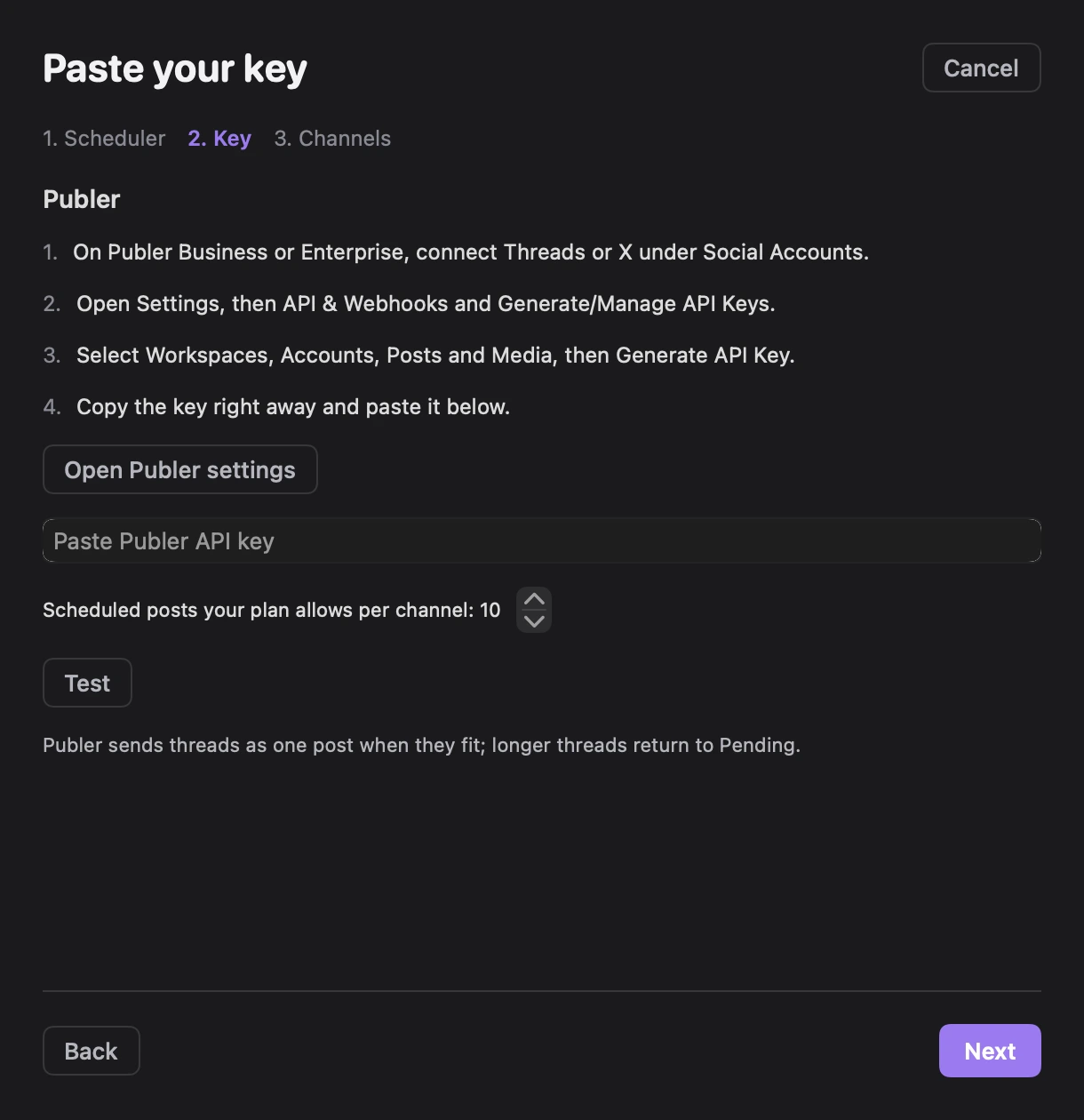
In Threadgehog, open Settings > Publishing and click "Connect a scheduler" under "Schedulers". During setup, "How do you want to publish?" opens the same sheet. Under "Pick your scheduler", choose "Publer" and click "Next". Under "Paste your key", follow the key instructions or click "Open Publer settings", then paste into "Paste Publer API key". Set "Scheduled posts your plan allows per channel" to how many posts Threadgehog should keep scheduled per channel at a time; it starts at 10. Threadgehog tests the credentials automatically a moment after you paste them. When it shows "Connected as" followed by the account name, click "Next". The key step also notes that Publer sends threads as one post when they fit; longer threads return to Pending.
Choose where the project posts
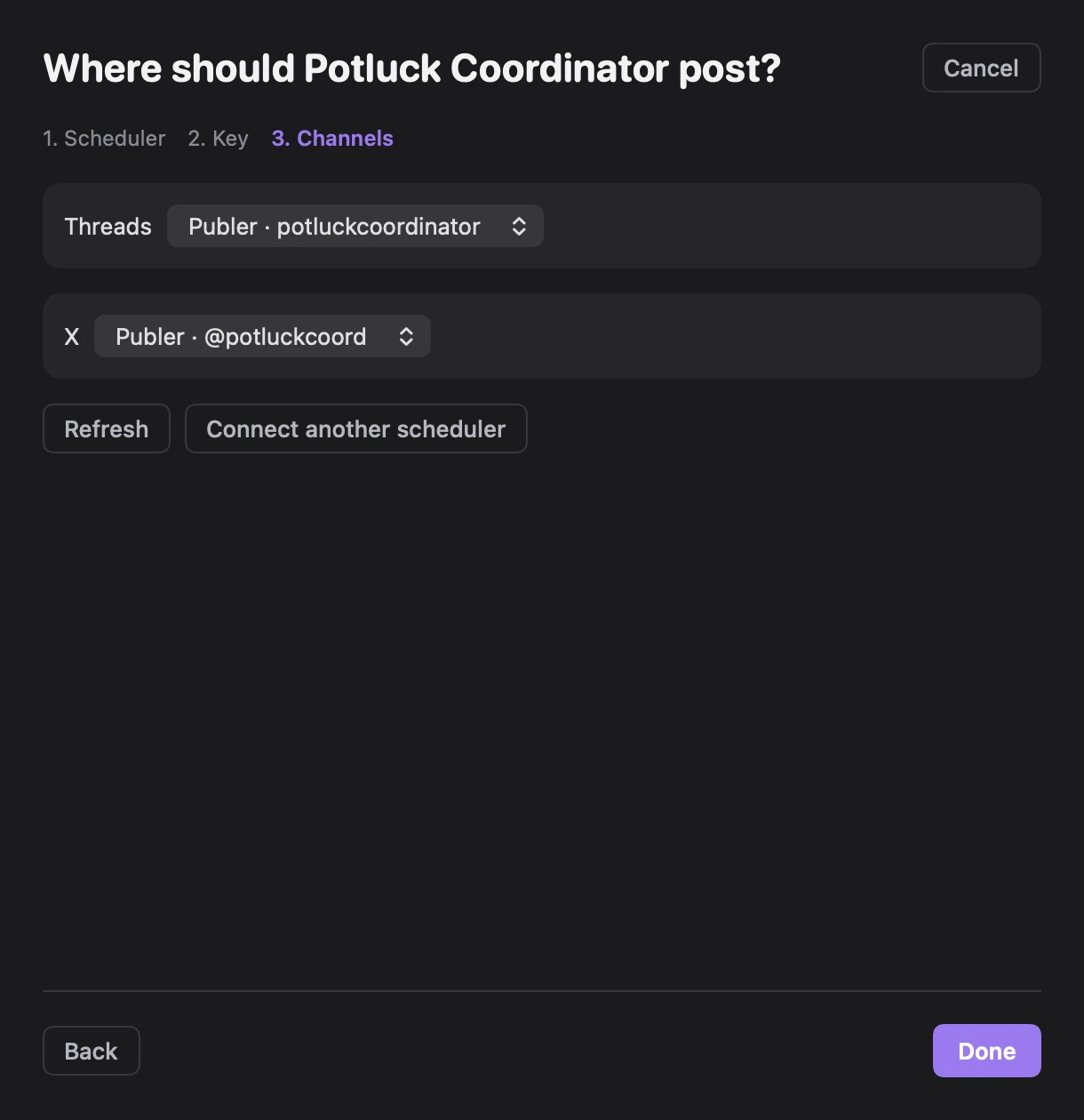
The channel step shows a "Threads" picker, an "X" picker, or both, depending on the project. A single matching channel is preselected; if several match, pick one from "Choose channel". If Publer has no account for a platform, add it in Publer, then click "Refresh". Click "Done" to save the project's choices. To change a project later, click "Choose" beside it under "Where each project posts" in Settings > Publishing. New projects get a channel automatically when only one matches; with several, choose them under "Where does <project> post?" in the sheet that opens for the new project.
Pick how often it sends
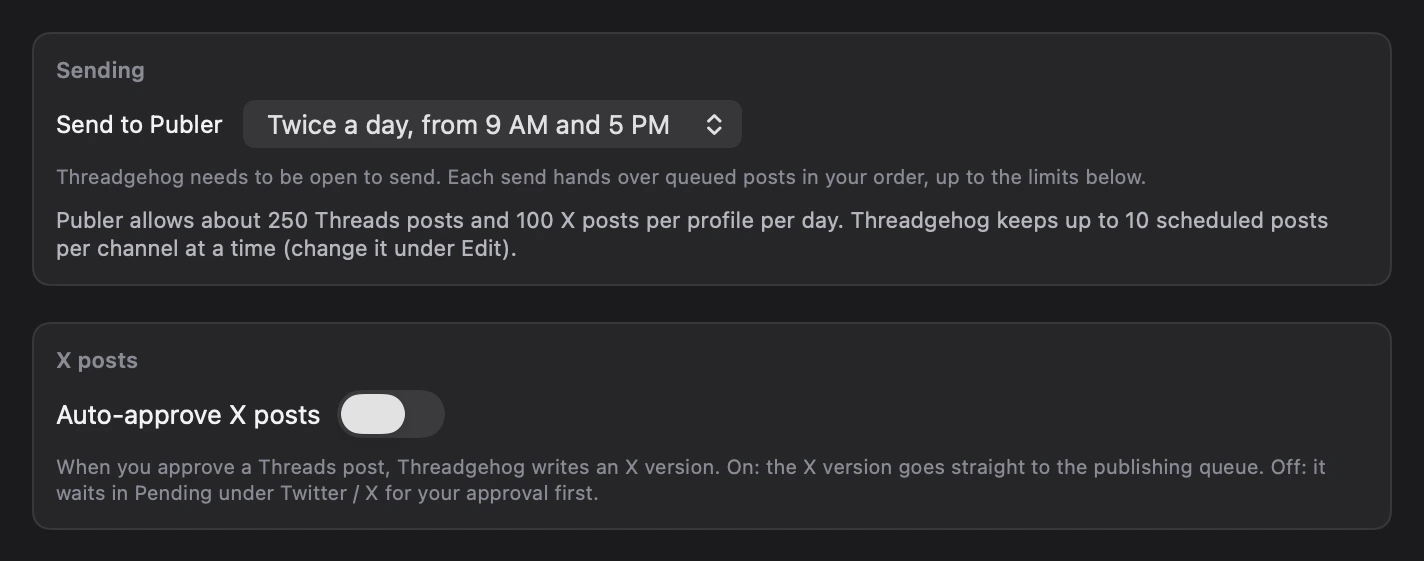
In Settings > Publishing, under "Sending", the "Send to Publer" menu sets how often Threadgehog sends: once a day from 9 AM, twice a day from 9 AM and 5 PM, every 6 hours, or every hour. Threadgehog needs to be open to send; "Send now" in the Queue sends right away. Turn on "Auto-approve X posts" under "X posts" and the X version of each approved Threads post goes straight to the Queue. The Publer row's "..." menu under "Schedulers" has "Replace key", "Edit", "Test connection" and "Remove". "Edit" opens "Edit Publer account", where you can change "Label" and the scheduled-posts limit.
What you get
- Approved posts go from Threadgehog's queue to Publer on the sending schedule you pick (once a day from 9 AM, twice a day from 9 AM and 5 PM, every 6 hours, or every hour) while the app is open. No copying drafts between tabs.
- Each queued post reaches Publer with a time Threadgehog picks from your posts a day, spread from 9 AM to 9 PM. For an exact date and time, choose Schedule… from the menu next to Approve.
- Post now, in the same menu, hands a post to Publer to publish right away instead of waiting for the next send.
- Threadgehog keeps up to the number you set per channel in Publer (1 to 5000, default 10, changeable from "Edit" in the account row's "..." menu under "Schedulers") and holds the rest in its own queue, in the order you drag them.
- Back to pending and Delete from Publer on the Scheduled tab remove a post from Publer's queue without opening Publer.
- Images and video attached to a post, including an AI image Threadgehog made for it, upload straight to Publer, so you do not need Cloudinary or another image host.
What it costs
Publer bills you directly for your Publer plan. Connecting Publer does not change what you pay for Threadgehog. The Publer API needs the Business plan (in good standing, with no failed or locked subscriptions) or Enterprise. Free and Professional do not include it, and Free cannot connect X. Publer's help center lists Business from $10 a month for one social account on monthly billing (less per month on yearly billing), with a 14-day free trial. The total goes up with each social account you add, and Threads and X count as two. Enterprise has custom pricing. Prices change, so check Publer's pricing page for the exact total for your setup.
Your key and your data
Threadgehog stores your Publer API key in your Mac's Keychain. The app sends it from your Mac straight to Publer's API when it lists your channels, sends your queue, checks a post's status, or removes a post. Threadgehog's servers never receive the key. Each connected scheduler account keeps its own entry in the Keychain, so connecting another account, for Publer or any other scheduler, never overwrites or breaks this one. To revoke it, open Publer, go to Settings, then API & Webhooks, and remove the key. To switch Threadgehog to a new key, follow "How do I replace my Publer key?" in the FAQ below.
Limits to know
- Publer API access needs Business (in good standing) or Enterprise. Free and Professional cannot use it.
- Publer's documented API rate limit is 100 requests per 2-minute window per user account, shared across all of that account's API keys.
- Publer's own daily posting limits apply. On Business: 250 Threads posts and 100 X posts per profile in a rolling 24 hours.
- No real threads through Publer: Threadgehog joins a thread into one post, and a joined post over 500 characters for Threads or 280 for X goes back to Pending instead of sending.
- Queue sends keep at most the number you set per channel in Publer at a time (the "Scheduled posts your plan allows per channel" stepper, 1 to 5000, default 10; change it with "Edit" in the account row's "..." menu under "Schedulers").
- Insights reads Publer's numbers only when your Publer API key has the analytics scope. If Insights says Publer rejected the analytics request, make a new key with analytics checked and paste it in Settings > Publishing.
- Threadgehog has to be open to send. Nothing goes to Publer while the app is closed.
Troubleshooting
The channel step says "No Threads account in Publer yet. Add it in Publer, then press Refresh." or the same message for X.
Why: The channel list has no Publer account for that platform. Check that Threads or X is connected under Social Accounts and that your plan is Business or Enterprise.
Fix: Connect the missing account in Publer, then click "Refresh" in the channel step, choose it and click "Done". If the key has lost access, get a current key in Publer. In Settings > Publishing, open the Publer row's "..." menu under "Schedulers" and choose "Replace key". Paste the current key into "New API key". Click "Replace"; Threadgehog tests it before saving and shows "Key replaced" on success. The account and its project channel choices stay in place.
"Publer rejected the API key. Make a new key and paste it in Settings, Publishing."
Why: Publer answered with a 401 or 403 (not authorized) while sending a post. Threadgehog shows this message when you use Post now or Schedule…, and after Send now as "Send failed:" followed by this message when no post went out. Automatic sends hit the same error without showing it.
Fix: In Publer, check Settings > API & Webhooks and your subscription, then create a key with Workspaces, Accounts, Posts and Media. In Settings > Publishing, open the Publer row's "..." menu under "Schedulers" and choose "Replace key". Paste the current key into "New API key". Click "Replace"; Threadgehog tests it before saving and shows "Key replaced" on success. The account and its project channel choices stay in place.
"Publer rejected this key. Check it in Publer and paste it again."
Why: The connection test ran and Publer answered with a 401 or 403: the key is wrong, was deleted or replaced, or does not have the Workspaces, Accounts, Posts and Media scopes. The sheet also shows channel-loading errors, and the saved account can be checked with "Test connection" in its "..." menu under "Schedulers".
Fix: In Publer, check Settings > API & Webhooks and your subscription, then create a key with Workspaces, Accounts, Posts and Media. If you are still on "Paste your key", correct the credentials there and wait for the automatic test, then click "Next" when it passes. For a saved account, open Settings > Publishing and open the Publer row's "..." menu under "Schedulers" and choose "Replace key". Paste the current key into "New API key". Click "Replace"; Threadgehog tests it before saving and shows "Key replaced" on success. The account and its project channel choices stay in place.
"Couldn't reach Publer. Check your connection and try again."
Why: Threadgehog's Mac could not reach Publer's API during the connection test, usually because the Mac was briefly offline.
Fix: Check your internet connection, then click Test again.
"Publer answered with an error: <message>"
Why: The connection test got back an error from Publer that is not a rejected key or a network problem. After the colon, Threadgehog shows the error it got, usually "Publer error" with the HTTP status code and Publer's own text.
Fix: Read Publer's message for the reason. If it does not explain itself, wait a few minutes and try again, or email support@threadgehog.com with the full message.
Send now shows "Send failed:" and a reason, such as "<project>:threads: no publishing channel mapped."
Why: No post went out on that send, and Threadgehog names the first problem it hit. "no publishing channel mapped" means that project has no channel picked for that platform (removing a Publer account clears choices that used it). A refused key shows the "Publer rejected the API key" message instead. Automatic sends skip these posts without a notice.
Fix: In Settings > Publishing, click "Choose" beside the project under "Where each project posts". In the sheet, pick the Publer channel for each platform the project uses, then click "Done". If the channel is missing, connect it in the scheduler and click "Refresh" in the sheet. Then try "Send now" again.
A post is back in Pending with an orange "Publer refused this" badge.
Why: Publer, or Threadgehog's own length check, refused the post when it was sent from the queue. Hover over the badge for the reason. "Publer cannot post threads, and this one is too long to send as a single post" means Threadgehog joined the thread into one post and it came to more than 500 characters for Threads or 280 for X. After the send, the notice reads "Sent <n> to Publer. <n> moved back to Pending:" followed by the reason. Through Post now or Schedule…, the same reason appears as an error message instead.
Fix: Edit the post in Pending so it fits, or fix what the reason names, then approve it again.
A post you approved shows up in Pending again with an orange "Publer refused this" badge and the tooltip "Publer could not publish this post."
Why: When Threadgehog checked the post's status, Publer reported it as failed, so Threadgehog moved it back to Pending and tagged it.
Fix: Open the post in Publer to see why it failed, fix that in Publer, then approve the post again in Threadgehog.
A send reports "(Publer queue full for now)" and some posts stay queued, or Post now fails with a message starting "plan limit:".
Why: Threadgehog already has the number you set ("Edit" in the account row's "..." menu under "Schedulers", default 10) scheduled in Publer for that channel, or Publer refused the post with a plan-limit error. When an automatic send moves nothing and a channel is full, automatic sends pause until the next 9 AM or until you approve another post.
Fix: Nothing is lost. As Publer publishes scheduled posts, the next send fills the free places. If Publer itself named a plan limit, check your Publer subscription.
A banner: "Publer is limiting how fast posts can be added right now. Threadgehog keeps sending on the next run."
Why: Publer answered 429 (too many requests). Publer's documented limit is 100 requests per 2 minutes per user account, shared by every API key on that account. A send of several posts can reach it, because Threadgehog checks each new post with Publer every 2 seconds for up to a minute.
Fix: Nothing is lost. Wait a few minutes, then click Send now. Automatic sends retry at the next half-hour check.
More than one Publer entry appears under "Schedulers".
Why: The account was connected more than once. A new connection saves an account when you click "Next" after a passing key test; "Test" alone does not save one.
Fix: Open each unwanted Publer row's "..." menu under "Schedulers", choose "Remove", and confirm. Posts already scheduled there stay scheduled. Removing an account clears project choices that used it. In Settings > Publishing, click "Choose" beside the project under "Where each project posts". In the sheet, pick the Publer channel for each platform the project uses, then click "Done".
A post stays under Scheduled for about two weeks, then moves to Published without Threadgehog confirming it.
Why: Publer did not confirm the scheduled post within about a minute, or Threadgehog could not match it in Publer's post list, so Threadgehog has no Publer post ID for it. It shows the post as Scheduled for 15 days, then marks it Published without asking Publer.
Fix: Check Publer's calendar to see whether the post went out. Back to pending and Delete from Publer cannot remove these posts from Publer, so delete them in Publer directly if needed.
Questions
Which Publer plan do I need?
Business or Enterprise. Publer gives Business customers API access while the subscription is in good standing, with no failed or locked subscriptions. Free and Professional do not include the API, and Free cannot connect X.
Is my Publer API key safe with Threadgehog?
Threadgehog keeps it in your Mac's Keychain and sends it from your Mac straight to Publer's API. Threadgehog's servers never receive it. You can remove the key any time in Publer under Settings, API & Webhooks.
Does Threadgehog send real Threads and X threads through Publer?
No. Threadgehog's Publer connection sends single posts. It joins a multi-post thread into one post when the result fits in 500 characters for Threads or 280 for X. Longer threads go back to Pending. Threadgehog sends real threads through Buffer, Typefully and Postiz.
How do I replace my Publer key?
In Publer, open Settings > API & Webhooks and create a key with Workspaces, Accounts, Posts, Media and Analytics (or use the current key you saved). In Settings > Publishing, open the Publer row's "..." menu under "Schedulers" and choose "Replace key". Paste the current key into "New API key". Click "Replace"; Threadgehog tests it before saving and shows "Key replaced" on success. The account and its project channel choices stay in place.
Can I switch from Publer to a different scheduler later?
Yes. In Settings > Publishing, click "Connect a scheduler" and finish the key and channel steps for the new scheduler. For each other project, click "Choose" under "Where each project posts", pick the new channels and click "Done". Existing valid channel choices stay selected until you change them. Posts already sent to the old scheduler stay scheduled there; posts still in Threadgehog's queue use each project's chosen channel on the next send. To remove the old connection, choose "Remove" from its row's "..." menu under "Schedulers" and confirm. This clears any project choices that still used that account. Remove anything you no longer want from Publer's own calendar.
What happens to my queue if Publer is rate limited?
Nothing is lost. Threadgehog shows a banner, your approved posts stay queued in the same order, and the automatic send tries again at its next half-hour check. You can also click Send now after a few minutes; Publer's documented limit window is 2 minutes.
Can Threadgehog post to Threads or X without Publer or another scheduler?
Threadgehog publishes through a scheduler: it hands approved posts to the scheduler you connect, and the scheduler publishes them. Without one, choose "Export only" on setup's "How do you want to publish?" step and copy or export posts yourself.
Does Threadgehog need to be running for posts to reach Publer?
Yes. Threadgehog sends on the cadence you pick in Settings, Publishing (once a day from 9 AM, twice a day from 9 AM and 5 PM, every 6 hours, or every hour), and only while the app is open. Send now sends right away. Posts already in Publer's queue are published by Publer at their scheduled time, so Threadgehog does not need to be open for those.
Where can I get help setting this up?
Email support@threadgehog.com or visit threadgehog.com/support. Say which step you are on and copy any message Threadgehog showed.
Links
- Sign up for PublerThreadgehog may earn a commission if you sign up through this link.
- Open Publer API settings
- How to access the Publer API
- How to connect Threads to Publer
- How to connect X to Publer
- Publer plans and pricing
- Publer pricing page
- Publer API rate limits