Connect Metricool to Threadgehog
If you don't have time to post to Threads and X every day, Metricool can publish the posts you approve in Threadgehog for you. Threadgehog hands its queue to Metricool on the schedule you pick (once a day from 9 AM, twice a day from 9 AM and 5 PM, every 6 hours, or every hour), only while the app is open on your Mac, and Metricool publishes each post at the time slot Threadgehog booked for it. Threadgehog connects through Metricool's API, so you need Metricool's Advanced or Custom plan.
How to set up Metricool
Get Metricool's Advanced or Custom plan
Metricool includes its API only on the Advanced and Custom plans, and Threadgehog connects through that API. Free and Starter don't include it. To post to X, Metricool also requires its X/Twitter add-on, billed per connected X account. In Metricool, connect the Threads and X accounts you want to post to, because Threadgehog can only list accounts that are connected there. Check Metricool's pricing page before you upgrade, since prices can change.
Copy your API token and User ID
In Metricool, open Account Settings, then API, and copy the API access token. For the User ID, sign in to Metricool in your web browser and open one of your brands. In the address bar, copy the number after userId=. The number after blogId= identifies a brand, not your account, so don't use that one.
Paste both into Threadgehog
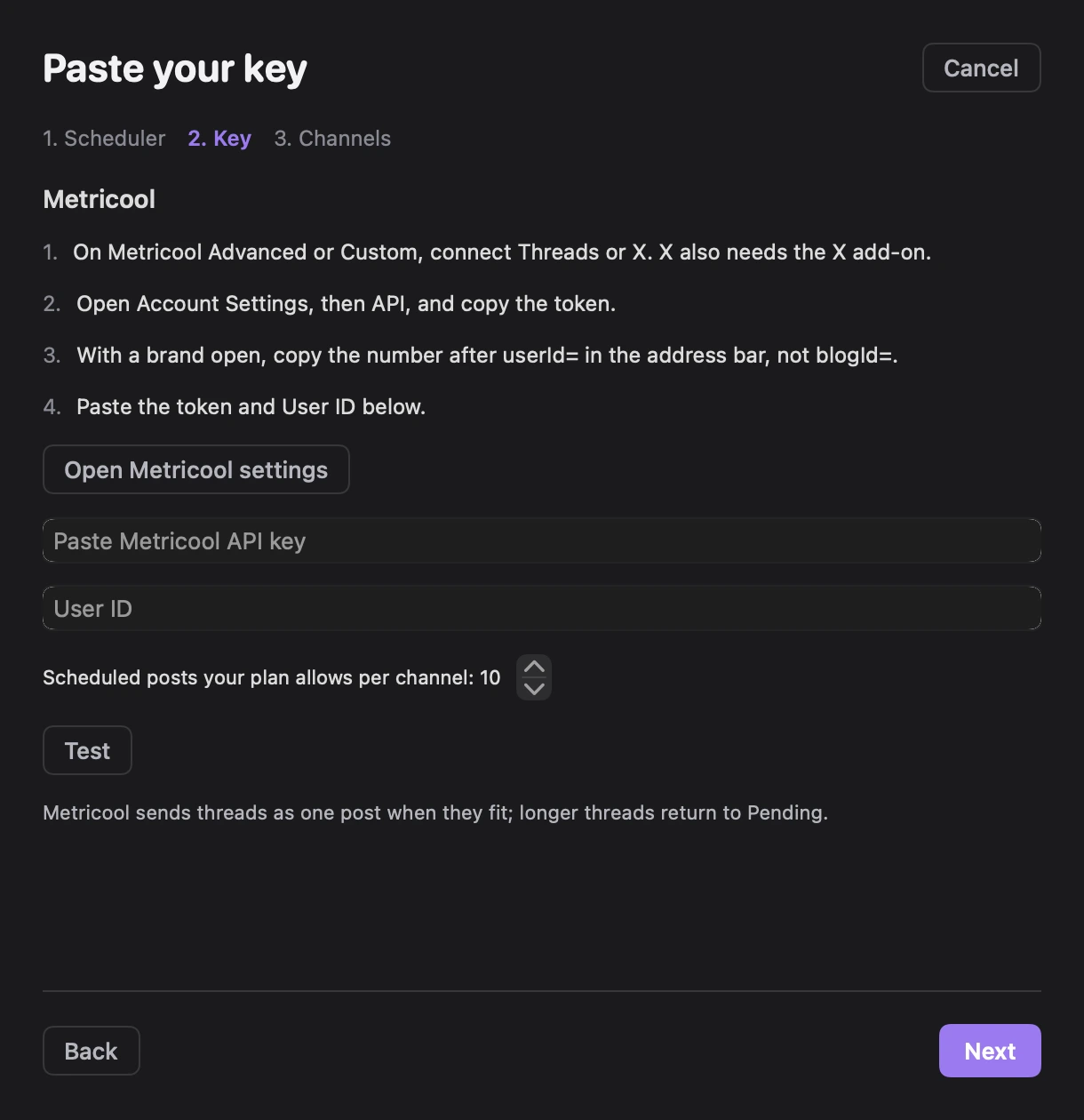
In Threadgehog, open Settings > Publishing and click "Connect a scheduler" under "Schedulers". During setup, "How do you want to publish?" opens the same sheet. Under "Pick your scheduler", choose "Metricool" and click "Next". Under "Paste your key", follow the key instructions or click "Open Metricool settings", then paste into "Paste Metricool API key". Paste the number after userId= into "User ID", not the number after blogId=. Both fields must be filled before the test can run. Set "Scheduled posts your plan allows per channel" to how many posts Threadgehog should keep scheduled per channel at a time; it starts at 10. Threadgehog tests the credentials automatically a moment after you paste them. When it shows "Connected as" followed by the account name, click "Next". The key step also notes that Metricool sends threads as one post when they fit; longer threads return to Pending.
Choose where the project posts
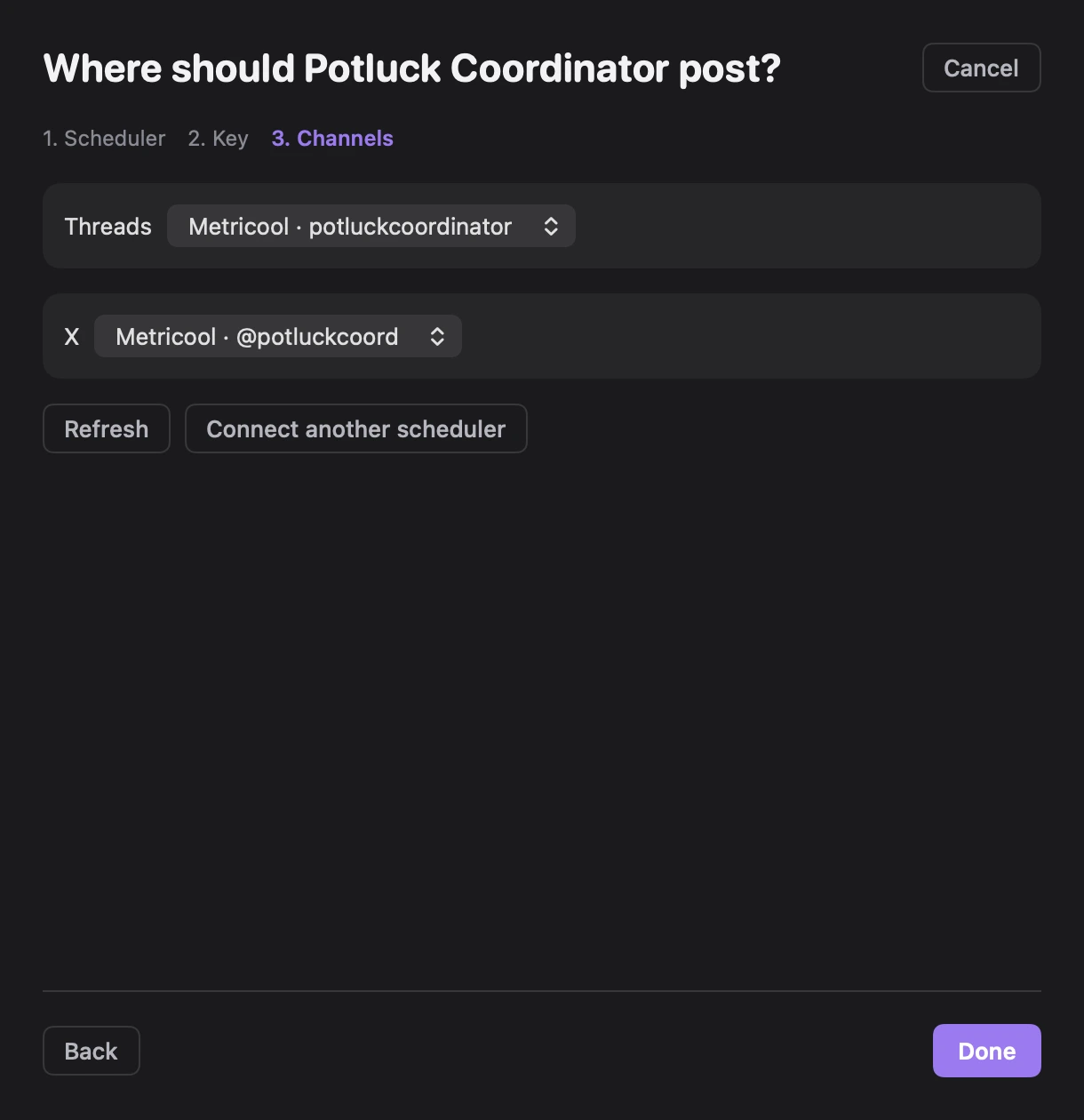
The channel step shows a "Threads" picker, an "X" picker, or both, depending on the project. A single matching channel is preselected; if several match, pick one from "Choose channel". If Metricool has no account for a platform, add it in Metricool, then click "Refresh". Click "Done" to save the project's choices. To change a project later, click "Choose" beside it under "Where each project posts" in Settings > Publishing. New projects get a channel automatically when only one matches; with several, choose them under "Where does <project> post?" in the sheet that opens for the new project.
Pick how often it sends
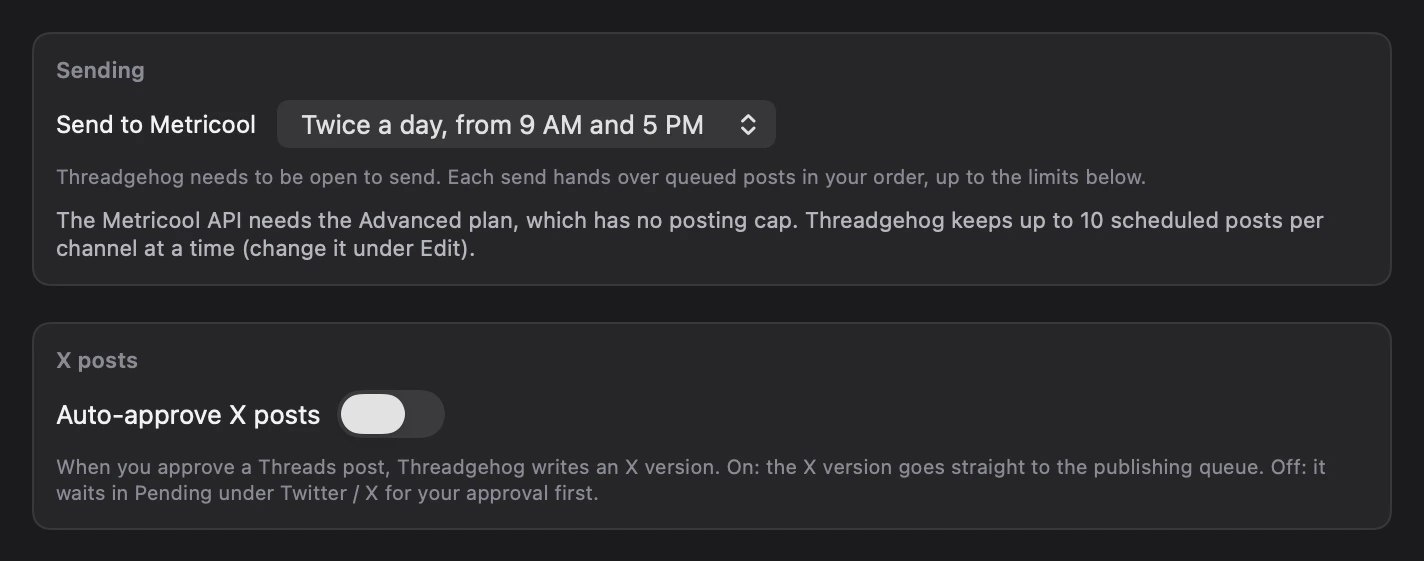
In Settings > Publishing, under "Sending", the "Send to Metricool" menu sets how often Threadgehog sends: once a day from 9 AM, twice a day from 9 AM and 5 PM, every 6 hours, or every hour. Threadgehog needs to be open to send; "Send now" in the Queue sends right away. Turn on "Auto-approve X posts" under "X posts" and the X version of each approved Threads post goes straight to the Queue. The Metricool row's "..." menu under "Schedulers" has "Replace key", "Edit", "Test connection" and "Remove". "Edit" opens "Edit Metricool account", where you can change "Label" and the scheduled-posts limit.
Check the other projects
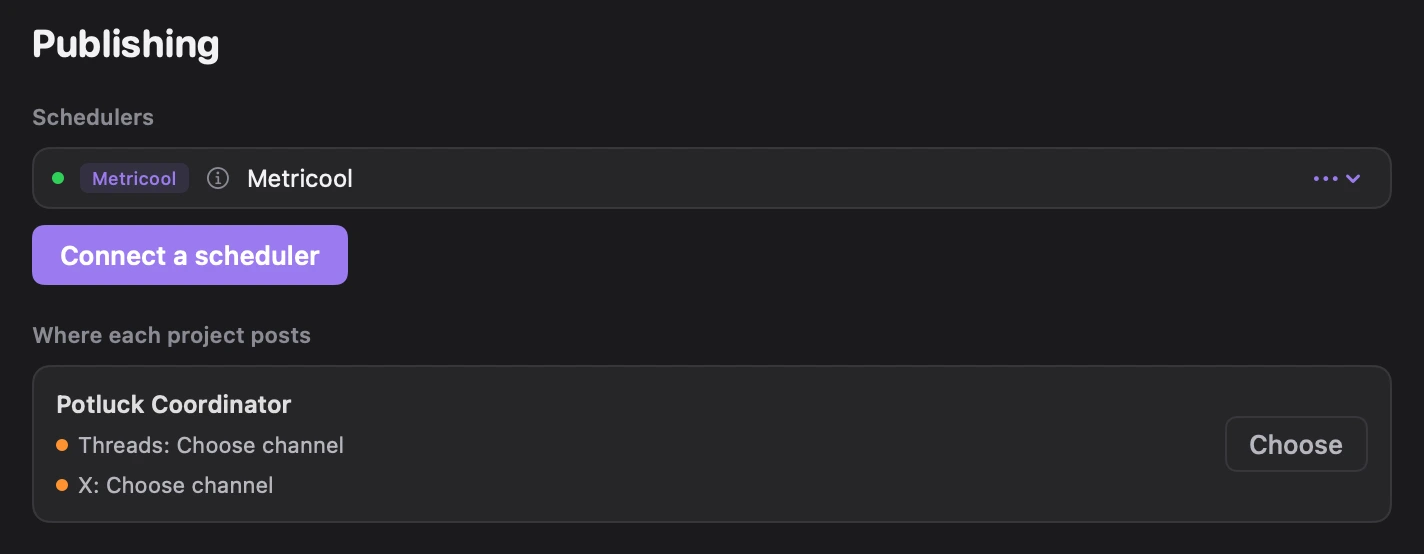
In Settings > Publishing, click "Choose" beside the project under "Where each project posts". In the sheet, pick the Metricool channel for each platform the project uses, then click "Done". If a channel you just connected in Metricool is missing, click "Refresh" in the sheet. Project settings also lets you change channels directly under "Posts to" once a scheduler is connected.
Connect Cloudinary if you post images or video
Metricool can't host images or video itself through Threadgehog, so a post with media needs a public image host first. In Settings, Publishing, the "Images and video (optional)" section appears once Metricool (or Buffer) is connected. Expand it. Create a free Cloudinary account, then an unsigned upload preset (in Cloudinary's console: Settings, Upload, Add upload preset, set Signing Mode to Unsigned, Save; the box links to Cloudinary's own guide). Paste your Cloudinary "Cloud name" and the preset's name into "Unsigned upload preset", then click "Save". Save tests the two values first by uploading a tiny test image through the preset. If that works, the box shows "Cloudinary connected (<cloud name>)" with a Remove button. If it fails, nothing is saved and the box shows "Cloudinary rejected the cloud name or preset: ..." (see Troubleshooting below). Skip this step if you only post text.
What you get
- Posts in Threadgehog's queue go to Metricool on the schedule you pick, with no copying and pasting.
- Threadgehog books each queued post at a time it picks from the project's Posts a day, spread evenly from 9 AM to 9 PM in your Mac's time zone, at least 10 minutes ahead and 30 minutes apart from other posts it booked on that channel. Schedule… sets an exact time instead, and Post now books it about 2 minutes out.
- Once a post is in Metricool, Metricool publishes it at that time, even if your Mac is off.
- Threadgehog checks each post's status in Metricool and moves it to Published once Metricool reports it posted.
- Images and video: connect a free Cloudinary account in Settings > Publishing and Metricool sends them too. Without Cloudinary, a post with media is held back in Pending with a "Needs Cloudinary" badge instead of going out as text-only.
- Set how many scheduled posts Threadgehog keeps per Metricool channel: a stepper from 1 to 5000 (10 by default) when you connect the account, or "Edit" on its row in Schedulers any time after.
- Threads and X from one Metricool token and User ID. X also needs Metricool's X/Twitter add-on.
What it costs
Every Threadgehog plan includes the Metricool connection, so there's nothing extra to pay Threadgehog. You pay Metricool directly. Threadgehog uses Metricool's API, which Metricool includes only on its Advanced and Custom plans. On October 1, 2026, Metricool's pricing page listed Advanced from $53 a month billed annually or $67 billed monthly, for up to 15 brands, with higher prices for 25 or 50 brands. Custom is priced on request. To post to X, Metricool also requires its X/Twitter add-on: $10 a month or $120 a year per connected X account, according to its help center. Accounts that had add-ons active before July 2026 keep $5 a month or $60 a year while at least one add-on stays active. Prices can change, so check metricool.com/pricing before you upgrade. Posting images or AI-generated images through Metricool also needs a free Cloudinary account, connected in Settings > Publishing; Cloudinary's Free plan needs no credit card.
Your key and your data
Threadgehog stores your Metricool API token in your Mac's Keychain. Your User ID is saved in Threadgehog's app-data folder on your Mac. Publishing goes from your Mac straight to Metricool's API at app.metricool.com, so Threadgehog's servers don't receive your Metricool token or the posts you publish. Removing Metricool under Settings, Publishing, Schedulers deletes Threadgehog's copy of the token, but the token itself keeps working in Metricool. To cut off access completely, regenerate the token from the API section of Metricool's settings. Metricool's help center says the old token stops working right away. Your Cloudinary "Cloud name" and upload preset name are not secrets (an unsigned preset needs no API key) and are saved in Threadgehog's app-data folder on your Mac alongside your User ID, not the Keychain.
Limits to know
- No multi-post threads: Threadgehog joins a thread's parts into one post and checks it against 500 characters for Threads and 280 for X. It doesn't use X Premium's longer limit. A longer thread goes back to Pending.
- Images and video need a free Cloudinary account connected in Settings, Publishing (Metricool can't host them itself). Without it, a post with media stays parked in Pending with a "Needs Cloudinary" badge instead of sending.
- Threadgehog keeps up to a set number of scheduled posts per Metricool channel at a time: 10 by default, 1 to 5000, changed with "Edit" in the account row's "..." menu under "Schedulers" in Settings > Publishing. The rest wait in Threadgehog's queue.
- Insights gets numbers for X posts only: Metricool does not share Threads numbers with Threadgehog.
- Threadgehog only sends while it's open on your Mac.
- When picking time slots, Threadgehog only avoids posts it booked itself. It doesn't see posts you schedule directly in Metricool.
- Needs Metricool's Advanced or Custom plan, and X also needs Metricool's X/Twitter add-on.
- Cloudinary's Free plan includes 25 monthly credits (1,000 image/video transformations, 1 GB of storage or 1 GB of bandwidth per credit) with no credit card required; check cloudinary.com/pricing before posting a lot of media.
Troubleshooting
The Test button stays grayed out
Why: Metricool connections need both the API token and the User ID before Test can run.
Fix: Fill "User ID" with the number after userId= in your browser's address bar while a brand is open in Metricool. With the token filled too, Threadgehog tests automatically; "Test" also retries it.
The channel step says "No Threads account in Metricool yet. Add it in Metricool, then press Refresh." or the same message for X.
Why: The channel list has no Metricool account for that platform. Check that the brand has the account connected, that X has Metricool's X/Twitter add-on, and that the User ID is correct.
Fix: Connect the missing account in Metricool, then click "Refresh" in the channel step, choose it and click "Done". If the saved credentials are wrong, in Settings > Publishing, open the Metricool row's "..." menu under "Schedulers" and choose "Replace key". Paste the current key into "New API key". Confirm the "User ID" too. Click "Replace"; Threadgehog tests it before saving and shows "Key replaced" on success. The account and its project channel choices stay in place.
More than one Metricool entry appears under "Schedulers".
Why: The account was connected more than once. A new connection saves an account when you click "Next" after a passing key test; "Test" alone does not save one.
Fix: Open each unwanted Metricool row's "..." menu under "Schedulers", choose "Remove", and confirm. Posts already scheduled there stay scheduled. Removing an account clears project choices that used it. In Settings > Publishing, click "Choose" beside the project under "Where each project posts". In the sheet, pick the Metricool channel for each platform the project uses, then click "Done".
Post now or Schedule… shows "buffer_not_configured"
Why: The project's X or Threads row points at a Metricool entry that is no longer under Schedulers.
Fix: In Settings > Publishing, click "Choose" beside the project under "Where each project posts". In the sheet, pick the Metricool channel for each platform the project uses, then click "Done".
"no publishing channel mapped for project" followed by your project's name
Why: The project has no channel selected for that platform.
Fix: In Settings > Publishing, click "Choose" beside the project under "Where each project posts". In the sheet, pick the Metricool channel for each platform the project uses, then click "Done".
A post with an image or video goes back to Pending with a "Needs Cloudinary" badge, a send reports "Sent N to Metricool. M moved back to Pending: Buffer and Metricool need Cloudinary for images and video. Add it in Settings > Publishing, or post this through Typefully, Publer or Postiz.", or Post now shows "cloudinary_not_configured"
Why: Media posts through Metricool need Cloudinary, and no Cloudinary account is connected yet in Settings, Publishing.
Fix: Click the badge (or open Settings, Publishing) and connect Cloudinary: create a free account, add an unsigned upload preset, and paste the Cloud name and preset into the "Images and video (optional)" section, then click Save. Approve the post again, or point that project's channel at a scheduler that uploads media itself (Typefully, Publer or Postiz).
A thread is back in Pending with a "Metricool refused this" badge, and hovering shows (or Post now shows) "Invalid post: Metricool cannot post threads, and this one is too long to send as a single post"
Why: Threadgehog joins a thread into one post for Metricool, and the joined text was over 500 characters for Threads or 280 for X.
Fix: Shorten the thread so the whole thing fits, then approve it again, or point that project's channel at a scheduler that keeps threads as separate posts (Buffer, Typefully or Postiz).
Another post is back in Pending with a "Metricool refused this" badge
Why: Metricool turned down the post's content.
Fix: Hover over the badge to read Metricool's reason, edit the post, and approve it again.
"Metricool rejected this key. Check it in Metricool and paste it again." in Settings, Publishing, or "Metricool rejected the API key. Make a new key and paste it in Settings, Publishing." when sending
Why: Metricool answered with an authorization error (HTTP 401 or 403). Usually the token was regenerated in Metricool or was copied wrong.
Fix: Copy the current token from Metricool under Account Settings, then API. If you are still on "Paste your key", correct the credentials there and wait for the automatic test, then click "Next" when it passes. For a saved account, open Settings > Publishing and open the Metricool row's "..." menu under "Schedulers" and choose "Replace key". Paste the current key into "New API key". Confirm the "User ID" too. Click "Replace"; Threadgehog tests it before saving and shows "Key replaced" on success. The account and its project channel choices stay in place.
Send now reports "Send failed: ..." and posts stay in Queue
Why: Nothing could be sent, and the message names the first problem the send hit. "<project name>:threads: no publishing channel mapped" (or :x) means that project's row is still on "Choose channel". "Metricool rejected the API key. Make a new key and paste it in Settings, Publishing." means the token no longer works. Automatic sends that move nothing show no message.
Fix: Choose the project's Metricool channel or replace its rejected key, as the message directs. In Settings > Publishing, click "Choose" beside the project under "Where each project posts". In the sheet, pick the Metricool channel for each platform the project uses, then click "Done". Then click "Send now" again.
"Metricool is limiting how fast posts can be added right now. Threadgehog keeps sending on the next run. Your queue is intact."
Why: Metricool answered a request with a rate-limit response, so Threadgehog stopped that send.
Fix: Nothing is lost. A later send picks up where this one stopped; Threadgehog checks again every 30 minutes while the app is open. Metricool doesn't publish its API limits, so there's no exact reset time to wait for.
"Sent N; R left (Metricool queue full for now)"
Why: Threadgehog already has as many posts scheduled on that Metricool channel as the account's scheduled-posts setting allows (10 by default, 1 to 5000 if you changed it under Edit), or Metricool answered with a plan-limit message.
Fix: Nothing to fix. As Metricool publishes scheduled posts and Threadgehog marks them Published, later sends hand over more. Raise the limit with "Edit" in the account row's "..." menu under "Schedulers" in Settings > Publishing if your Metricool plan allows more. If a scheduled send couldn't hand over anything, automatic sends pause until the next 9 AM or until you approve another post. Send now still works.
A post that showed as Scheduled is back in Pending with a "Metricool refused this" badge, and hovering shows "Metricool could not publish this post"
Why: Metricool reported that it couldn't publish the post, so Threadgehog moved it back.
Fix: Look up the post in Metricool to see why it failed and fix that there, then approve the post again in Threadgehog.
The scheduler sheet opens with Buffer selected, even though Metricool is connected.
Why: A new connection starts with Buffer selected. The scheduler step marks providers that already have a saved account with "Connected".
Fix: To add Metricool, select "Metricool" before clicking "Next". To update the saved account, close the sheet and choose "Replace key" from the Metricool row's "..." menu under "Schedulers". To change project channels, use "Choose" under "Where each project posts".
An error that starts with "Metricool error" followed by a number, or anything not listed here
Why: Metricool returned an error Threadgehog doesn't recognize, or something else went wrong.
Fix: Queued posts stay in the queue and the next send tries again. If it keeps happening, email support@threadgehog.com with the exact message, or visit threadgehog.com/support.
You cannot find the scheduled-posts limit or Cloudinary settings in Publishing.
Why: The limit is in the account's "Edit" sheet, and Cloudinary is under "Images and video (optional)", which appears only when Buffer or Metricool is connected.
Fix: Under "Schedulers", open the Metricool row's "..." menu and choose "Edit" to change the limit. Expand "Images and video (optional)" for Cloudinary. If you use an older app version, open Settings > About and click "Check for Updates".
"Couldn't reach Metricool. Check your connection and try again." or "Metricool answered with an error: ..." in the connect sheet.
Why: The connection test or channel refresh could not get Metricool's account list: your Mac is offline or Metricool did not answer, or Metricool sent back an error it explains after the colon.
Fix: Check your internet connection, then click "Test" again on the key step or "Refresh" on the channel step. For a saved account, use "Test connection" in its "..." menu under "Schedulers". If the error is about the key, replace it using the rejected-key instructions above.
Send now reports "Send failed: Cloudinary: ...", or a post with an image or video stays in Queue while text posts go out
Why: Cloudinary refused the upload. Save tests the Cloud name and preset when you click it, so this means the preset changed in Cloudinary after you saved it: it was deleted, renamed or switched to signed.
Fix: In Cloudinary, open Settings, Upload, Upload presets. If the preset is still there under the same name, set its Signing mode back to Unsigned. If it was renamed or deleted, use its new name or create a new unsigned preset, then in Threadgehog's Settings, Publishing, click Remove in the "Images and video (optional)" section, paste your Cloud name and preset name exactly as Cloudinary shows them, and click Save. Then click Send now.
"Cloudinary rejected the cloud name or preset: ..." in the "Images and video (optional)" section after you click Save
Why: Save tests the Cloud name and preset by uploading a tiny test image, and the test failed, so nothing was saved. The message after the colon says why: the cloud name was not found, the upload preset was not found, or there was no network. Threadgehog also checks that the cloud name uses only letters, digits, hyphens and underscores.
Fix: If the message says there was no network, check your internet connection. Otherwise, copy the exact cloud name from your Cloudinary dashboard, then open Settings, Upload, Upload presets in Cloudinary and check that your preset is listed under the name you typed with Signing mode set to Unsigned. Paste both into the box and click Save again.
Questions
Which Metricool plan do I need?
Advanced or Custom. Metricool includes its API only on those plans, and Threadgehog connects through the API. Free and Starter don't include it. On October 1, 2026, Metricool's pricing page listed Advanced from $53 a month billed annually or $67 billed monthly, for up to 15 brands. Prices can change, so check metricool.com/pricing.
Do I need anything extra to post to X?
Yes. Metricool's help center says X access requires a paid plan and its X/Twitter add-on, billed per connected X account: $10 a month or $120 a year. Accounts that had add-ons active before July 2026 keep $5 a month or $60 a year while at least one add-on stays active. Threadgehog can only list X accounts that are connected in Metricool.
Is my Metricool token safe with Threadgehog?
Threadgehog stores the token in your Mac's Keychain and your User ID in its app-data folder on your Mac. Publishing goes from your Mac straight to Metricool, so Threadgehog's servers don't receive the token or your posts. In Settings > Publishing, choosing "Remove" in the Metricool row's "..." menu under "Schedulers" and confirming deletes Threadgehog's copy. To make the token itself stop working, regenerate it in Metricool's API settings.
Can Metricool post multi-post threads through Threadgehog?
No. Metricool's help center lists threads of up to 80 posts for X and Threads, but Threadgehog's Metricool connection sends each thread as one post. It joins the parts and checks the result against 500 characters for Threads or 280 for X. A longer thread goes back to Pending with a "Metricool refused this" badge. Buffer, Typefully and Postiz keep threads as separate posts in Threadgehog.
Can I post images or AI-generated images through Metricool?
Yes, once you connect Cloudinary in Settings, Publishing: create a free account, add an unsigned upload preset, and paste the Cloud name and preset into the "Images and video (optional)" section. Without Cloudinary, a post with an image or video stays in Pending with a "Needs Cloudinary" badge. Text-only posts go through normally either way.
Does Threadgehog send to Metricool when my Mac is off?
No. Threadgehog hands posts to Metricool only while it's open, on the schedule you pick in Settings, Publishing: once a day from 9 AM, twice a day from 9 AM and 5 PM, every 6 hours, or every hour. Send now in the Queue hands them over right away. Posts already in Metricool publish at their scheduled time even when your Mac is off.
What happens if Metricool is down or rate-limited when Threadgehog sends?
If Metricool sends back a rate-limit response, Threadgehog stops that send, shows "Metricool is limiting how fast posts can be added right now. Threadgehog keeps sending on the next run.", and leaves the rest of your queue as it was. If Metricool is down or doesn't answer, the posts stay in Threadgehog's queue. Either way, a later send tries again.
Can I switch from Metricool to a different scheduler later?
Yes. In Settings > Publishing, click "Connect a scheduler" and finish the key and channel steps for the new scheduler. For each other project, click "Choose" under "Where each project posts", pick the new channels and click "Done". Existing valid channel choices stay selected until you change them. Posts already sent to the old scheduler stay scheduled there; posts still in Threadgehog's queue use each project's chosen channel on the next send.
Links
- Sign up for MetricoolThreadgehog may earn a commission if you sign up through this link.
- Metricool pricing
- Metricool plans and API access explained
- Metricool X/Twitter add-on guide
- How to find your Metricool User ID
- Metricool API access help article
- Metricool API docs
- Common questions and errors using the Metricool API
- Posting options by social network
- Threadgehog support
- Create a free Cloudinary account
- Cloudinary pricing