Send approved posts to Threads and X through Buffer
No time to open Threads and X every day? Approving a post in Threadgehog does not publish it. Threadgehog writes drafts, waits for your approval and keeps approved posts in its queue; a scheduler does the posting. Connect Buffer and Threadgehog hands your queue to it on the schedule you pick (once a day from 9 AM, twice a day from 9 AM and 5 PM, every 6 hours or every hour) while the app is open. Each post reaches Buffer with a time Threadgehog picks from your posts a day, spread from 9 AM to 9 PM, and Buffer publishes it to Threads and X at that time. Using Typefully, Publer, Metricool or Postiz instead? Each has its own guide.
How to set up Buffer
Set up Buffer with a Threads or X channel
Sign up at buffer.com if you do not have an account, then connect the Threads or X account you want to post to as a channel in Buffer. API access is included on every Buffer plan, including Free, and Free connects up to 3 channels, so you do not need a paid plan to start. Buffer can connect a Threads account only if it is public and linked to an Instagram account.
Create a Buffer API key
In Buffer, click your profile icon in the lower left corner, then "API" (or open publish.buffer.com/settings/api). Open the "Personal Access" tab and, in the Keys section, click "+ New Key". Name the key, leave the permissions as they are (all are ticked by default), and pick the longest expiration, 1 year: the key stops working on its expiration date. Click "Generate API Key", then click "Copy key" to copy the full key. Only the organization owner can create API keys in Buffer.
Paste the key into Threadgehog
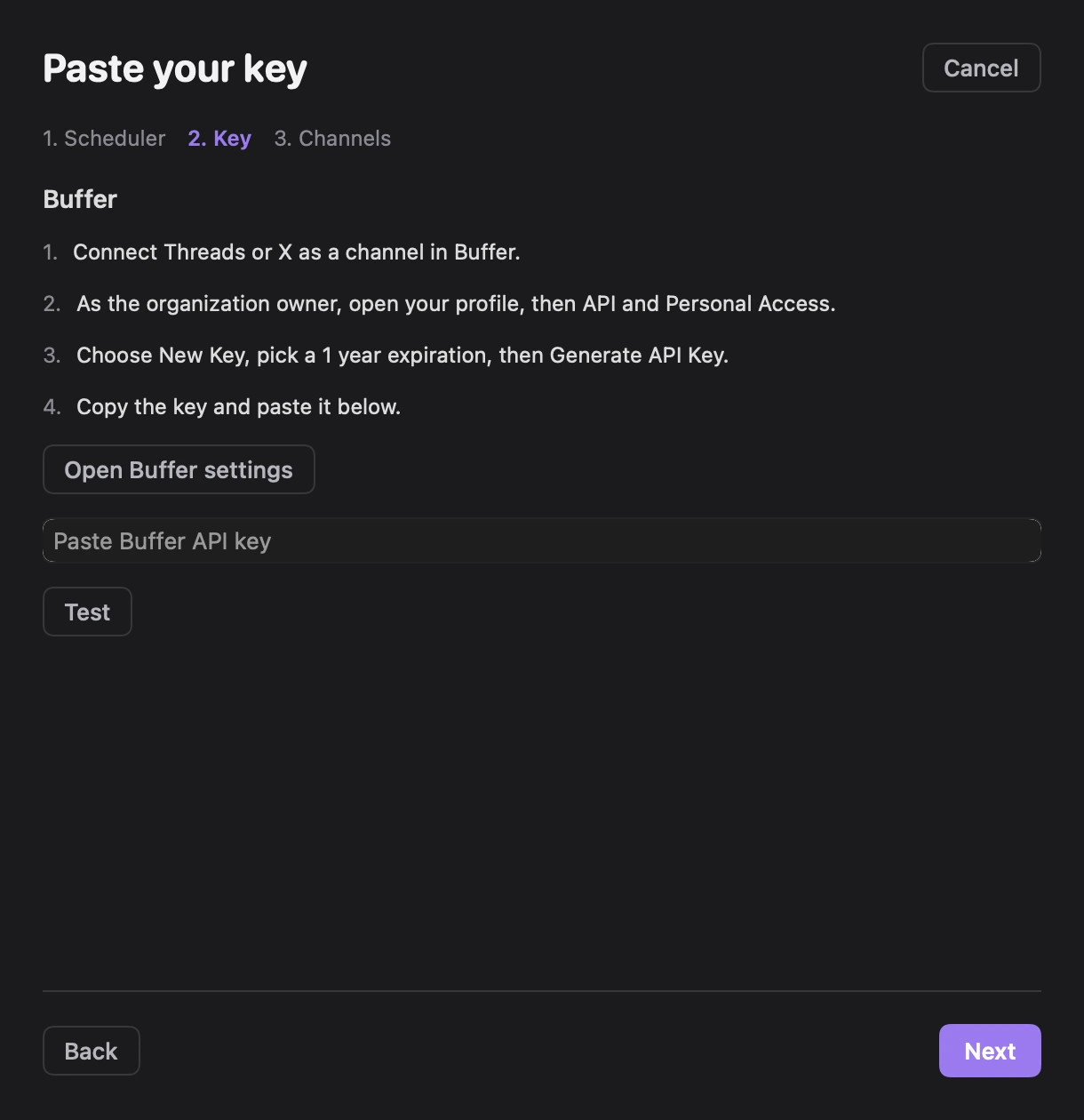
In Threadgehog, open Settings > Publishing and click "Connect a scheduler" under "Schedulers". During setup, "How do you want to publish?" opens the same sheet. Under "Pick your scheduler", choose "Buffer" and click "Next". Under "Paste your key", follow the key instructions or click "Open Buffer settings", then paste into "Paste Buffer API key". Threadgehog tests the credentials automatically a moment after you paste them. When it shows "Connected as" followed by the account name, click "Next".
Choose where the project posts
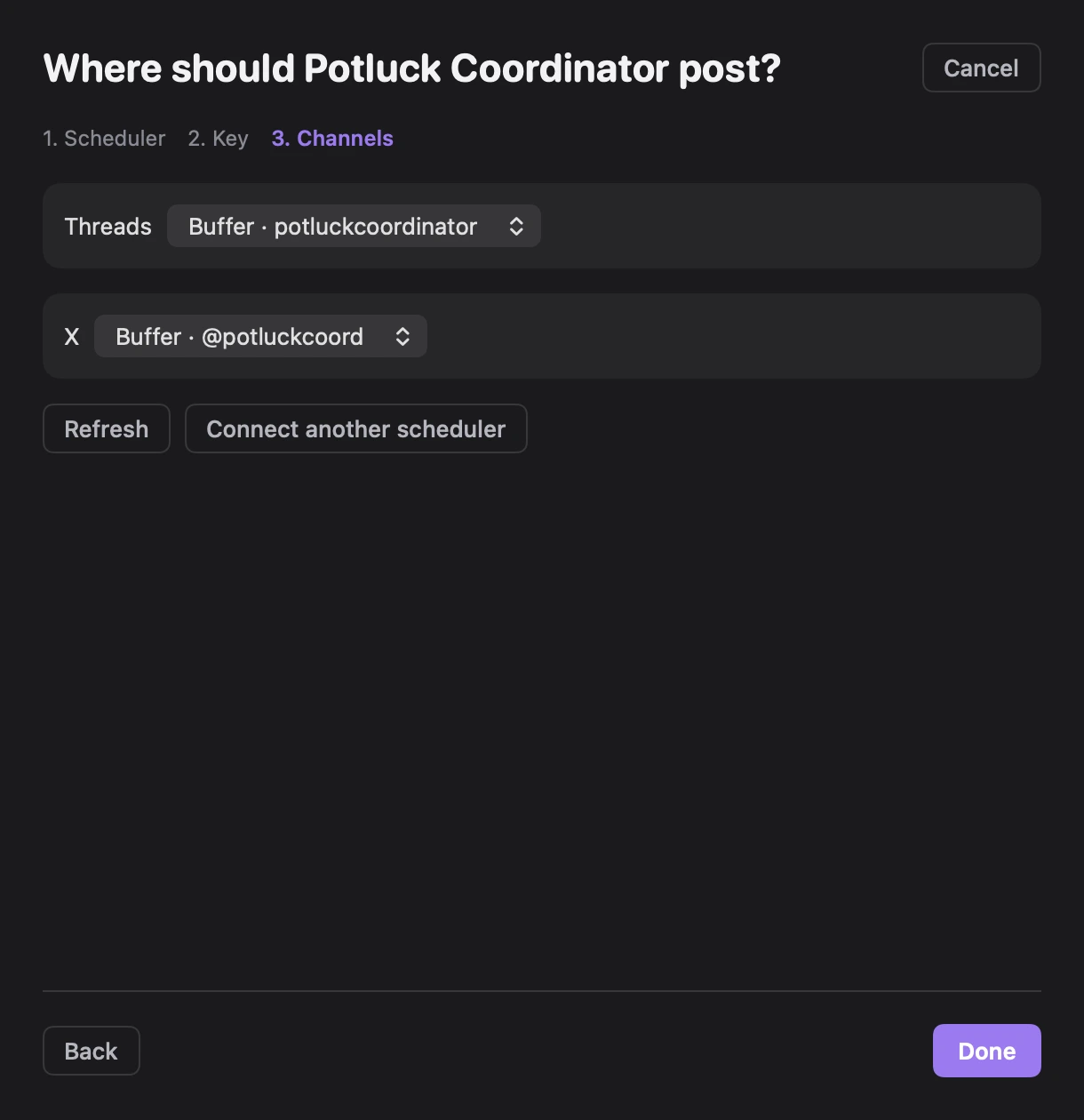
The channel step shows a "Threads" picker, an "X" picker, or both, depending on the project. A single matching channel is preselected; if several match, pick one from "Choose channel". If Buffer has no account for a platform, add it in Buffer, then click "Refresh". Click "Done" to save the project's choices. To change a project later, click "Choose" beside it under "Where each project posts" in Settings > Publishing. New projects get a channel automatically when only one matches; with several, choose them under "Where does <project> post?" in the sheet that opens for the new project.
Pick how often it sends
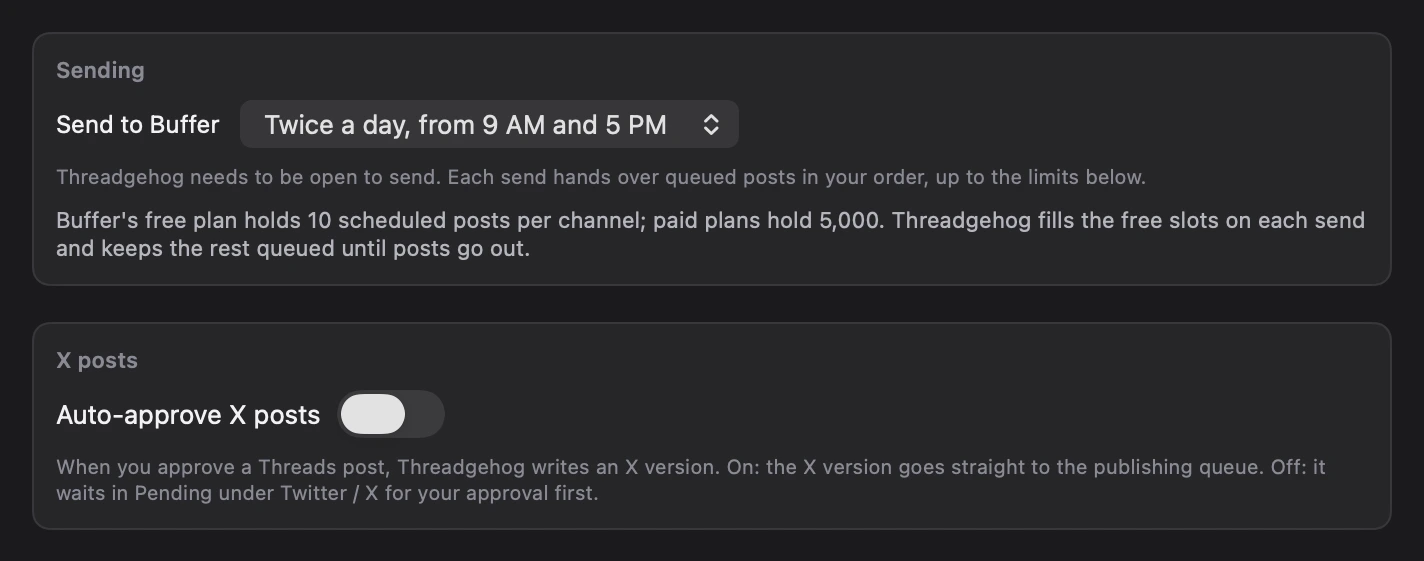
In Settings > Publishing, under "Sending", the "Send to Buffer" menu sets how often Threadgehog sends: once a day from 9 AM, twice a day from 9 AM and 5 PM, every 6 hours, or every hour. Threadgehog needs to be open to send; "Send now" in the Queue sends right away. Turn on "Auto-approve X posts" under "X posts" and the X version of each approved Threads post goes straight to the Queue. The Buffer row's "..." menu under "Schedulers" has "Replace key", "Edit", "Test connection" and "Remove". "Edit" opens "Edit Buffer account", where you can change "Label".
Connect Cloudinary if you post images or video
Buffer can't host images or video itself through Threadgehog, so a post with media needs a public image host first. In Settings, Publishing, the "Images and video (optional)" section appears once Buffer (or Metricool) is connected. Expand it. Create a free Cloudinary account, then an unsigned upload preset (in Cloudinary's console: Settings, Upload, Add upload preset, set Signing Mode to Unsigned, Save; the box links to Cloudinary's own guide). Paste your Cloudinary "Cloud name" and the preset's name into "Unsigned upload preset", then click "Save". Save tests the two values first by uploading a tiny test image through the preset. If that works, the box shows "Cloudinary connected (<cloud name>)" with a Remove button. If it fails, nothing is saved and the box shows "Cloudinary rejected the cloud name or preset: ..." (see Troubleshooting below). Skip this step if you only post text.
What you get
- Multi-post threads go out as threads on both Threads and X, up to Buffer's limit of 25 posts per thread.
- Threadgehog hands your queue to Buffer once a day from 9 AM, twice a day from 9 AM and 5 PM, every 6 hours or every hour, your pick, while the app is open. "Send now" on the Queue tab sends right away.
- Buffer's Free plan is enough to start: API access is included on every Buffer plan, and Free connects up to 3 channels.
- Images and video: connect a free Cloudinary account in Settings > Publishing and Buffer sends them too. Without Cloudinary, a post with media is held back in Pending with a "Needs Cloudinary" badge instead of going out as text-only.
- Engagement numbers from Buffer. Insights syncs them once a day while the app is open, "Sync numbers" on the Insights page pulls them in by hand, and most new drafts build on what your top posts share. Publer, Postiz and Metricool (X posts only) share numbers too; Typefully does not.
- When the project also posts to X, an X version of each Threads post you approve. With "Auto-approve X posts" on in Settings, Publishing, it goes straight to the queue; with it off, it waits in Pending for your approval.
What it costs
Buffer bills you, not Threadgehog, and only if you choose a paid Buffer plan. API access is included on every Buffer plan, including Free. Free connects up to 3 channels and includes 1 API key, 3,000 API requests per 30 days and 10 scheduled posts per channel. On Buffer's pricing page, Essentials is $5 a month per channel and Team is $10 a month per channel, both billed yearly ($60 and $120 a year per channel). Essentials includes 3 API keys and 7,500 requests per 30 days; Team includes 5 keys and 15,000 requests. These figures are from buffer.com/pricing on October 1, 2026. Buffer's prices and limits can change, so check buffer.com/pricing before you upgrade. Threadgehog does not charge extra for connecting Buffer; you pay for Threadgehog separately.
Your key and your data
Threadgehog stores your Buffer API key in your Mac's Keychain. It uses the key to call Buffer's API (api.buffer.com) directly from your Mac when it tests the connection, sends your queue, checks which posts Buffer has published and syncs Insights. The key is not sent to Threadgehog's servers. To revoke it, open Buffer's API settings, click the "⋮" menu next to the key and choose "Revoke". Threadgehog then cannot send to Buffer until you create a new key and paste it in Settings, Publishing. Removing the Buffer entry in Threadgehog does not revoke the key in Buffer; revoke it in Buffer as well if you no longer use it. Your Cloudinary "Cloud name" and upload preset name are not secrets (an unsigned preset needs no API key) and are saved in Threadgehog's app-data folder on your Mac, not the Keychain; Threadgehog uploads media straight to Cloudinary's API (api.cloudinary.com) from your Mac, the same way it talks to Buffer.
Limits to know
- Buffer Free: up to 3 channels, 1 API key, 3,000 API requests per 30 days, 10 scheduled posts per channel.
- Buffer Essentials ($5 a month per channel, billed yearly): 3 API keys, 7,500 requests per 30 days. Buffer Team ($10 a month per channel, billed yearly): 5 API keys, 15,000 requests per 30 days.
- Scheduled posts on paid plans: Buffer's help center says 5,000 per channel; its pricing page lists them as unlimited.
- Buffer also limits requests in rolling windows on every plan: 100 per 15 minutes, and 250 per 24 hours (500 on Team).
- Up to 25 posts in one thread, on X and on Threads.
- Threadgehog sends to Buffer only while the app is open.
- Images and video need a free Cloudinary account connected in Settings > Publishing (Buffer can't host them itself). Without it, a post with media stays parked in Pending with a "Needs Cloudinary" badge instead of sending.
- Cloudinary's Free plan includes 25 monthly credits (1,000 image/video transformations, 1 GB of storage or 1 GB of bandwidth per credit) with no credit card required; check cloudinary.com/pricing before posting a lot of media.
Troubleshooting
The channel step says "No Threads account in Buffer yet. Add it in Buffer, then press Refresh." or the same message for X.
Why: The channel list has no Buffer account for that platform. Buffer can connect a Threads account only if it is public and linked to an Instagram account.
Fix: Connect the missing account in Buffer, then click "Refresh" in the channel step, choose it and click "Done". If the key has lost access, get a current key in Buffer. In Settings > Publishing, open the Buffer row's "..." menu under "Schedulers" and choose "Replace key". Paste the current key into "New API key". Click "Replace"; Threadgehog tests it before saving and shows "Key replaced" on success. The account and its project channel choices stay in place.
The test passes, but a platform picker in the channel step only offers "Choose channel".
Why: Your Buffer account has channels, but none on that network. Buffer can connect a Threads account only if it is public and linked to an Instagram account.
Fix: Connect the missing Threads or X account in Buffer. In Settings > Publishing, click "Choose" beside the project under "Where each project posts", then "Refresh" in the sheet. Pick the Buffer channels and click "Done".
"no publishing channel mapped for project <project name>"
Why: You used "Post now" or "Schedule…" (in the menu next to Approve) on a post whose project has no channel picked for that network. Queued posts for that project wait in the Queue tab for the same reason.
Fix: In Settings > Publishing, click "Choose" beside the project under "Where each project posts". In the sheet, pick the Buffer channel for each platform the project uses, then click "Done".
"buffer_not_configured"
Why: The project's row points at a Buffer entry that is no longer under Schedulers.
Fix: In Settings > Publishing, click "Choose" beside the project under "Where each project posts". In the sheet, pick the Buffer channel for each platform the project uses, then click "Done".
A post with an image or video goes back to Pending with a "Needs Cloudinary" badge, a send reports "Sent N to Buffer. M moved back to Pending: Buffer and Metricool need Cloudinary for images and video. Add it in Settings > Publishing, or post this through Typefully, Publer or Postiz.", or Post now shows "cloudinary_not_configured"
Why: Buffer sends images and video as links hosted on Cloudinary, and no Cloudinary account is connected yet in Settings, Publishing.
Fix: Click the badge (or open Settings, Publishing) and connect Cloudinary: create a free account, add an unsigned upload preset, and paste the Cloud name and preset into the "Images and video (optional)" section, then click Save. Approve the post again, or send it through Typefully, Publer or Postiz instead, which upload media themselves.
Send now reports "Send failed: ..." and the posts stay in the Queue tab.
Why: Nothing could be sent, and the message names the first problem the send hit. "<project name>:threads: no publishing channel mapped" (or :x) means that project's row is still on "Choose channel". "buffer_not_configured" means a row points at a Buffer entry that is no longer connected. Buffer's own text about the key means the key expired, was revoked or was copied wrong. Automatic sends that move nothing show no message.
Fix: Fix what the message names: choose the project's channel or replace the expired key. In Settings > Publishing, click "Choose" beside the project under "Where each project posts". In the sheet, pick the Buffer channel for each platform the project uses, then click "Done". In Settings > Publishing, open the Buffer row's "..." menu under "Schedulers" and choose "Replace key". Paste the current key into "New API key". Click "Replace"; Threadgehog tests it before saving and shows "Key replaced" on success. The account and its project channel choices stay in place. Then click "Send now" again.
Settings, Publishing shows "Buffer rejected this key. Check it in Buffer and paste it again.", your Buffer channels stop loading, or Insights shows "Synced with 1 issue(s): Buffer: org lookup failed: ..."
Why: The Buffer key expired on the date you picked when you created it (7, 30, 60 or 90 days, or 1 year), or it was revoked.
Fix: Create a new key in Buffer using the steps above. If you are still on "Paste your key", correct the credentials there and wait for the automatic test, then click "Next" when it passes. For a saved account, open Settings > Publishing and open the Buffer row's "..." menu under "Schedulers" and choose "Replace key". Paste the current key into "New API key". Click "Replace"; Threadgehog tests it before saving and shows "Key replaced" on success. The account and its project channel choices stay in place.
More than one Buffer entry appears under "Schedulers".
Why: The account was connected more than once. A new connection saves an account when you click "Next" after a passing key test; "Test" alone does not save one.
Fix: Open each unwanted Buffer row's "..." menu under "Schedulers", choose "Remove", and confirm. Posts already scheduled there stay scheduled. Removing an account clears project choices that used it. In Settings > Publishing, click "Choose" beside the project under "Where each project posts". In the sheet, pick the Buffer channel for each platform the project uses, then click "Done".
"Buffer is limiting how fast posts can be added right now. Threadgehog keeps sending on the next run. Your queue is intact."
Why: Buffer limits API requests per key: 100 per 15 minutes, 250 per 24 hours (500 on Team), and a 30-day total set by your plan.
Fix: Nothing is lost. Queued posts stay in the Queue tab, and Threadgehog checks again every 30 minutes while the app is open, sending once Buffer accepts requests again.
"Sent N; R left (Buffer queue full for now)"
Why: Buffer's Free plan holds 10 scheduled posts per channel. Once a channel has 10 waiting, Buffer refuses more until some go out.
Fix: Nothing is lost. The rest stay in the Queue tab and go to Buffer on later sends as Buffer frees slots. If an automatic send moved nothing because Buffer was full, automatic sends pause until the next 9 AM; approving a new post or changing the send schedule ends the pause early. A paid Buffer plan raises the per-channel limit.
A post is back in Pending with an orange "Buffer refused this" badge.
Why: Buffer rejected the post's content, for example a post over the length limit, a line that looks like a direct message, or an empty post. Threadgehog moves it back to Pending so it does not block the rest of the queue.
Fix: Hover over the badge to read Buffer's reason, edit the post, and approve it again.
"Already in Buffer"
Why: You used "Post now" or "Schedule…" on a post Buffer already has.
Fix: Nothing to fix. Threadgehog marks the post as scheduled.
"Synced with 1 issue(s): no Buffer accounts configured"
Why: Insights tried to sync before Buffer was connected.
Fix: Connect Buffer in Settings, Publishing (steps 2 to 4 above), then click "Sync numbers" on the Insights page.
Settings > Publishing has no "Images and video (optional)" section.
Why: The section appears only when Buffer or Metricool is connected.
Fix: Connect Buffer, then expand "Images and video (optional)". If you use an older app version, open Settings > About and click "Check for Updates".
"Couldn't reach Buffer. Check your connection and try again." or "Buffer answered with an error: ..." in the connect sheet.
Why: The connection test or channel refresh could not get Buffer's channel list: your Mac is offline or Buffer did not answer, or Buffer sent back an error it explains after the colon.
Fix: Check your internet connection, then click "Test" again on the key step or "Refresh" on the channel step. For a saved account, use "Test connection" in its "..." menu under "Schedulers". If the error is about the key, replace it using the rejected-key instructions above.
Send now reports "Send failed: Cloudinary: ...", or a post with an image or video stays in the Queue tab while text posts go out
Why: Cloudinary refused the upload. Save tests the Cloud name and preset when you click it, so this means the preset changed in Cloudinary after you saved it: it was deleted, renamed or switched to signed.
Fix: In Cloudinary, open Settings, Upload, Upload presets. If the preset is still there under the same name, set its Signing mode back to Unsigned. If it was renamed or deleted, use its new name or create a new unsigned preset, then in Threadgehog's Settings, Publishing, click Remove in the "Images and video (optional)" section, paste your Cloud name and preset name exactly as Cloudinary shows them, and click Save. Then click Send now.
"Cloudinary rejected the cloud name or preset: ..." in the "Images and video (optional)" section after you click Save
Why: Save tests the Cloud name and preset by uploading a tiny test image, and the test failed, so nothing was saved. The message after the colon says why: the cloud name was not found, the upload preset was not found, or there was no network. Threadgehog also checks that the cloud name uses only letters, digits, hyphens and underscores.
Fix: If the message says there was no network, check your internet connection. Otherwise, copy the exact cloud name from your Cloudinary dashboard, then open Settings, Upload, Upload presets in Cloudinary and check that your preset is listed under the name you typed with Signing mode set to Unsigned. Paste both into the box and click Save again.
Questions
Which Buffer plan do I need?
Free works. API access is included on every Buffer plan. Free connects up to 3 channels and holds 10 scheduled posts per channel, with 1 API key and 3,000 API requests per 30 days. Essentials and Team add API keys and requests and raise the scheduled-post limit. Prices and limits can change, so check buffer.com/pricing.
Does connecting Buffer cost extra?
No. API access is included on every Buffer plan, including Free, and Threadgehog does not charge for connecting Buffer. You pay Buffer only if you choose a paid Buffer plan, and you pay for Threadgehog separately.
Where is my Buffer API key stored?
In your Mac's Keychain. Threadgehog calls Buffer's API from your Mac with it, and the key is not sent to Threadgehog's servers. You can revoke it at any time in Buffer's API settings: click the "⋮" menu next to the key and choose "Revoke".
Can Threadgehog post to Threads or X without Buffer?
Not directly. Threadgehog hands approved posts to a scheduler: Buffer, Typefully, Publer, Metricool or Postiz. Without one, choose "Export only" on setup's "How do you want to publish?" step and copy or export posts yourself.
Does Threadgehog need to stay open?
Yes, for sending. Threadgehog hands posts to Buffer only while the app is open. Posts already in Buffer go out on Buffer's schedule without Threadgehog.
What happens if Buffer hits its limit or cannot be reached?
Queued posts stay in Threadgehog's Queue tab until a send succeeds. When Buffer's API limit is hit, a banner says so, and Threadgehog checks again every 30 minutes while the app is open.
Can I switch from Buffer to a different scheduler later?
Yes. In Settings > Publishing, click "Connect a scheduler" and finish the key and channel steps for the new scheduler. For each other project, click "Choose" under "Where each project posts", pick the new channels and click "Done". Existing valid channel choices stay selected until you change them. Posts already sent to the old scheduler stay scheduled there; posts still in Threadgehog's queue use each project's chosen channel on the next send.
Do images and video go out through Buffer?
Yes, once you connect Cloudinary. Buffer can't host media itself, so Threadgehog uploads it to a free Cloudinary account you connect in Settings, Publishing, then sends Buffer the link. Without Cloudinary, a post with media stays in Pending with a "Needs Cloudinary" badge; send it through Typefully, Publer or Postiz instead (they upload media directly), or remove the media and send as text.
I am still stuck. Who can help?
Open threadgehog.com/support or email support@threadgehog.com. Include the exact message Threadgehog showed and the step you were on. Never send your Buffer API key.
Links
- Buffer API settings
- Sign up for BufferThreadgehog may earn a commission if you sign up through this link.
- Buffer pricing
- How to create your Buffer API key
- Does Buffer have an API?
- Using Threads with Buffer
- Using X/Twitter with Buffer
- Troubleshooting Buffer's API
- How many posts can I schedule in advance?
- Threadgehog support
- Create a free Cloudinary account
- Cloudinary pricing